
Guides
Resize, Crop, or Compress? Fit a JPG to a 200 KB Upload Limit
Learn when to resize, crop, or compress an image for upload. Follow a tested workflow that produces a 1600 × 1600 JPG under 200 KB.
Ethan Wang
Crop when the form needs a different shape. Resize when it limits pixel dimensions. Compress when only the file is too large. We took a landscape product image, cropped it to a square, converted it to JPG, and downloaded a 1600 × 1600 px file at 196,244 bytes. We also tested two ways to keep the landscape framing.
Which upload requirement is failing?
- The image must be square or a different shape. Crop to the required aspect ratio. Check framing, especially the subject and any text.
- The width, height, or pixel count is out of range. Resize within the stated limits. Check both dimensions in pixels.
- The form only accepts JPG or another specific format. Convert to that format and choose a background if the source is transparent. Check the actual format and background.
- The file must stay within 200 KB or another limit. Compress. Check the exact byte count and visible detail.
When several requirements apply, settle the framing, dimensions, and format first. Then compress the file you plan to submit. Check for a minimum or exact pixel size before reducing either dimension.
How do you make a square JPG under 200 KB?
Suppose the upload needs a 1:1 JPG no larger than 200,000 bytes, and 1600 × 1600 px is within the allowed range.
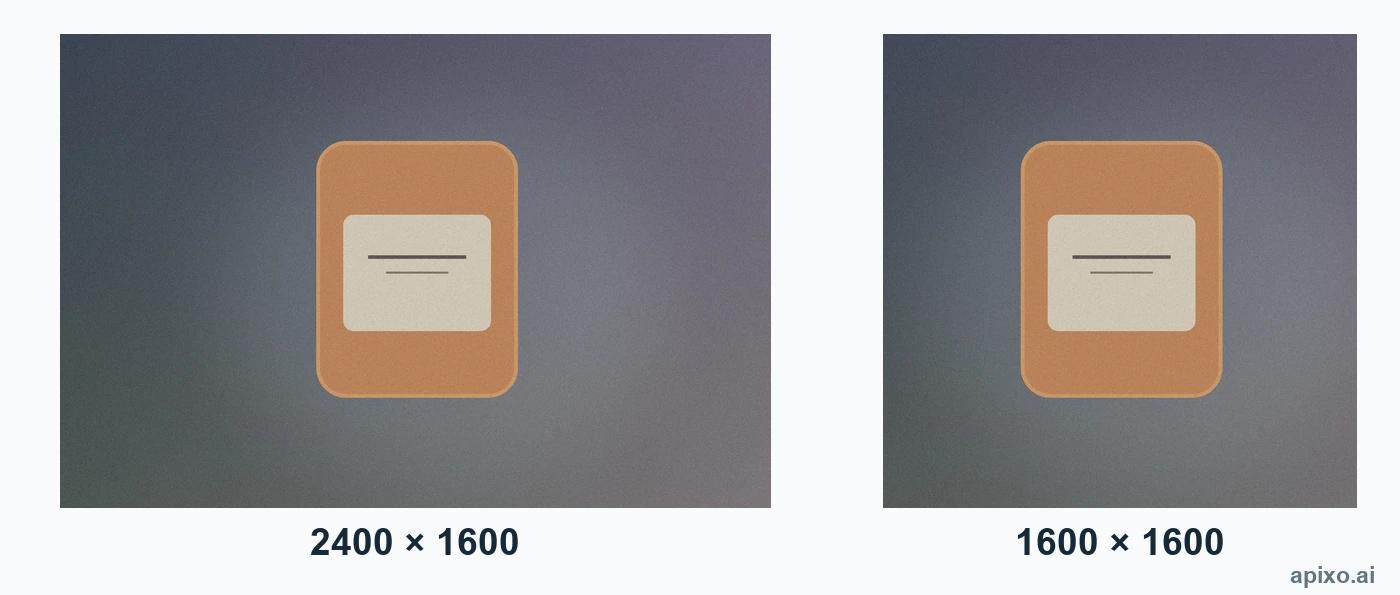
- Open the image cropper, set the ratio to 1:1, and frame the product and label. Our 2400 × 1600 px landscape file yielded a 1600 × 1600 px PNG at 3,883,333 bytes.
- Export with the PNG to JPG converter. This kept the 1600 × 1600 px dimensions and produced a 1,848,454-byte JPG.
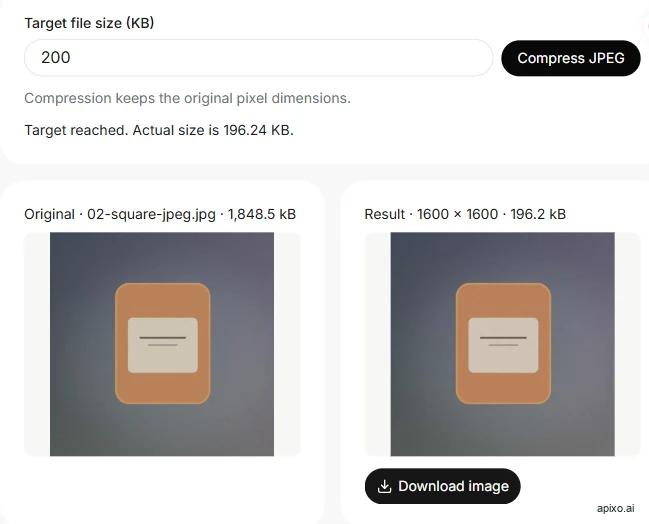
- Open the JPG in the image compressor and enter a 200 KB target. The download was 196,244 bytes at 1600 × 1600 px, meeting the example requirements for shape, format, and file size.
When should you resize a landscape image first?
We tried two paths with the same 2400 × 1600 px landscape JPG (1,898,492 bytes). Keeping the original dimensions and entering a 200 KB compression target produced 200,419 bytes, or 419 bytes above the example limit. Using the image resizer to scale it to 1200 × 800 px gave us 210,603 bytes. Compressing that version yielded 193,421 bytes and kept the 1200 × 800 px dimensions.
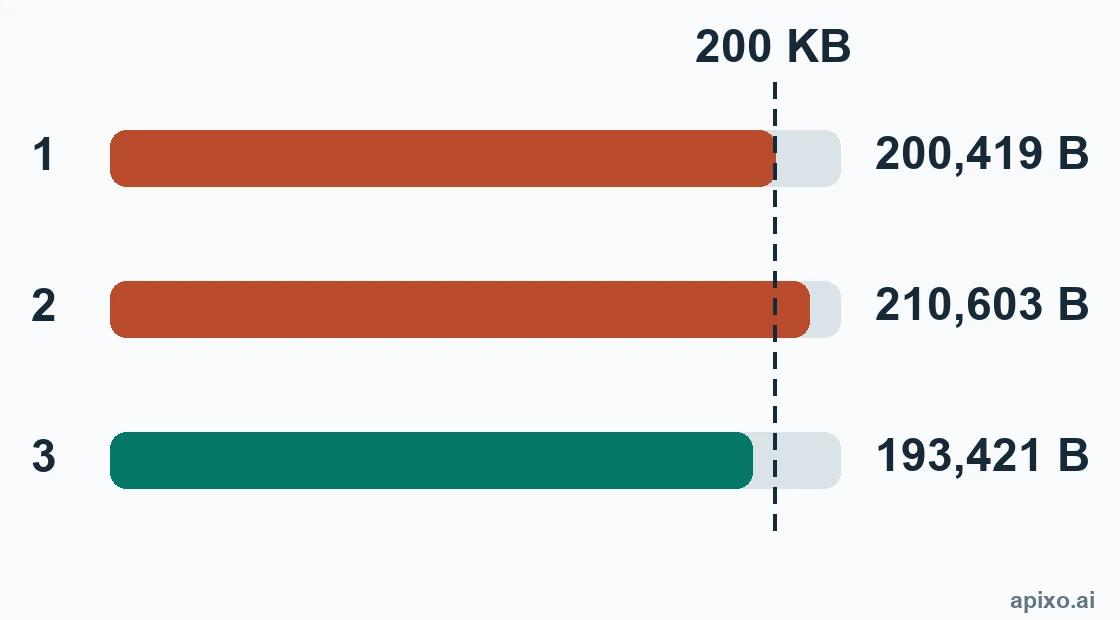
If the form accepts smaller dimensions, choose a size that preserves the detail the recipient needs. If it requires the original dimensions, go back to the original file and try a lower compression target. Then check the downloaded byte count and the visible detail.
What should you verify before submitting?
Reopen the download and check the format, pixel dimensions, orientation, and file size. Zoom in on the smallest text and important details.
If a square JPG has exactly the right dimensions but the portal still says it is too large, read Size in the file properties, down to the byte. When the cap is 200,000 bytes and the download is 200,419 bytes, export again from the pre-compression JPG with a slightly lower target, then recheck both the byte count and the smallest label text. If the upload requires exactly 1600 × 1600 px, keep those dimensions on the second try.
If you also need to choose a format or handle a transparent background, see how WebP, PNG, and JPG compare in our export tests.
Build with APIXO
Explore image, video, and audio models in one place.