
Product listing images, styled scenes, flat lays, ghost mannequin shots and short product videos. Each card opens the tool for that format.
AI Ad Generator
AI Ad Generator collects the APIXO tools for e-commerce ads in one place. Upload a product photo, pick the result you need, from a white-background listing image to a styled scene or a short product clip, and open that tool to create it.
Product photos for ads
Start from one product photo and turn it into ad-ready images: a clean white background, a styled scene, a flat lay or a ghost mannequin shot for apparel.
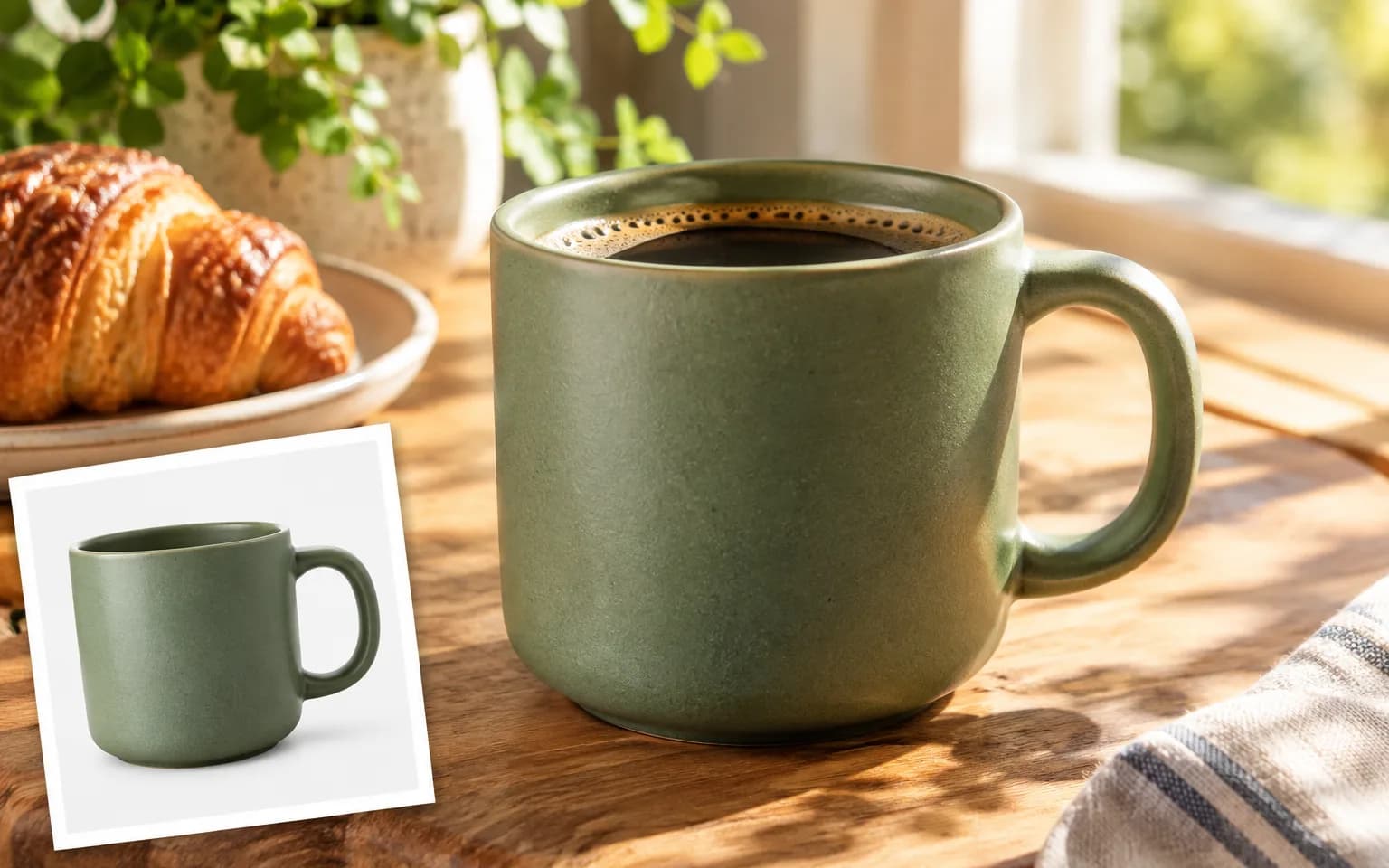
Product Photo Generator
Turn a basic product image into a directed commercial photo.
Try it now →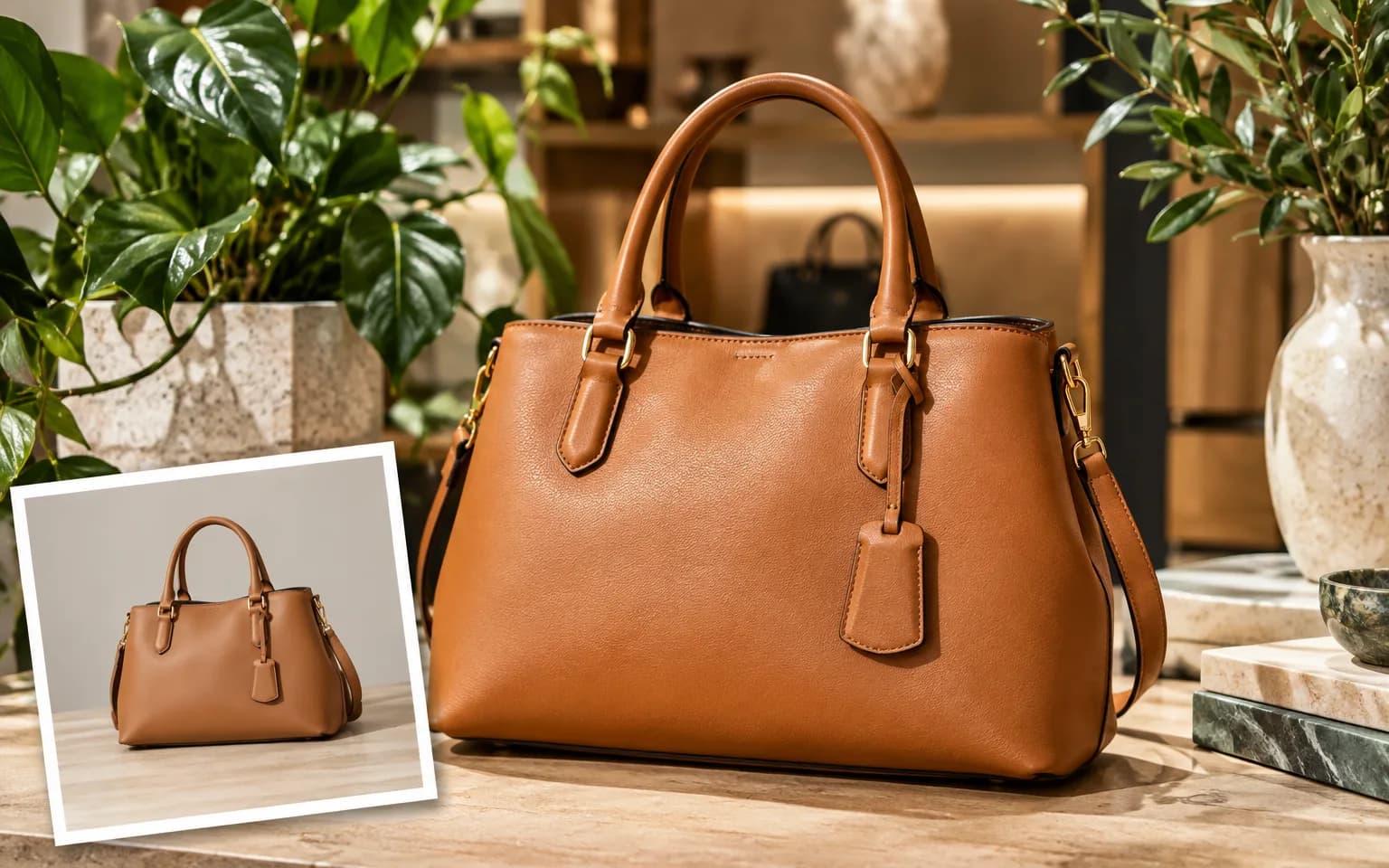
Product Staging
AI product staging: place your product in a styled scene built around its shape and purpose.
Try it now →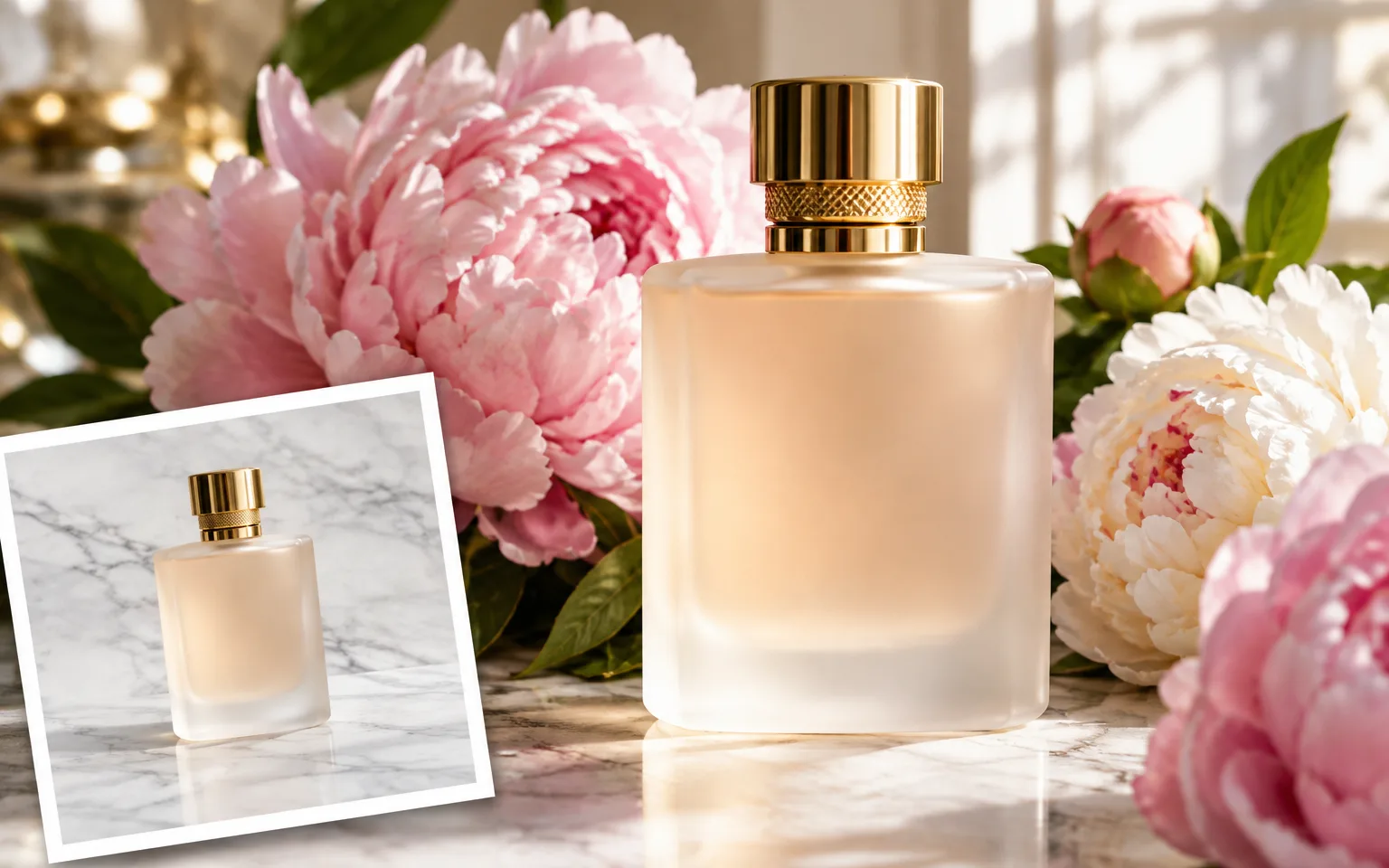
Clone Product Image
Copy the style of any product photo while keeping your item recognizable.
Try it now →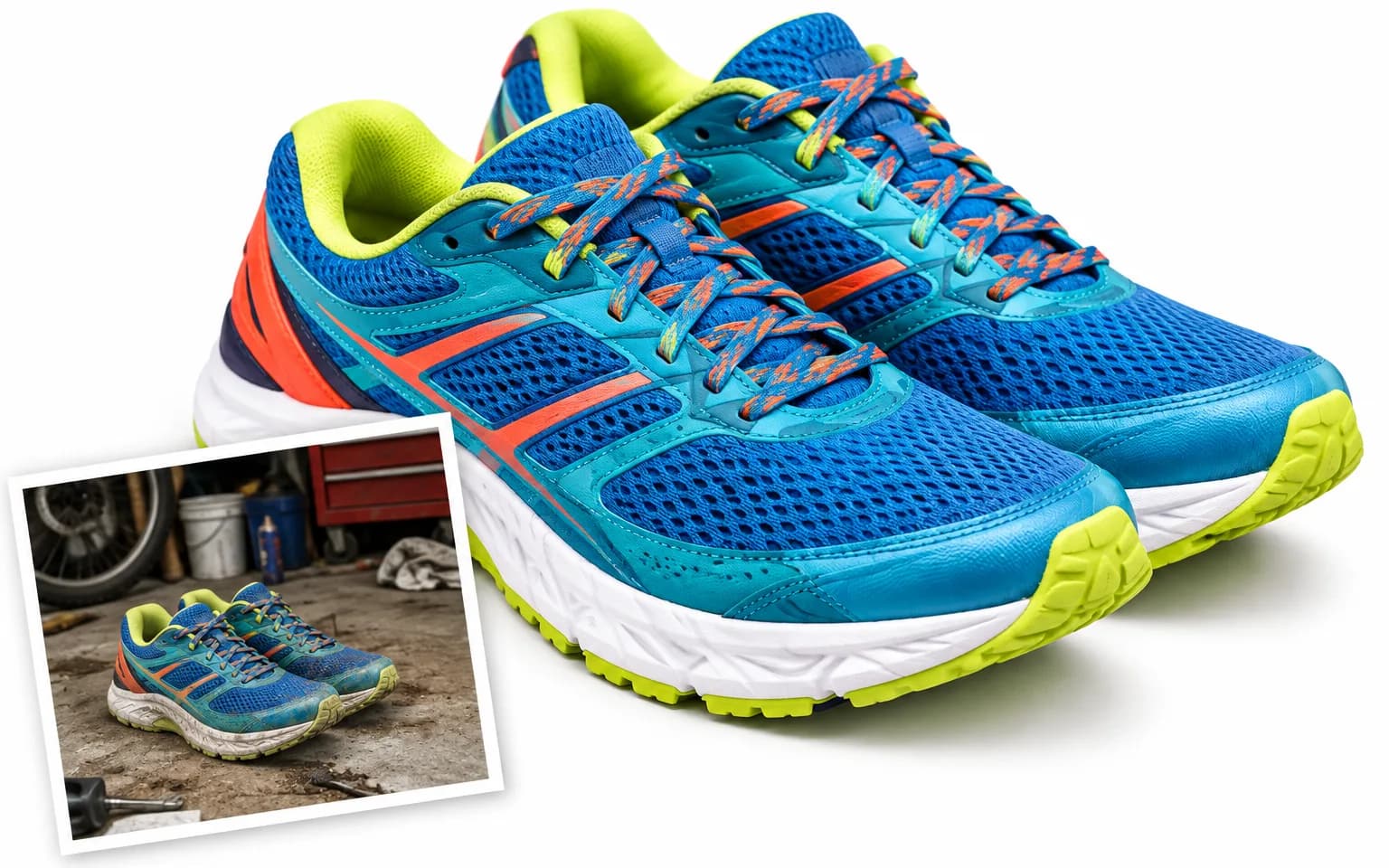
White Background
Give a product, portrait or object a clean white background.
Try it now →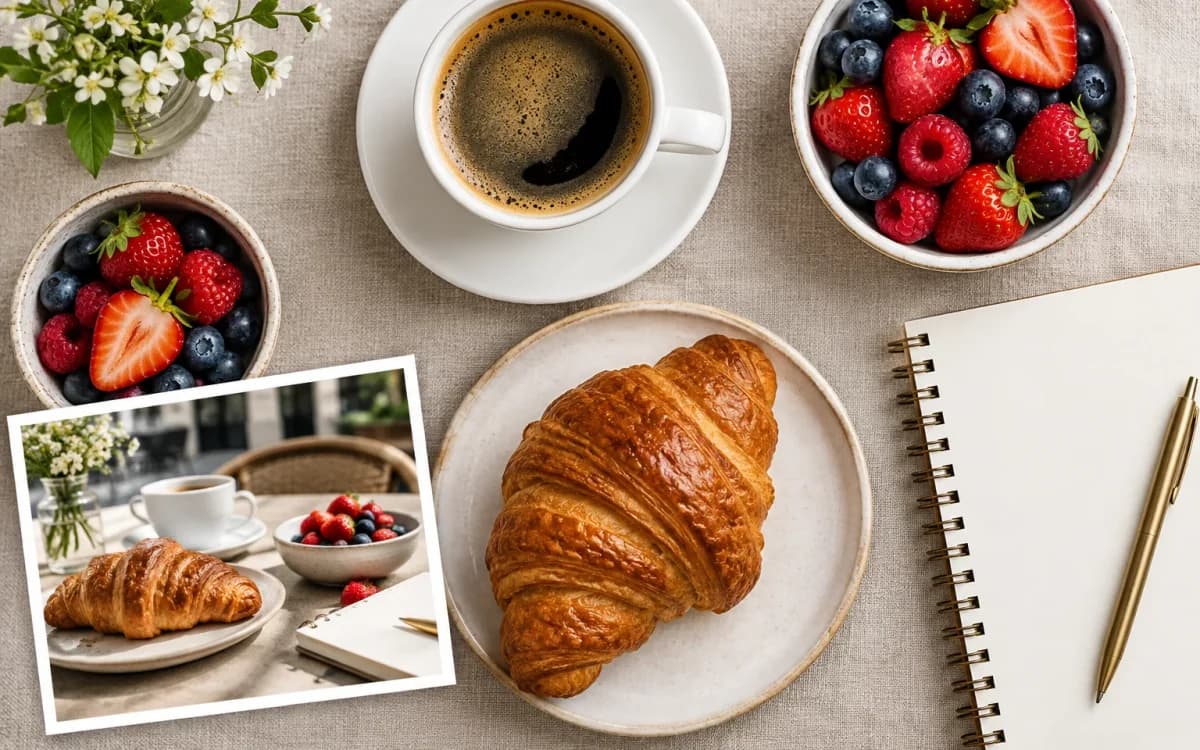
Flat Lay Generator
Arrange your product in a balanced overhead composition.
Try it now →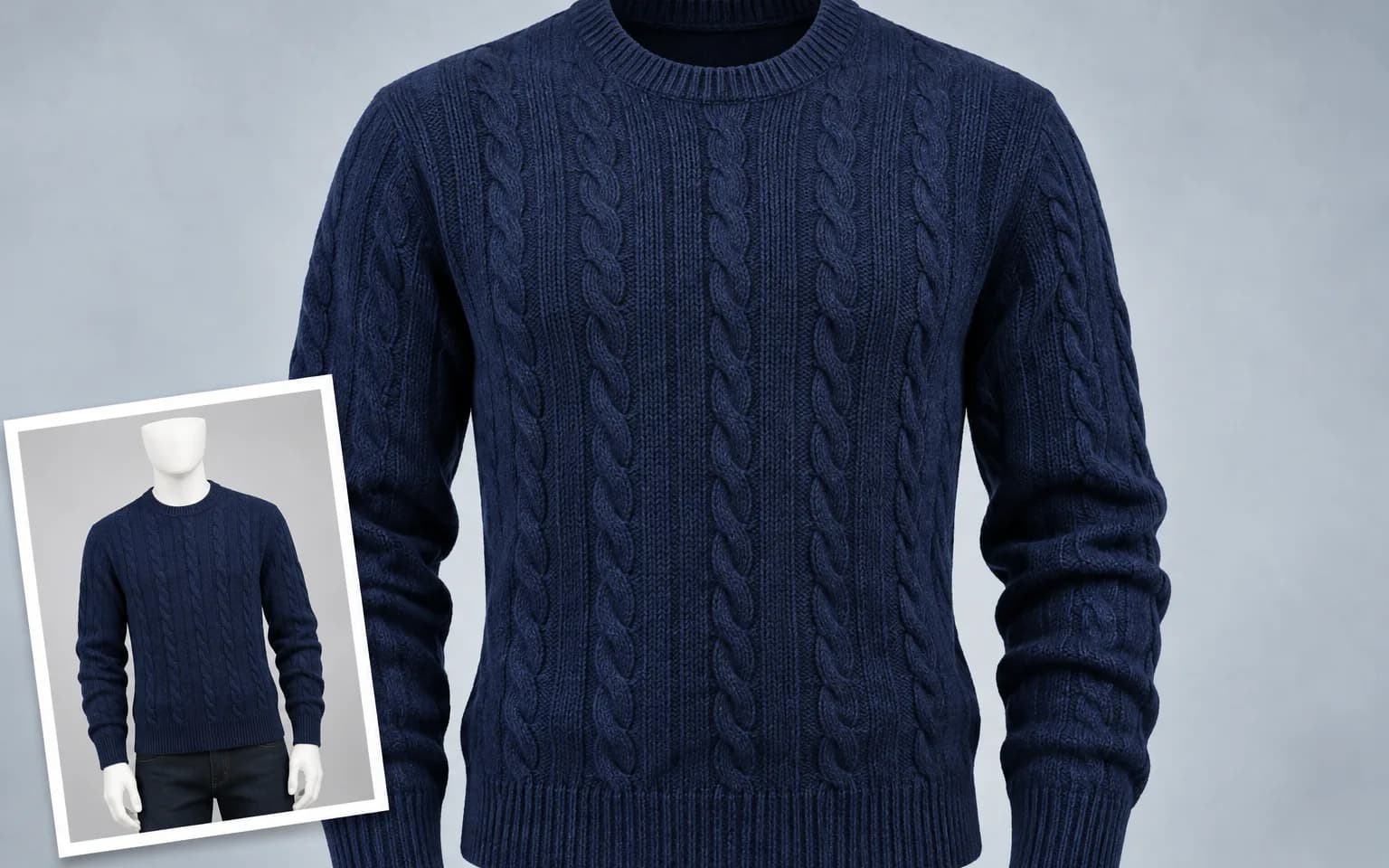
Ghost Mannequin
Show apparel with natural volume and no visible mannequin.
Try it now →Product video ads
Animate a product image into a short clip. Describe the camera move and the motion you want, then review the full video before you use it in an ad.
Why use it
Choose the ad format you need
Listing and catalog images
Use White Background for marketplace listings, or Product Photo Generator when you want a clean studio look. Upload a sharp photo with the whole product in frame.
Lifestyle scenes and campaign looks
Use Product Staging to place your product in a described setting, or Clone Product Image to follow the style of a reference ad you upload.
What is an AI ad generator?
Ad creative that starts from your product photo
An AI ad generator turns the product photos you already have into images and clips you can use in listings, social posts and paid campaigns. Each card on this page opens one focused tool, so you only upload what that result needs.
Most ad sets need several formats of the same product: a clean catalog shot, a lifestyle scene that shows the product in use, and a short video for feeds. Starting every format from the same photo keeps the product consistent across the whole set.
Capabilities
What you can make
White-background shots
Remove a busy background and keep the product on clean white for listings.
Styled product scenes
Describe a surface, props and lighting, and stage the product inside that scene.
Apparel shots
Create flat lays or ghost mannequin images from clothing photos.
Short product clips
Animate a product image with the camera move and motion you describe.
Who it is for
Who uses it
Online store owners
Refresh listing images and seasonal visuals without booking a new shoot for every product.
Marketing and social teams
Prepare several image and video variations of one product to test in different placements.
01
Pick a format
Choose the card that matches the ad you need and open its tool.
02
Upload your product and generate
Add a clear product photo, describe the scene or motion if the tool asks for it, check the displayed estimate and generate.
03
Review and download
Check labels, logos and product shape closely, regenerate if needed, then download the version for your campaign.
Tips & FAQ
Get better results
Tips
01
Use a sharp, evenly lit product photo. Text and logos on the packaging come out best when they are readable in the original.
Frequently Asked Questions
No, but the source matters. A clear photo with the whole product in view and readable packaging gives the tools the most accurate starting point.
Yes. Open Image to Video, upload the product image and describe the camera move and motion. Watch the full clip to confirm the product stays accurate.
Generating uses pay-as-you-go credits, and the cost depends on the tool and model. Each tool shows the estimate before you submit.
Create your next product ad
Pick a format above and start from the product photo you already have.
Try it now