



APIXOAPIXO

Create

AI Video
AI Image
AI Audio

Library

GenerationsAssets

Explore

ModelsAI ToolsPricing
APIXOAPIXO
APIXO
APIXO

Create any content you can imagine. Trusted by millions of creators.

Support@apixo.ai

Models

Claude Sonnet 4.6
Face Swap
Flux 2
FLUX 3
Flux Kontext
Gemini 3.1 Pro Preview
Gemini Omni
GPT-5.5
GPT-Image-1
GPT-Image-2
GPT-Image-2.5
Grok Image
Grok Imagine Video 1.5
Grok Video
Hailuo 2.3
Hailuo 2.3 Fast
HappyHorse
Head Swap
Image Upscaler
Image Watermark Remover
InfiniteTalk
Kling 2.1
Kling 2.5 Turbo Pro
Kling 2.6
Kling 3.0 Omni
Kling 3.0 Std
Kling 3.0 Turbo
LTX-2 19B
Midjourney
MiniMax H3
MiniMax H3 LoRA
MiniMax Image 01
MiniMax Speech 2.8
MiniMax Voice
Nano Banana
Nano Banana 2
Nano Banana Pro
Qwen Image 3.0
Qwen Image 3.0 Pro
Seedance 1.5 Pro
Seedance 2.0
Seedance 2.0 Fast
Seedance 2.0 Mini
Seedance 2.5
Seedream 4.5
Seedream 5.0
Seedream 5.0 Pro
Sora 2
Sora 2 Pro
Suno V6
Veo 3.1
Video Upscaler
Video Watermark Remover
Vidu Q3
Wan 2.2 Animate
Wan 2.5
Wan 2.5 Image
Wan 2.6
Wan 2.6 Image
Wan 2.7
Wan 2.7 Image
Wan 3.0 Video
Wan 3.0 Video LoRA
Wan 3.0 Video Pro LoRA
Z-Image LoRA
Z-Image LoRA Pro

Product

FeaturedImage ModelsVideo ModelsAudio ModelsText Models

Resources

AffiliateCompany InformationTerms of ServicePrivacy PolicyRefund PolicyShipping / Digital Delivery Policy

Other

PricingAPI Docs

© 2026 APIXO. All rights reserved.

MODEL AVAILABILITY, PRICING, AND ROUTING CAN VARY BY PROVIDER AND REGION.

CreateGenerationsAssets
  1. Home
  2. Image Tools
  3. White Background

AI White Background Editor

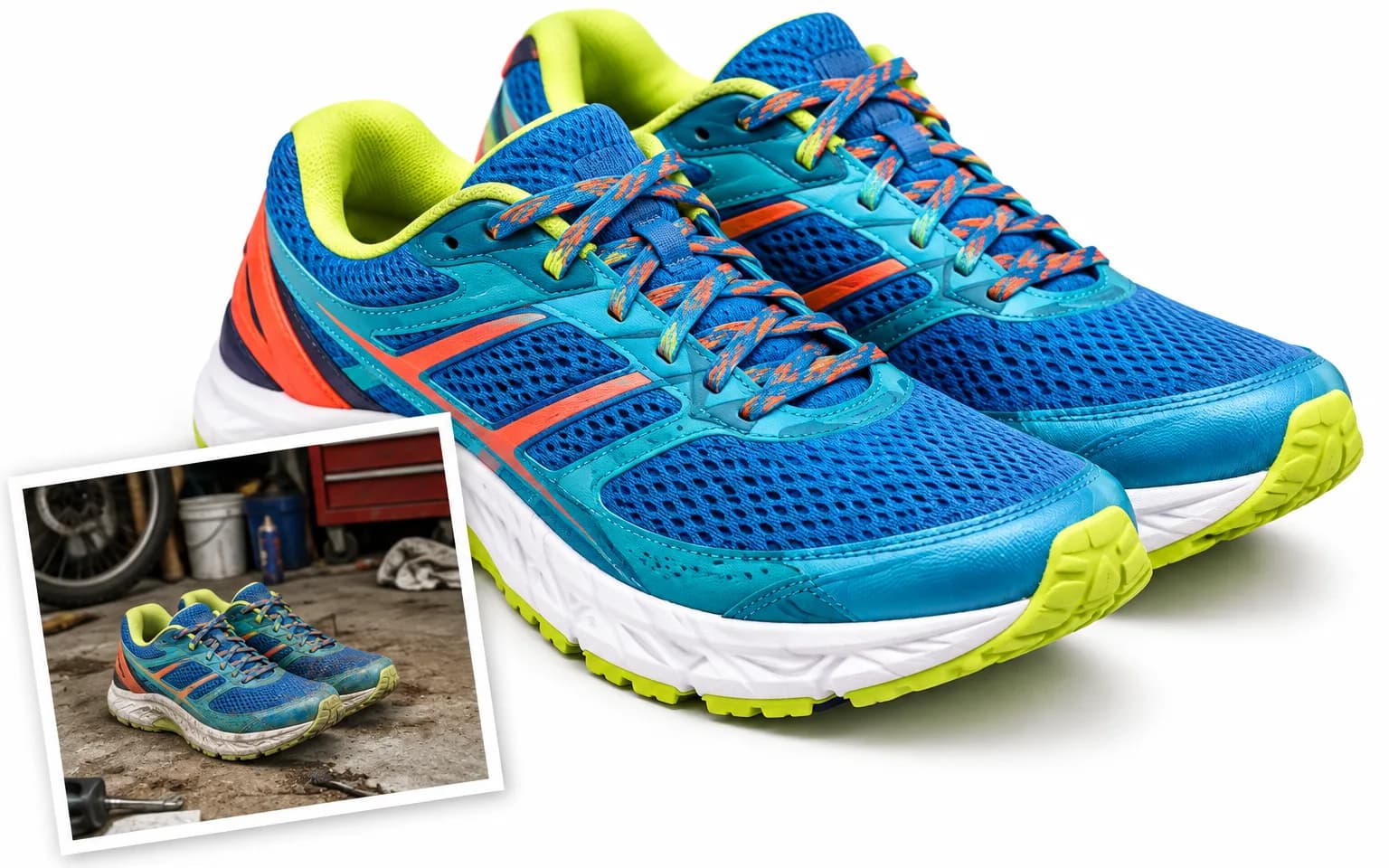
AI White Background Editor places a product, person or object on a clean neutral white setting while preserving the foreground. Upload one image and generate a focused result with carefully retained edges, colors, materials, identity and natural contact shadows instead of requesting a transparent cutout.

  • Image Upscaler
  • Image Enhancer
  • Unblur Image
  • Denoise Image
  • Face Swap
  • Camera Angle Changer
  • Image Relight
  • Background Changer
  • White Background
  • Watermark Remover
  • Object Remover
  • All Tools
White Background
Why use it

Create focused photos with AI White Background Editor

Use a consistent neutral setting

The system prompt fixes the requested environment to clean neutral white, making the workflow more constrained than a general background replacement. That consistency supports product listings, portraits, catalog references and design assets where background variation would distract from comparison.

Try it now

Preserve foreground detail

Products retain their requested shape, materials, colors and legitimate labels, while portraits retain identity, pose, clothing and features. The prompt also protects framing and foreground content so the result remains connected to the uploaded image rather than becoming a new subject.

Try it now

Keep believable grounding

A perfectly flat fill can make an object appear suspended. The model is asked to preserve or generate subtle, plausible contact shadows and edge transitions, helping the subject sit naturally against white while keeping the overall scene restrained.

Try it now

Stay within a single-image workflow

This tool produces an image with a white visual background through generative editing. It does not promise a transparent alpha channel or separate cutout file. Use the result when a visible white setting meets the publishing requirement.

Try it now
Capabilities

What AI White Background Editor can prepare

Product listings

Create a focused listing draft while preserving merchandise color, shape, texture and approved package details.

Catalog consistency

Give separate authorized source images a more consistent neutral setting for easier visual comparison across a collection.

Clean portraits

Place a person against white while asking the model to keep identity, facial features, hair, clothing and pose stable.

Object references

Isolate the visual attention around a craft, collectible or sample without requesting a transparent background file.

Related scene options

Move to Background Changer for a described environment or Blur Background when the existing context should remain visible.

API asset preparation

Test the workflow visually before integrating a supported model through APIXO for authorized catalog operations.

Who uses AI White Background Editor
Who it is for

Who uses AI White Background Editor

Online merchants

Prepare clean product imagery for storefront drafts while verifying that materials, labels and colors remain accurate.

Catalog teams

Normalize varied owned photographs around a restrained visual background before selecting final publishing assets.

Portrait creators

Create a simple profile or reference image while preserving the pictured person and reviewing every facial detail.

Design teams

Produce a neutral source for layouts where a visible white setting is useful and transparency is not required.

Models

Models behind this tool

  • OpenAI logoGPT-Image-2.5OpenAI
  • OpenAI logoGPT-Image-2OpenAI
  • ByteDance logoSeedream 5.0 ProByteDance
  • ByteDance logoSeedream 5.0ByteDance
  • ByteDance logoSeedream 4.5ByteDance
  • Google logoNano Banana ProGoogle
  • Google logoNano Banana 2Google
  • Google logoNano BananaGoogle
  • Alibaba logoQwen Image 3.0 ProAlibaba
  • Alibaba logoQwen Image 3.0Alibaba
  • Black Forest Labs logoFlux 2Black Forest Labs
  • Black Forest Labs logoFlux KontextBlack Forest Labs
  • Midjourney logoMidjourneyMidjourney
  • MiniMax logoMiniMax Image 01MiniMax
  • Alibaba logoWan 2.6 ImageAlibaba
  • Alibaba logoWan 2.5 ImageAlibaba
  • xAI logoGrok ImagexAI
How it works

How to use AI White Background Editor

Try it now
01

Upload the subject photo

Choose an authorized source with a visible person, product or object and enough detail around its edges.

02

Add preservation details

Optionally identify colors, labels, materials, identity features or shadows that the generated edit must keep.

03

Generate and verify

Review edges, colors, markings and grounding against white, then compare another model if needed.

Tips & FAQ

Get better results

Tips

01

Start with a clear subject edge and sufficient separation from the original background where possible.

02

Mention exact product colors, labels or facial details that must remain stable in the optional instruction.

03

Inspect fine hair, translucent materials, reflective edges and pale objects against the generated white setting.

04

Check contact shadows so the subject looks grounded without introducing an unrelated floor, prop or reflection.

05

Do not use this workflow when the downstream requirement is a true transparent alpha channel.

Frequently Asked Questions

AI White Background Editor is a generative image editing workflow that replaces the original background with a visible neutral white setting. It keeps the foreground as the visual reference and asks the model to preserve important identity, shape, material, color and label details.

Upload the image and submit the generation. You can use the optional description to name foreground details that must remain unchanged, but the background treatment is already defined. Review boundaries, pale areas, reflections and contact shadows before selecting the result.

No transparent output is promised. This workflow uses image-to-image generation to create a picture that visibly contains a white background. If your production process requires an alpha channel, isolated mask or editable cutout, use a tool specifically designed to provide that output contract.

Use a clear image accepted by the upload control. A well-lit source with visible edges and enough surrounding context gives the model more information to preserve important details. Very small, heavily compressed, blocked or ambiguous areas can make reconstruction and fine lettering less consistent.

Generation uses credits based on the model and parameters selected for the task. The workbench shows an estimate before submission, so you can review the expected charge before starting. Switching models or output settings can change that estimate without changing the purpose of the tool.

Yes. The models that power the workbench are also available through APIXO APIs for developers building repeatable image workflows. The related model pages explain current request fields and response handling. Use the workbench for visual testing, then choose the matching model documentation for integration.

Commercial use depends on your rights to the source image, its people, logos, artwork and other protected material, together with the terms that apply to your selected model and destination. Only upload content you are authorized to edit, and review relevant permissions before publishing or selling the result.

More tools

  • Text to Image
  • Image to Image
  • Image Upscaler
  • Image Enhancer
  • Photo Restoration
  • Unblur Image
  • Image Sharpener
  • Denoise Image
  • Face Enhancer
  • Photo Retouching
  • Unpixelate Image
  • Face Swap
  • Head Swap
  • Colorize Photo
  • Camera Angle Changer
  • Image Relight
  • Change Color of Image
  • Face Editor
  • Edit Text in Image
  • Image Translator
  • Background Changer
  • Background Remover
  • Image Layer Decomposition
  • Blur Background
  • Change Background Color
  • Product Staging
  • Product Beautifier
  • Flat Lay Generator
  • Ghost Mannequin
  • Product Photo Generator
  • Clone Product Image
  • Watermark Remover
  • Object Remover
  • Remove Text from Image
  • People Remover
  • Photo to Anime
  • Photo to Sketch
  • Photo to Cartoon
  • Photo to Painting
  • AI Filter
  • Vintage Filter
  • Black and White Filter
  • Glitch Effect
  • Photo to 3D Cartoon
  • Cartoon Avatar Maker

Put your subject on white with AI White Background Editor

Upload a product, portrait or object and get a clean, evenly lit white setting around it.

Try it now
  • Image Upscaler
  • Image Enhancer
  • Unblur Image
  • Denoise Image
  • Face Swap
  • Camera Angle Changer
  • Image Relight
  • Background Changer
  • White Background
  • Watermark Remover
  • Object Remover
  • All Tools