





APIXOAPIXO

Create

AI Video
AI Image
AI Audio

Library

GenerationsAssets

Explore

ModelsAI ToolsPricing
APIXOAPIXO
APIXO
APIXO

Create any content you can imagine. Trusted by millions of creators.

Support@apixo.ai

Models

Claude Sonnet 4.6
Face Swap
Flux 2
FLUX 3
Flux Kontext
Gemini 3.1 Pro Preview
Gemini Omni
GPT-5.5
GPT-Image-1
GPT-Image-2
GPT-Image-2.5
Grok Image
Grok Imagine Video 1.5
Grok Video
Hailuo 2.3
Hailuo 2.3 Fast
HappyHorse
Head Swap
Image Upscaler
Image Watermark Remover
InfiniteTalk
Kling 2.1
Kling 2.5 Turbo Pro
Kling 2.6
Kling 3.0 Omni
Kling 3.0 Std
Kling 3.0 Turbo
LTX-2 19B
Midjourney
MiniMax H3
MiniMax H3 LoRA
MiniMax Image 01
MiniMax Speech 2.8
MiniMax Voice
Nano Banana
Nano Banana 2
Nano Banana Pro
Qwen Image 3.0
Qwen Image 3.0 Pro
Seedance 1.5 Pro
Seedance 2.0
Seedance 2.0 Fast
Seedance 2.0 Mini
Seedance 2.5
Seedream 4.5
Seedream 5.0
Seedream 5.0 Pro
Sora 2
Sora 2 Pro
Suno V6
Veo 3.1
Video Upscaler
Video Watermark Remover
Vidu Q3
Wan 2.2 Animate
Wan 2.5
Wan 2.5 Image
Wan 2.6
Wan 2.6 Image
Wan 2.7
Wan 2.7 Image
Wan 3.0 Video
Wan 3.0 Video LoRA
Wan 3.0 Video Pro LoRA
Z-Image LoRA
Z-Image LoRA Pro

Product

FeaturedImage ModelsVideo ModelsAudio ModelsText Models

Resources

AffiliateCompany InformationTerms of ServicePrivacy PolicyRefund PolicyShipping / Digital Delivery Policy

Other

PricingAPI Docs

© 2026 APIXO. All rights reserved.

MODEL AVAILABILITY, PRICING, AND ROUTING CAN VARY BY PROVIDER AND REGION.

CreateGenerationsAssets
  1. Home
  2. AI Video
  3. Image to Video

Image to Video AI Generator

Image to Video AI turns a still photo, illustration, product frame, or generated artwork into a moving clip. Upload the visual you want to preserve, describe the subject and camera motion, then compare compatible models and their visible settings.

APIXOAPIXO

Create

AI Video
AI Image
AI Audio

Library

GenerationsAssets

Explore

ModelsAI ToolsPricing

Turn an idea into a story in motion.

Turn an idea into a story in motion.

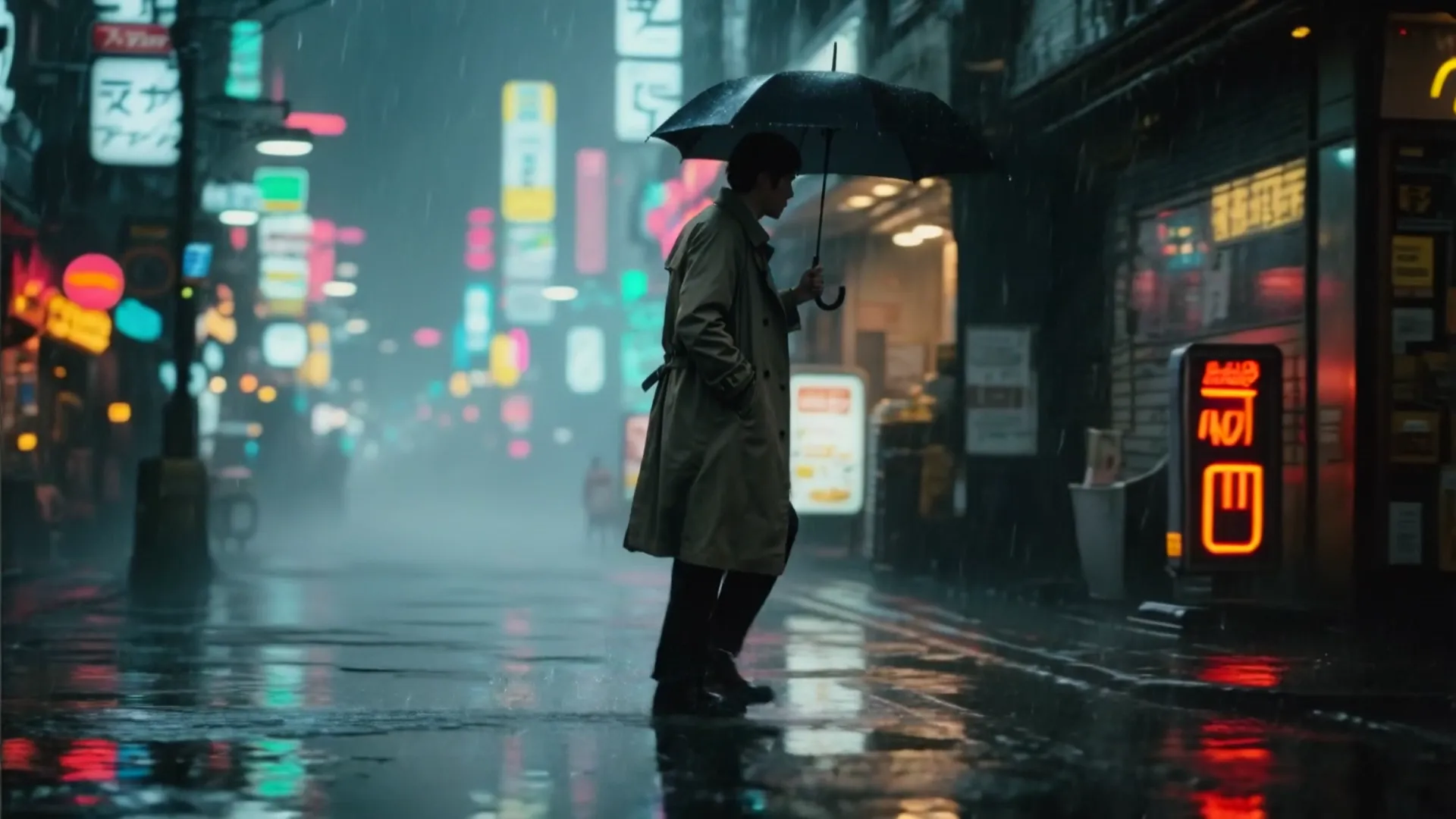
Preset result from Seedance 2.0
Seedance 2.0
from $0.0573/sec
Story in Motion5s · Cinematic movement
CreateGenerationsAssets
Why use it

Why use Image to Video AI

Start from your own image

Use a photo, illustration or generated frame as the visual starting point.

Try it now

Guide how the scene moves

Describe subject movement, camera behavior and atmosphere while the image anchors the composition.

Try it now

Compare compatible models

Switch among models that support image-led video generation and use the controls each model exposes.

Try it now

Carry the result into a broader workflow

Create a source visual with related image tools, animate it here, and refine selected footage with Video to Video AI or AI Video Upscaler. These linked capabilities make it easier to develop an asset without rebuilding the concept at every stage.

Try it now
Capabilities

What Image to Video AI can animate

Animate a prepared still image

Add motion to a photograph, illustration, product frame, or generated artwork while the uploaded composition anchors the opening visual direction.

Guide movement with a prompt

Explain how the subject, environment, and camera should move instead of repeating details the source image already communicates clearly.

Guide a transition with ending imagery

When the selected model supports an ending frame, provide another image to indicate where the animated sequence should arrive.

Compare compatible video models

Use one source image across available models and compare their treatment of camera motion, subject stability, texture, and prompt adherence.

Build motion assets from product imagery

Turn an existing product photo or campaign key visual into a moving concept for listings, presentations, and creative testing.

Continue with related APIXO tools

Prepare a source with an image generator, animate it here, then use AI Video Upscaler when a chosen clip needs higher-resolution delivery.

For bringing visuals to life
Who it is for

For bringing visuals to life

E-commerce sellers

Turn owned product photos into motion concepts for listings, ads, and campaign tests without changing the item shown in the source frame.

Illustrators and designers

Animate artwork, posters, character studies, and key visuals for portfolios or presentations while keeping the original design as the visual anchor.

Social media creators

Add deliberate motion to portraits, travel photos, and prepared graphics when a static post needs a short moving companion.

Photographers and studios

Develop motion previews from selected stills for client treatments, gallery promotion, or early creative review before planning a video shoot.

Models

Models behind this tool

  • ByteDance logoSeedance 2.5ByteDance
  • ByteDance logoSeedance 2.0ByteDance
  • ByteDance logoSeedance 2.0 FastByteDance
  • ByteDance logoSeedance 2.0 MiniByteDance
  • Kling logoKling 3.0 OmniKling
  • Alibaba logoWan 3.0 VideoAlibaba
  • Alibaba logoWan 3.0 Video LoRAAlibaba
  • Alibaba logoWan 3.0 Video Pro LoRAAlibaba
  • MiniMax logoMiniMax H3MiniMax
  • MiniMax logoMiniMax H3 LoRAMiniMax
  • Alibaba logoHappyHorseAlibaba
  • Google logoVeo 3.1Google
  • Kling logoKling 3.0 StdKling
  • Kling logoKling 3.0 TurboKling
  • Kling logoKling 2.6Kling
  • Kling logoKling 2.5 Turbo ProKling
  • Kling logoKling 2.1Kling
  • MiniMax logoHailuo 2.3MiniMax
  • MiniMax logoHailuo 2.3 FastMiniMax
  • xAI logoGrok Imagine Video 1.5xAI
  • xAI logoGrok VideoxAI
  • Black Forest Labs logoFLUX 3Black Forest Labs
  • ByteDance logoSeedance 1.5 ProByteDance
  • Alibaba logoWan 2.7Alibaba
  • Alibaba logoWan 2.6Alibaba
  • Alibaba logoWan 2.5Alibaba
  • Vidu logoVidu Q3Vidu
  • Lightricks logoLTX-2 19BLightricks
How it works

How to use Image to Video AI

Try it now
01

Upload your image

Add the frame you want to animate.

02

Describe the motion

Explain what should move and how the camera should behave.

03

Choose a model and generate

Pick a compatible model, review its settings and create the clip.

Tips & FAQ

Get better results

Tips

01

Use a sharp image whose framing already matches the video you want.

02

Describe motion, not the picture itself; the image already shows what is in the scene.

03

Keep camera movement simple when the subject also moves.

04

Choose a source with clear subject boundaries and enough surrounding space for the movement you request, especially near the frame edges.

05

Preview important faces, hands, text, and product details after generation because complex movement can change small visual features between frames.

Frequently Asked Questions

Image to Video AI uses an uploaded still as the visual starting point for a generated clip. The image establishes the subject and composition, while your prompt directs movement and camera behavior. The chosen model determines which inputs and output controls are available.

Use a clear, well-composed source with the main subject easy to distinguish and enough space for the requested movement. Avoid relying on tiny text or fragile details, and make sure you own the image or have permission to use it for generation.

Some compatible model modes provide an additional ending-image input, while others begin from one source frame only. Choose the model first and follow the fields shown in the composer. When an ending frame is available, use imagery with a transition the model can plausibly connect.

Generation uses pay-as-you-go credits rather than a fixed price for every task. The estimate beside the Generate button updates for the model and parameters you select, so you can review the expected charge before submitting. Changing the model, quality, format, or other available controls can change that estimate.

You can explore the page, compare the available models, and inspect their controls without signing in. An account is required when you are ready to submit a generation task, monitor its progress, and access the completed result in your workspace.

Requirements depend on the selected model and workflow. The composer displays the inputs, accepted upload types, and controls that apply to your current selection. If you switch models, review those fields again because supported assets and settings may differ.

Commercial use depends on your rights to every input, the selected model terms, and the rules that apply where you publish. Use only prompts and source assets you are authorized to use, review the applicable terms, and check the final clip before distributing it.

More tools

  • Text to Video
  • Reference to Video
  • Video to Video
  • AI Talking Photo
  • Motion Control
  • Video Upscaler
  • Video Watermark Remover
  • Remove Subtitles from Video
  • AI Video Extender
  • Video Character Swap

Bring your still to life with Image to Video AI

Upload an image you are authorized to use, describe the movement and camera direction, compare the model options, and create the clip above.

Try it now

Describe the scene, motion, camera, and mood…

$0.076