
APIXOAPIXO

Create

AI Video
AI Image
AI Audio

Library

GenerationsAssets

Explore

ModelsAI ToolsPricing
APIXOAPIXO
APIXO
APIXO

Create any content you can imagine. Trusted by millions of creators.

Support@apixo.ai

Models

Claude Sonnet 4.6
Face Swap
Flux 2
FLUX 3
Flux Kontext
Gemini 3.1 Pro Preview
Gemini Omni
GPT-5.5
GPT-Image-1
GPT-Image-2
GPT-Image-2.5
Grok Image
Grok Imagine Video 1.5
Grok Video
Hailuo 2.3
Hailuo 2.3 Fast
HappyHorse
Head Swap
Image Upscaler
Image Watermark Remover
InfiniteTalk
Kling 2.1
Kling 2.5 Turbo Pro
Kling 2.6
Kling 3.0 Omni
Kling 3.0 Std
Kling 3.0 Turbo
LTX-2 19B
Midjourney
MiniMax H3
MiniMax H3 LoRA
MiniMax Image 01
MiniMax Speech 2.8
MiniMax Voice
Nano Banana
Nano Banana 2
Nano Banana Pro
Qwen Image 3.0
Qwen Image 3.0 Pro
Seedance 1.5 Pro
Seedance 2.0
Seedance 2.0 Fast
Seedance 2.0 Mini
Seedance 2.5
Seedream 4.5
Seedream 5.0
Seedream 5.0 Pro
Sora 2
Sora 2 Pro
Suno V6
Veo 3.1
Video Upscaler
Video Watermark Remover
Vidu Q3
Wan 2.2 Animate
Wan 2.5
Wan 2.5 Image
Wan 2.6
Wan 2.6 Image
Wan 2.7
Wan 2.7 Image
Wan 3.0 Video
Wan 3.0 Video LoRA
Wan 3.0 Video Pro LoRA
Z-Image LoRA
Z-Image LoRA Pro

Product

FeaturedImage ModelsVideo ModelsAudio ModelsText Models

Resources

AffiliateCompany InformationTerms of ServicePrivacy PolicyRefund PolicyShipping / Digital Delivery Policy

Other

PricingAPI Docs

© 2026 APIXO. All rights reserved.

MODEL AVAILABILITY, PRICING, AND ROUTING CAN VARY BY PROVIDER AND REGION.

CreateGenerationsAssets
  1. Home
  2. Video Tools
  3. Video Upscaler

AI Video Upscaler

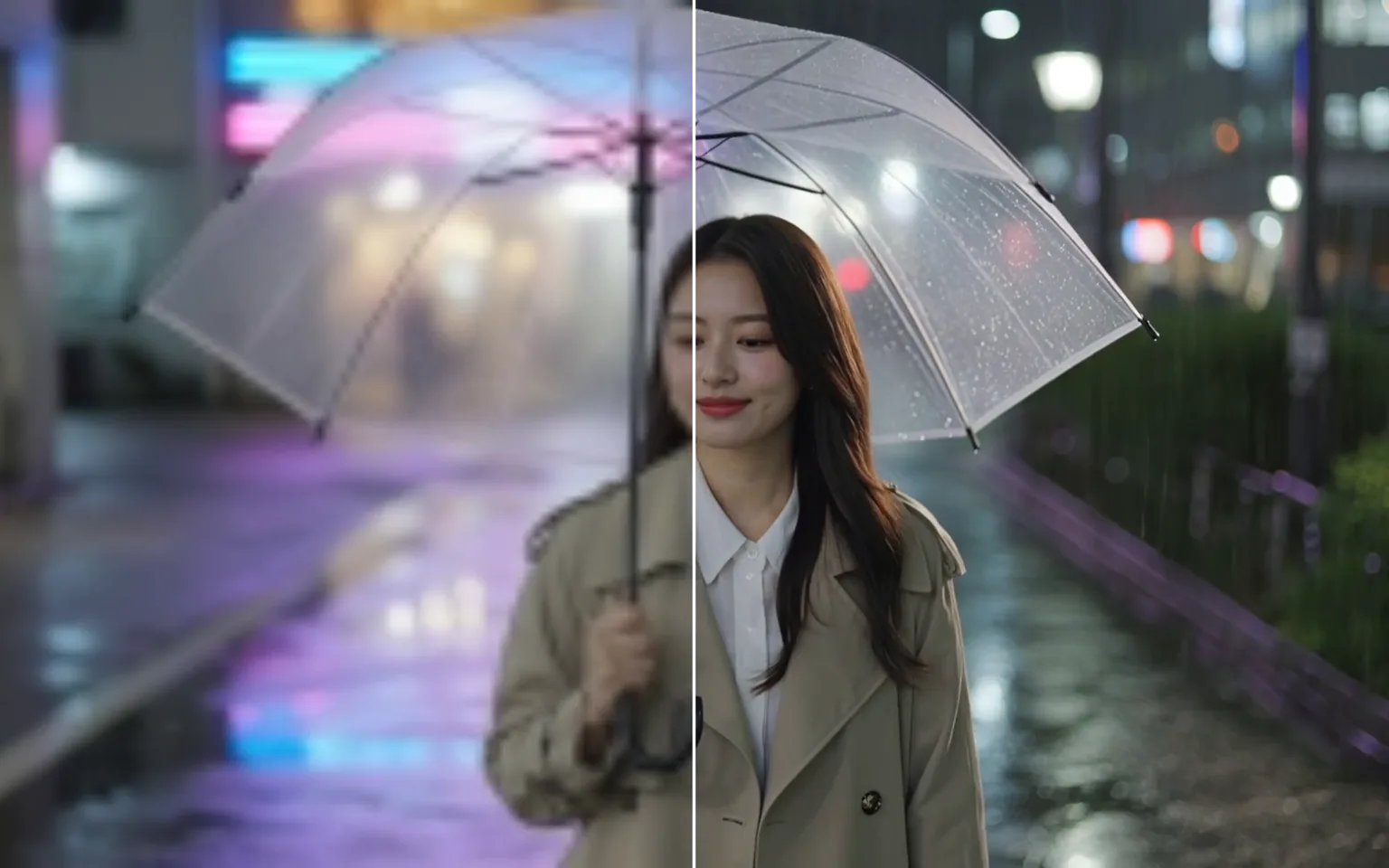
AI Video Upscaler increases the delivery resolution of existing footage while enhancing edges and textures across the sequence. Upload the strongest source available, choose a supported target tier, review the estimate, and create a sharper version without changing the edit.

  • AI Talking Photo
  • Video to Video
  • Motion Control
  • Video Upscaler
  • Video Watermark Remover
  • Remove Subtitles from Video
  • AI Video Extender
  • Video Character Swap
  • All Tools
Video Upscaler
Why use it

Why use an AI Video Upscaler

Enhance while increasing resolution

The workflow processes visual detail as it enlarges the frames rather than treating the task as basic pixel stretching. This can improve perceived sharpness in edges and textures, although it cannot recreate source information that was never captured.

Try it now

Choose the delivery tier you need

Select from the target resolution options currently shown in the workbench. Choosing for the actual screen, placement, or editing timeline helps avoid processing a larger output than the project requires.

Try it now

Preserve the approved sequence

The result keeps the source content, pacing, cuts, and motion, which makes video quality enhancement useful after the creative edit is already selected. Review fine details carefully before replacing any approved master.

Try it now

Enhance clips from other APIXO workflows

Generate with Text to Video AI or Image to Video AI, choose the take that best matches the concept, and upscale only that result. This keeps early experimentation separate from final delivery preparation.

Try it now
Capabilities

What an AI Video Upscaler can enhance

Increase video resolution

Prepare the same clip for a higher-resolution output tier while preserving its sequence, framing, and overall creative content.

Enhance detail across frames

Process the video as a sequence so edges, textures, and fine visual information receive consistent enhancement rather than a simple pixel stretch.

Preserve timing and motion

Keep the source edit, pacing, cuts, and movement while improving delivery resolution, making the tool suitable for already approved sequences.

Improve selected generated clips

Create with Text to Video AI or Image to Video AI, choose the take worth keeping, then enhance that result for its destination.

Prepare archive and tutorial footage

Make older footage, screen demonstrations, and training material easier to reuse when the source resolution is below the intended presentation format.

Keep source and result easy to compare

Because the narrative content remains unchanged, you can review the enhanced output against the original and judge whether important details improved acceptably.

For footage that needs to look sharper
Who it is for

For footage that needs to look sharper

Video creators

Prepare older, compressed, or modest-resolution clips for current publishing layouts while keeping the original edit and motion intact.

AI video makers

Test concepts with a generation model, keep the strongest take, and upscale only the footage selected for the final workflow.

Marketing teams

Reuse authorized product, campaign, and event footage in placements that need more resolution than the available source provides.

Editors and archivists

Prepare older source material for modern edits, presentations, or digital collections while retaining an untouched original for historical reference.

Models

Models behind this tool

  • AXVideo UpscalerAPIXO
How it works

Upscale a video in three steps

Try it now
01

Upload the best source video

Add the original export when possible, because a repeatedly compressed copy gives the enhancement process less reliable detail to work with.

02

Choose the target resolution

Select the supported tier suited to the destination, then review the credit estimate shown before starting the task.

03

Generate and inspect the result

Download the completed video and compare faces, text, patterns, edges, and fast motion against the untouched source at the intended display size.

Tips & FAQ

Get better results

Tips

01

Trim the clip to the part you need first; billing and processing time follow the clip length.

02

Choose the tier that matches where the video will play instead of always picking the highest.

03

Start from the original export rather than a re-uploaded copy from social media.

04

Inspect faces, fine text, patterned surfaces, and fast movement in the result because upscaling cannot recover detail that was never captured.

05

Keep the original file and compare both versions at the intended display size before replacing an approved delivery asset.

Frequently Asked Questions

An AI Video Upscaler creates a higher-resolution version of existing footage while enhancing visual information across frames. It differs from simple resizing because the process also works on perceived detail, but the result still depends heavily on the quality and compression of the source.

Upload the best available source clip, choose a supported target resolution in the workbench, and review the estimate before generating. When processing finishes, compare the result with the original and inspect detailed or fast-moving areas before using it in a final project.

The upload control shows the current input requirements for this workflow. Start with an original export rather than a social-media download when possible, and avoid unnecessary conversion before uploading because every additional compression pass can remove detail.

Pricing uses pay-as-you-go credits and depends on the clip and selected processing parameters. The current estimate appears beside the Generate button before submission, allowing you to compare the available target options without committing to a hidden fixed charge.

No. It can enhance clarity and create a higher-resolution output, but it cannot know every detail lost through blur, heavy compression, poor focus, or clipping. Treat reconstructed detail as an interpretation and review faces, text, logos, and fine patterns carefully.

Upscaling does not grant new rights to the footage. Commercial use depends on your ownership or license for the source and any applicable project terms. Keep the original, confirm your authorization, and review the enhanced result before publishing or delivering it.

More tools

  • Text to Video
  • Image to Video
  • Reference to Video
  • Video to Video
  • AI Talking Photo
  • Motion Control
  • Video Watermark Remover
  • Remove Subtitles from Video
  • AI Video Extender
  • Video Character Swap

Enhance your footage with AI Video Upscaler

Upload the strongest source you have, choose a suitable target tier, review the visible estimate, and create a higher-resolution result above.

Try it now
  • AI Talking Photo
  • Video to Video
  • Motion Control
  • Video Upscaler
  • Video Watermark Remover
  • Remove Subtitles from Video
  • AI Video Extender
  • Video Character Swap
  • All Tools