
APIXOAPIXO

Create

AI Video
AI Image
AI Audio

Library

GenerationsAssets

Explore

ModelsAI ToolsPricing
APIXOAPIXO
APIXO
APIXO

Create any content you can imagine. Trusted by millions of creators.

Support@apixo.ai

Models

Claude Sonnet 4.6
Face Swap
Flux 2
FLUX 3
Flux Kontext
Gemini 3.1 Pro Preview
Gemini Omni
GPT-5.5
GPT-Image-1
GPT-Image-2
GPT-Image-2.5
Grok Image
Grok Imagine Video 1.5
Grok Video
Hailuo 2.3
Hailuo 2.3 Fast
HappyHorse
Head Swap
Image Upscaler
Image Watermark Remover
InfiniteTalk
Kling 2.1
Kling 2.5 Turbo Pro
Kling 2.6
Kling 3.0 Omni
Kling 3.0 Std
Kling 3.0 Turbo
LTX-2 19B
Midjourney
MiniMax H3
MiniMax H3 LoRA
MiniMax Image 01
MiniMax Speech 2.8
MiniMax Voice
Nano Banana
Nano Banana 2
Nano Banana Pro
Qwen Image 3.0
Qwen Image 3.0 Pro
Seedance 1.5 Pro
Seedance 2.0
Seedance 2.0 Fast
Seedance 2.0 Mini
Seedance 2.5
Seedream 4.5
Seedream 5.0
Seedream 5.0 Pro
Sora 2
Sora 2 Pro
Suno V6
Veo 3.1
Video Upscaler
Video Watermark Remover
Vidu Q3
Wan 2.2 Animate
Wan 2.5
Wan 2.5 Image
Wan 2.6
Wan 2.6 Image
Wan 2.7
Wan 2.7 Image
Wan 3.0 Video
Wan 3.0 Video LoRA
Wan 3.0 Video Pro LoRA
Z-Image LoRA
Z-Image LoRA Pro

Product

FeaturedImage ModelsVideo ModelsAudio ModelsText Models

Resources

AffiliateCompany InformationTerms of ServicePrivacy PolicyRefund PolicyShipping / Digital Delivery Policy

Other

PricingAPI Docs

© 2026 APIXO. All rights reserved.

MODEL AVAILABILITY, PRICING, AND ROUTING CAN VARY BY PROVIDER AND REGION.

CreateGenerationsAssets
  1. Home
  2. Video Tools
  3. Remove Subtitles from Video

Remove Subtitles from Video

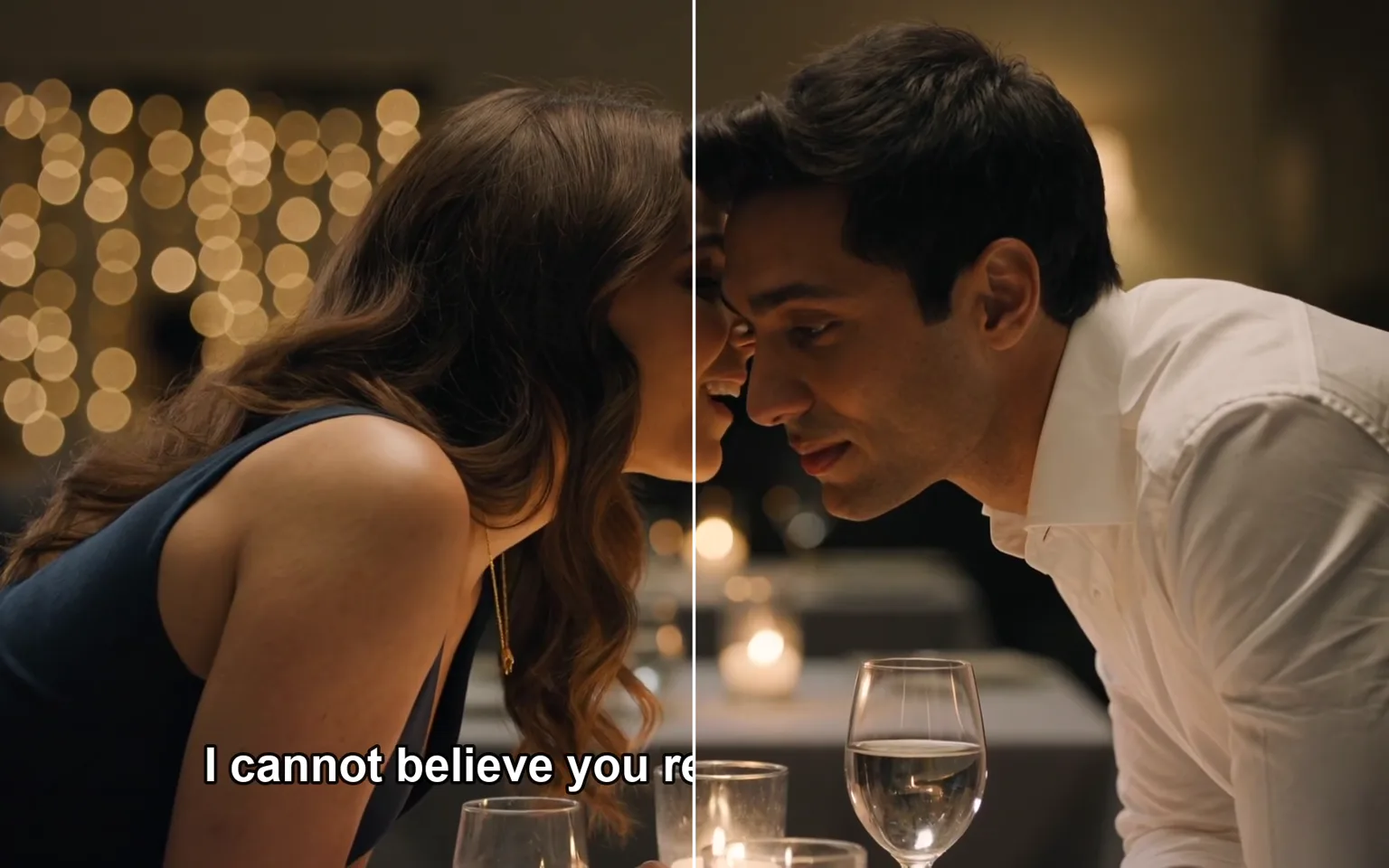
Remove subtitles from video clips you own or are allowed to edit, clearing burned-in captions and other on-screen text that are part of the picture itself. Upload one source clip, check the credit estimate, and let the AI rebuild the area behind the lettering across the sequence.

  • AI Talking Photo
  • Video to Video
  • Motion Control
  • Video Upscaler
  • Video Watermark Remover
  • Remove Subtitles from Video
  • AI Video Extender
  • Video Character Swap
  • All Tools
Remove Subtitles from Video
Why use it

Why remove subtitles from video with AI

Finds burned-in text for you

Hardcoded subtitles are pixels in the frame, not a separate track, so an ordinary editor cannot switch them off. The workflow detects the lettering on its own, which spares you from drawing masks or tracking caption boxes line by line as they change through the clip.

Try it now

Rebuilds what the captions covered

Instead of blurring or cropping away the lower part of the frame, the model reconstructs the background behind each line using nearby detail and neighboring frames. Plain backgrounds usually recover cleanly, while busy textures and fast motion deserve a closer look.

Try it now

Keeps the rest of your edit intact

Timing, cuts, camera movement, and the on-screen performance stay as they were in the source. Only the text regions are processed, so the cleaned clip drops back into your timeline without re-syncing audio or re-cutting scenes.

Try it now

A clean base for new captions

Once the old lines are gone you can add translated subtitles, corrected wording, or a caption style that suits another platform, without the new text fighting the old text underneath it.

Try it now
Capabilities

What the subtitle remover can clear

Hardcoded subtitles

Dialogue lines rendered into the frame during export, including translated subtitles baked into an older version of your video.

Captions on social clips

Auto-generated or styled captions that a short-form editing app added before the clip was exported and saved.

Titles and on-screen labels

Name titles, location labels, and other text strips that sit over the footage rather than on a separate editing layer.

Timestamps and date stamps

Recording dates and time codes printed into camera or screen-capture footage that you now want to reuse elsewhere.

Text over moving scenes

Lines that stay on screen while the camera pans or the subject moves, which are tedious to patch manually one frame at a time.

Preparation for localization

Clearing the original language from the frame so a new audio track and matching subtitles can be added in your editor.

Who needs to remove subtitles from video
Who it is for

Who needs to remove subtitles from video

Short-form creators

Reuse your own older posts in a new crop or format, where the original captions no longer line up with the new framing, pacing, or hook.

Marketing teams

Refresh licensed or in-house campaign footage whose captions carry an outdated offer, price, or date before it runs again.

Educators and trainers

Clean your course recordings and walkthroughs so the same lesson can be relaunched with subtitles in another language.

Editors and localization vendors

Prepare client-owned footage for dubbing or re-subtitling when a clean, text-free master is no longer available.

Models

Models behind this tool

  • AXVideo Watermark RemoverAPIXO
How it works

Remove subtitles from video in three steps

Try it now
01

Upload the captioned clip

Add one video you own or have permission to modify. The least-compressed version you have gives the model more real detail to work from.

02

Check the estimate and run

Review the credit estimate beside the Generate button, then submit. Text detection runs automatically, so there are no caption boxes to mark by hand.

03

Review and download

Play the whole result, watch the areas where the subtitles used to sit, and download the clean version once you are satisfied with it.

Tips & FAQ

Get better results

Tips

01

Only upload videos you own or have permission to modify.

02

Trim the clip to the section you need before uploading; billing follows the length of the source.

03

Use the original export instead of a re-downloaded copy, since heavy compression leaves less detail behind the text.

04

Large, thick, or boxed captions cover more of the frame and are harder to rebuild than thin single lines.

05

Check faces, hands, and patterned backgrounds that sat under the subtitles, and keep your original file for comparison.

Frequently Asked Questions

It means erasing text that has been burned into the picture, such as hardcoded subtitles, captions, and similar overlays, and filling that area with reconstructed background. Soft subtitles stored as a separate track can simply be turned off in a player or editor and do not need this tool.

Only when you own the footage or have permission to modify it. Clearing the captions does not give you any rights to someone else’s video, and redistributing it may still infringe the creator’s copyright.

It is built for on-screen text: subtitles, captions, titles, labels, timestamps, and similar overlays. It is not a general object remover, so people, props, and other visual elements in the scene are left in place.

It depends on what lies behind the text. Plain skies, walls, and slow shots usually reconstruct well. Large caption boxes, fast motion, detailed textures, and lines that cross faces are harder and may leave visible traces, so review the full clip before publishing.

Upload one video per task. The upload field lists the current file requirements, and the highest-quality original you have will give the most convincing reconstruction.

Tasks use pay-as-you-go credits based on the duration of the source clip. The estimate beside the Generate button updates after you upload, so you can see the expected charge before you submit.

More tools

  • Text to Video
  • Image to Video
  • Reference to Video
  • Video to Video
  • AI Talking Photo
  • Motion Control
  • Video Upscaler
  • Video Watermark Remover
  • AI Video Extender
  • Video Character Swap

Remove subtitles from video you own

Upload a captioned clip, confirm the estimate, and get a clean version that is ready for new subtitles or a fresh edit.

Try it now
  • AI Talking Photo
  • Video to Video
  • Motion Control
  • Video Upscaler
  • Video Watermark Remover
  • Remove Subtitles from Video
  • AI Video Extender
  • Video Character Swap
  • All Tools