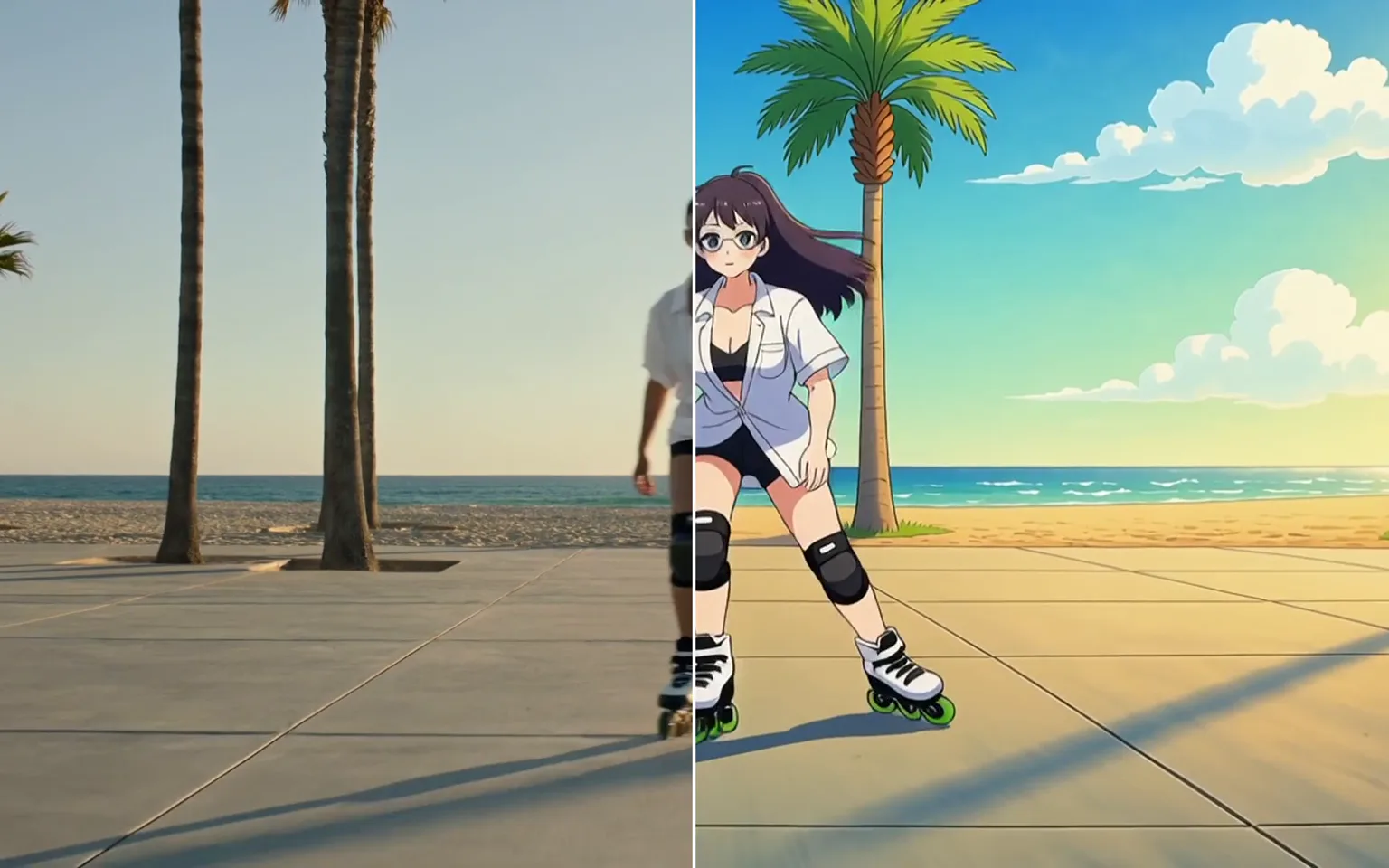





It creates a revised clip from existing footage. The source supplies motion, timing, and broad composition, while your prompt and selected model direct the new appearance. It is intended for footage you own or have permission to modify.


The Video to Video AI Generator transforms existing footage while using its movement, timing, and composition as guidance. Upload a clip you are authorized to edit, describe the new visual direction, and compare compatible models in one workspace.
The source video provides timing and movement for the generated result.
Try it nowGuide the model toward a new style, environment or treatment with a text prompt.
Try it nowThe composer limits the model list to modes that can work from video input.
Try it nowStart with Text to Video AI when no source exists, use Motion Control when one performance should drive a character, or finish a selected transformation with AI Video Upscaler. Related APIXO tools keep each stage accessible.
Try it nowGive an authorized clip a different visual treatment while using the original performance and composition as practical guidance for the generated result.
Describe a different setting, lighting direction, material language, or atmosphere while the source motion helps organize what happens over time.
Use the pacing, gestures, camera path, and broad movement already present in the uploaded footage instead of directing every beat from text alone.
Try the same source and prompt with available models to compare their style strength, temporal stability, subject treatment, and creative interpretation.
Create moving look studies for music, narrative, product, or campaign work before committing to a final production and post-production direction.
Use Text to Video AI for footage created only from a brief, or Image to Video AI when a still frame should anchor the opening composition.
Try new treatments on footage you own when the performance works but the scene needs a different aesthetic or creative context.
Explore campaign variations from approved source footage while retaining recognizable motion and reducing the need to stage each early concept.
Create moving look studies for a sequence before choosing a final production design, animation treatment, or post-production approach.
Transform owned performance footage into visual experiments, projections, teasers, or promotional concepts while keeping the original timing as a guide.
Add the source clip you want to transform.
Explain the style or scene changes you want the model to apply.
Review the available settings, start the task and inspect the new clip.
Start with a steady, well-lit clip; shaky or dark footage gives the model less to follow.
Describe the new look and setting rather than retelling what already happens in the clip.
Only upload footage you own or have permission to modify.
Use one clear style direction per generation and describe visible materials, lighting, palette, and environment rather than relying on a broad label.
Inspect fast motion, faces, hands, logos, and text carefully because strong transformations can reduce consistency in detailed areas.
It creates a revised clip from existing footage. The source supplies motion, timing, and broad composition, while your prompt and selected model direct the new appearance. It is intended for footage you own or have permission to modify.
The source is used as motion and timing guidance, but the result is newly generated rather than a guaranteed frame-perfect filter. Strong style changes, fast action, occlusion, and fine details may shift, so review the complete output before publishing it.
Use steady, clearly exposed footage where the important subjects and movement remain visible. Heavy compression, rapid cuts, motion blur, and crowded scenes give the model less stable guidance. The composer displays the current upload requirements for the selected mode.
Generation uses pay-as-you-go credits rather than a fixed price for every task. The estimate beside the Generate button updates for the model and parameters you select, so you can review the expected charge before submitting. Changing the model, quality, format, or other available controls can change that estimate.
You can explore the page, compare the available models, and inspect their controls without signing in. An account is required when you are ready to submit a generation task, monitor its progress, and access the completed result in your workspace.
Requirements depend on the selected model and workflow. The composer displays the inputs, accepted upload types, and controls that apply to your current selection. If you switch models, review those fields again because supported assets and settings may differ.
Commercial use depends on your rights to every input, the selected model terms, and the rules that apply where you publish. Use only prompts and source assets you are authorized to use, review the applicable terms, and check the final clip before distributing it.
Upload a clip you are allowed to edit, describe one clear visual direction, compare models, review the estimate, and generate above.
Try it now