
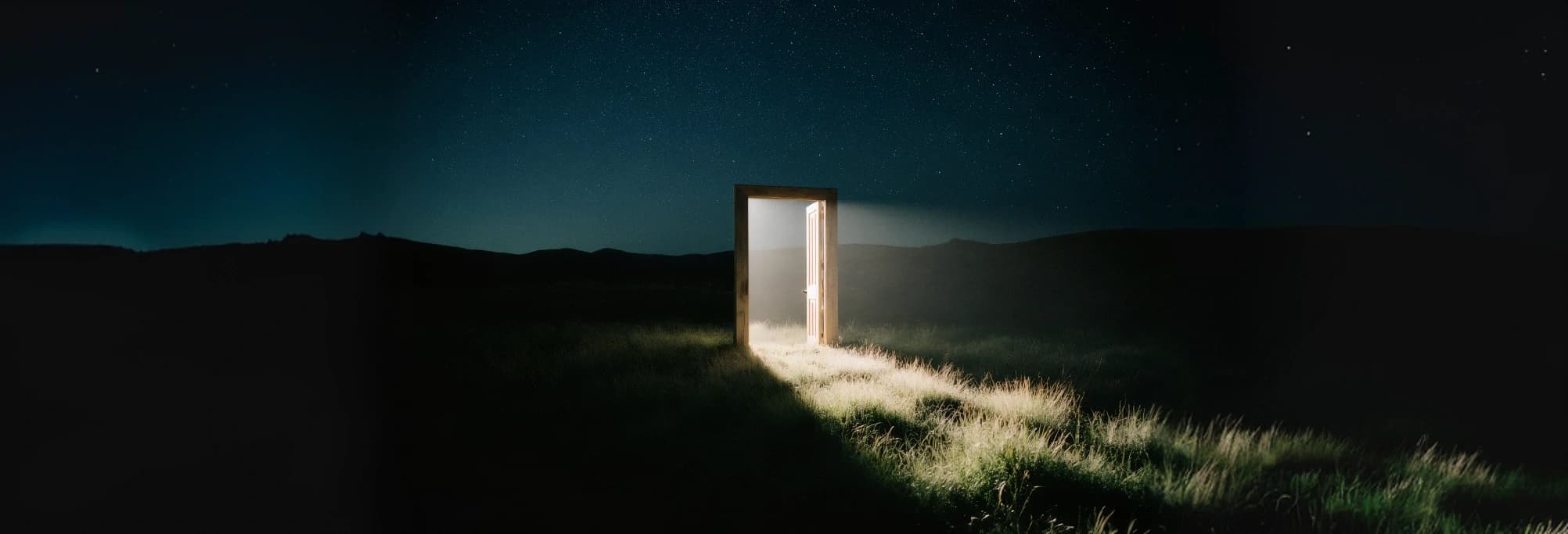
The output tier is always 1080p. The aspect ratio changes the pixel dimensions of the generated file. Choose it for the deliverable you plan to use and check the exported file before editing or publishing.
Make a video from a prompt, an opening image, or a collection of references. MAGI-2 outputs 1080p video and can generate sound synchronized to the scene. Start with a short draft to check composition and timing, then increase the duration when the action needs room to unfold.
Create with MAGI-2
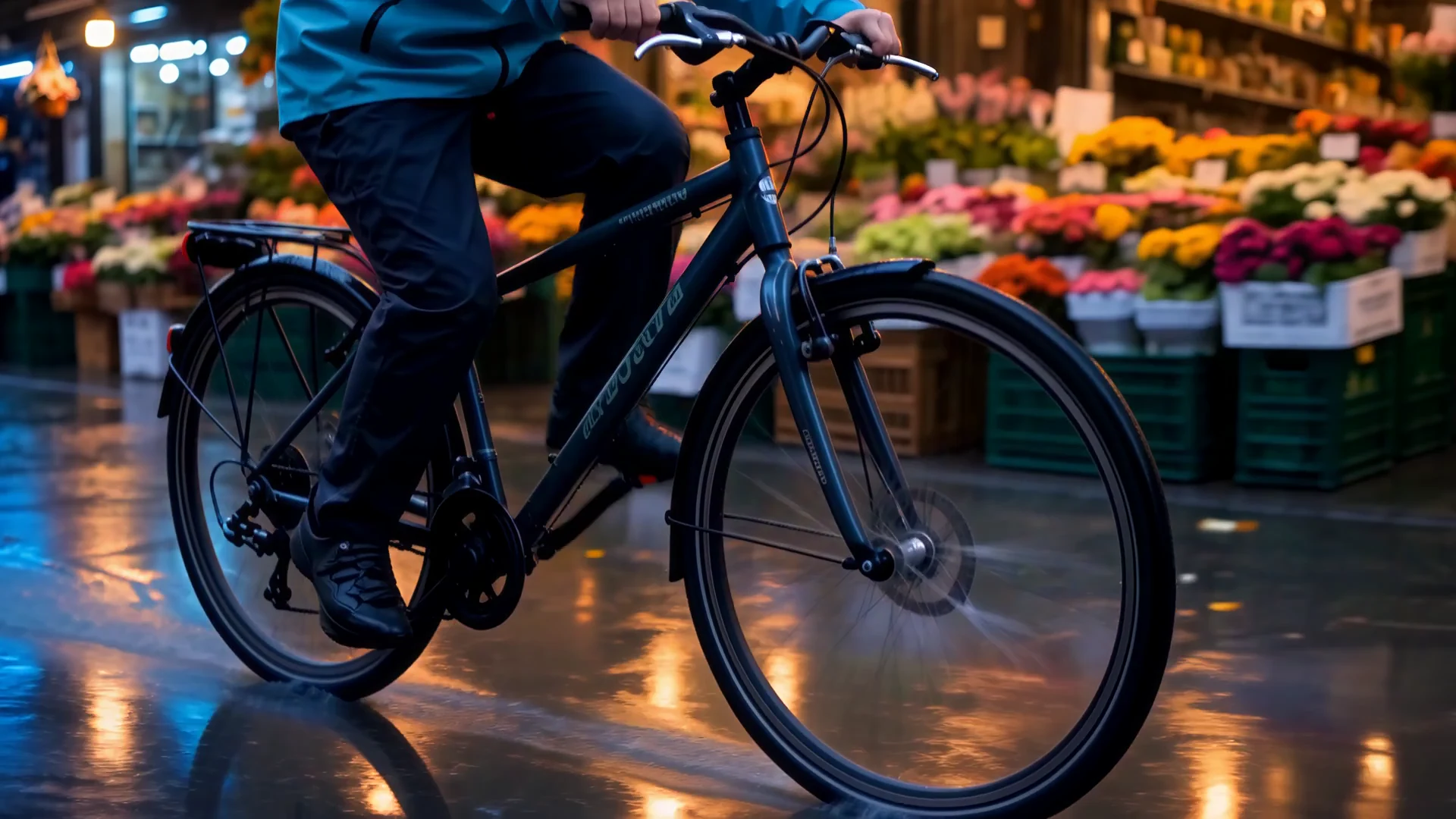
Creation modes
Three ways to start
Describe the action
Use text when the shot exists only as an idea. Name the main subject, describe what happens, and tell the camera where to start and how to move. A street scene might begin close to a bright storefront before pulling back into a broader view. If sound matters, describe which sounds are audible and when they should appear. Keep competing camera instructions out of the first draft.
Text-to-Video
Direct the first and last frames
Start with an image when its composition or subject already works. Upload the opening frame first. Add an ending frame when the shot needs to arrive at a specific view. A simple prompt can clarify whether the subject moves or the camera moves around it. Choose the output framing deliberately and review the crop, particularly when the uploaded frames use a different shape from the final clip.
Image-to-Video
Combine references with a clear prompt
Use reference mode when one image cannot communicate the whole brief. An image can establish the look of an object, a video can illustrate the movement you want, and an audio clip can convey the atmosphere. Describe what each reference contributes instead of expecting the model to infer a hierarchy from the files alone. Begin with the most important material and add more only when it clarifies the intended result.
Reference-to-Video
Specifications
Control duration, framing and sound
Set the pace
Choose an output length from 4–30 seconds. A short duration is useful for testing the opening action and costs less at the standard rate. Reserve more time for a change of framing, dialogue, or a deliberate reveal. If the generated action feels rushed, simplify the prompt before increasing the duration, then check that the opening and ending still fit the intended edit.
Choose the delivery frame
The output tier is 1080p, while the pixel dimensions depend on the aspect ratio. Choose the shape that fits the final destination before composing the shot. In vertical framing, keep the key subject away from the edges. For square framing, leave enough space around the action for a crop and review the output dimensions before delivering the file.
Generate sound or leave the clip silent
Enable sound when footsteps, ambience, dialogue or another audio instruction belongs in the shot. Choose a silent output when you plan to lay in a soundtrack later. Listen through a generated clip before publishing. Check for unintended sounds, check the timing of audible actions, and review any spoken words against the script rather than treating them as a verbatim recording.
How to create
From brief to first draft
01
Pick a mode
Write down the most important condition for the shot. If the first image is fixed, choose image mode. If a visual or audio reference should guide the scene without becoming its first frame, choose reference mode. If neither condition applies, start with text and compare different ways to describe the same action.
02
Set up the shot
Select the duration and aspect ratio, then decide whether the output needs sound. In the prompt, describe what should be visible at the beginning, what changes while the camera moves, and what should remain stable. A good first draft usually has one action that can be judged on its own.
03
Review the output
After the task finishes, play the result from start to end. Check framing, continuity, the timing of the action and the sound mix. When iterating, change one setting or instruction at a time. For API workflows, store the task ID so you can retrieve the result without submitting the generation twice.
Use cases
Where MAGI-2 fits in production
Product previews
Start a reveal with an approved packshot and describe the movement around the object. A final frame can set the desired closing angle. Review logos, text and fine details against the original before using the clip in production.
Storyboard auditions
Turn a written beat into a short draft before creating reference assets. Compare different camera moves with the same framing and duration to evaluate which version communicates the action clearly.
Social video drafts
Choose the delivery aspect ratio early. Leave room for titles or captions added in editing, and check that the subject remains readable on a small screen. Use a silent output when the final mix will be assembled separately.
Before generating
Limits, billing, and common questions
Input checklist
01
Reference mode accepts up to 10 images, 5 videos and 5 audio files. A prompt is required for text and reference modes.
02
When submitting through the API, keep media URLs reachable for the duration of the task. In image mode, put the opening frame before the optional closing frame.
Frequently asked questions
The standard rate is based on the requested duration. Reference material, framing and sound do not add separate charges under the published MAGI-2 rule. The pricing table and Playground quote use the same per-second rate source.
After submission, keep the task ID. For an asynchronous request, poll the status endpoint until the task succeeds or fails. A successful response includes video URLs. If you use a callback request, read the same result fields from your webhook payload.
Explore Other Models
Discover more AI models for your next creative workflow
ByteDance


Seedance 2.5
Explore Seedance 2.5 for longer audiovisual storytelling, timeline direction, multimodal references, multilingual scenes, and selective video revision.
VideoNew
85 Credits/sec Video
Alibaba


Wan 3.0 Video
Create Wan 3.0 videos from text, images, reference audio, clips, files, or links. Guide motion with references, export up to 1080p, or use the APIXO API.
VideoNew
50 Credits/secAlibaba
HappyHorse
Use Alibaba HappyHorse through APIXO for text, first-frame, multi-reference, and video-edit workflows with audio and 720p or 1080p output.
VideoNew
125 Credits/secByteDance
Seedance 2.5 Flash
Use Seedance 2.5 Flash on APIXO for 480p and 720p video with sound, first-and-last-frame control, and image, video, and audio references at a lower per-second rate.
VideoNew
56 Credits/sec
MiniMax
MiniMax H3
Call MiniMax H3 through the APIXO API for 768p or 2K video with native stereo audio, from text, images, or mixed image and video references. Text-to-video, image-to-video, and reference-to-video from one endpoint. Also known as Hailuo 3.0.
VideoNew
100 Credits/secGoogle

Gemini Omni
Use Gemini Omni on APIXO for multimodal video generation with image, source-video, reusable audio, and character references plus output up to 4K.
VideoNew
100 Credits/secAlibaba
Wan 2.7
Edit and generate videos with Wan 2.7 on APIXO. Supports video-to-video editing, multimodal reference, 1080p resolution, and synchronized audio.
VideoNew
100 Credits/secKuaishou

Kling 3.0 Std
Use Kling 3.0 Standard through APIXO for 3–15-second video generation, optional native audio, multi-shot prompts, and character motion transfer.
VideoNew
84 Credits/sec