


Kling 4.0 generates longer clips in one pass, accepts ordered middle keyframes between the first and last frame, and adds named voices to reference mode. Kling 3.0 Omni stays available on APIXO when you need 4K output.
我们注意到您可能偏好使用 简体中文. 要切换语言吗?
Il semble que vous préfériez Français. Souhaitez-vous changer de langue ?
Es scheint, Sie bevorzugen Deutsch. Möchten Sie die Sprache wechseln?
Parece que prefieres Español. ¿Te gustaría cambiar de idioma?
Sembra che tu preferisca Italiano. Vuoi cambiare lingua?
優先言語は次のようです 日本語. 言語を切り替えますか?
선호하시는 언어는 다음과 같습니다 한국어. 언어를 변경하시겠습니까?
Похоже, вы предпочитаете Русский. Хотите сменить язык?
Tercih ettiğiniz dil Türkçe. Dili değiştirmek ister misiniz?
Wygląda na to, że wolisz Polski. Czy chcesz zmienić język?
Black Friday: Up to 66% off most AI models.
Explore the dealsKling 4.0 turns a prompt, a sequence of keyframes, or a cast of named characters and voices into one continuous video clip.
Create with Kling 4.0
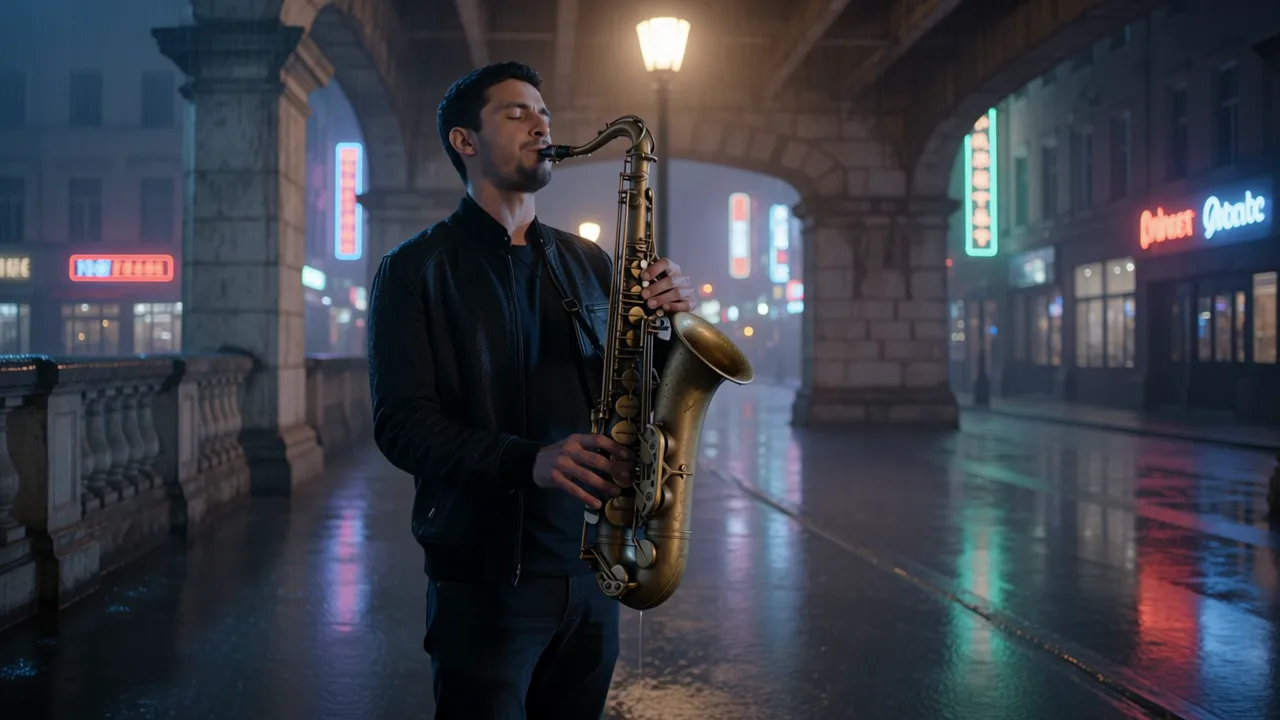
Creation modes
Three ways to start a Kling 4.0 video
Sketch a scene from words
Describe the subject, the action, and how the camera moves, and Kling 4.0 composes the shot with sound. Use it to test an idea before you prepare any images.
Text-to-Video
Hit every beat with ordered keyframes
Upload a first frame, an optional last frame, and middle frames in the order they should appear. Kling 4.0 animates the path between them and keeps the first frame’s aspect ratio.
Image-to-Video
Cast characters, props, and voices by name
Give each subject or voice a short name, then call it in the prompt with @name. Mix images, clips, and audio in one request to show who appears and how they sound.
Reference-to-Video
What’s new
What Kling 4.0 adds to your video workflow
Longer clips in one pass
Choose a duration of up to 30 seconds, so a product reveal or a short story can play out in a single generation. Keep one main action per clip and add more only when the duration gives it room.
More keyframes, finer control
Place middle frames between the first and last image to mark poses, product angles, or camera positions. Frames set the order of events, so describe the transitions between them in the prompt.
Characters with their own voices
Bind a voice reference to a character, or add a standalone voice, so the prompt can say who speaks. Listen to the full clip to check wording, timing, and lip movement.
How to create
How to make a Kling 4.0 video
01
Pick a mode
Start with text to explore an idea, switch to image mode when you already have key frames, and use reference mode when specific people, products, or voices must appear.
02
Write the prompt
Describe one main action, the camera move, and the sound you want. In image and reference modes, mention inputs as @first_frame, @keyframe_1, or @name so each one has a clear role.
03
Generate, review, and refine
Run a short 720p draft to check motion and framing, then extend the duration or switch to 1080p. Change one thing per round so you can see what improved.
Use cases
What people make with Kling 4.0
Product ads
Use keyframes to move from a packshot to a close-up detail and a closing logo frame. Check the product’s shape, labels, and hand contact before you publish.
Short character stories
Name the characters, give each one a voice, and let a single clip carry a short exchange. Review faces and lip sync across the whole clip.
Clips for every feed
In text and reference modes, choose 9:16 for vertical feeds, 1:1 for square posts, or 21:9 for a cinematic banner.
Before generating
Limits, billing, and common questions
Input checklist
01
Clips run 3–30 seconds. In image mode, first, middle, and last frames together are capped at 10, and shorter clips allow fewer frames.
02
Reference mode accepts up to 15 materials. Reference videos and video subjects share a limit of 5 clips and 30 seconds in total.
Kling 4.0 FAQ
You pay per billable second, with separate rates for each resolution. Adding a reference video also counts the input footage, so check the estimate before you submit.
No. Middle frames follow the order you upload them; for numeric keyframe times, use Grok Imagine Video 1.5.
Yes. Sound is generated with the video when no reference video is supplied; with reference videos, you can keep their original sound instead.
Yes. Submit a task, poll its status until it succeeds or fails, and read the video URL from the result; the API docs list every request field.
Explore Other Models
Discover more AI models for your next creative workflow
Kuaishou

Kling 3.0 Omni
Use the Kling 3.0 Omni API for nine Standard, Pro, and 4K text-to-video, image-to-video, and reference-to-video modes from 84 Credits to 420 Credits per second.
VideoNew
84 Credits/sec Video
Kuaishou

Kling 2.1
Use Kling AI 2.1 through APIXO with Standard, Pro, and Master workflows for image animation, frame transitions, and text-to-video generation.
VideoNew
200 Credits/videoKuaishou
Kling 2.5 Turbo Pro
Use Kling 2.5 Turbo Pro through APIXO for 1080p text-to-video and image-to-video generation with 5–10 second clips and tail-frame control.
VideoNew
300 Credits/videoKuaishou
Kling 2.6
Use Kling Video 2.6 through APIXO for text-to-video and image-to-video with optional dialogue, effects, ambience, music, or silent output.
VideoNew
330 Credits/videoKuaishou
Kling 3.0 Std
Use Kling 3.0 Standard through APIXO for 3–15-second video generation, optional native audio, multi-shot prompts, and character motion transfer.
VideoNew
84 Credits/secKuaishou
Kling 3.0 Turbo
Generate 3–15-second Kling 3.0 Turbo videos through APIXO. Use text or one source image, select 720p or 1080p, and deliver tasks by polling or webhook.
VideoNew
112 Credits/secxai
Grok Imagine Video 1.5
Grok Imagine Video 1.5 animates reference images, first and last frames, timed keyframes, and loop images, with resolution-dependent input limits.
VideoNew
24 Credits/secByteDance

Seedance 2.5
Explore Seedance 2.5 for longer audiovisual storytelling, timeline direction, multimodal references, multilingual scenes, and selective video revision.
VideoNew
85 Credits/sec