No. It rebuilds plausible detail, not the hidden original, and must not be used to uncover censored faces or information. Mosaicked faces, plates and documents are hidden for a reason, and any output would be invention presented as fact.


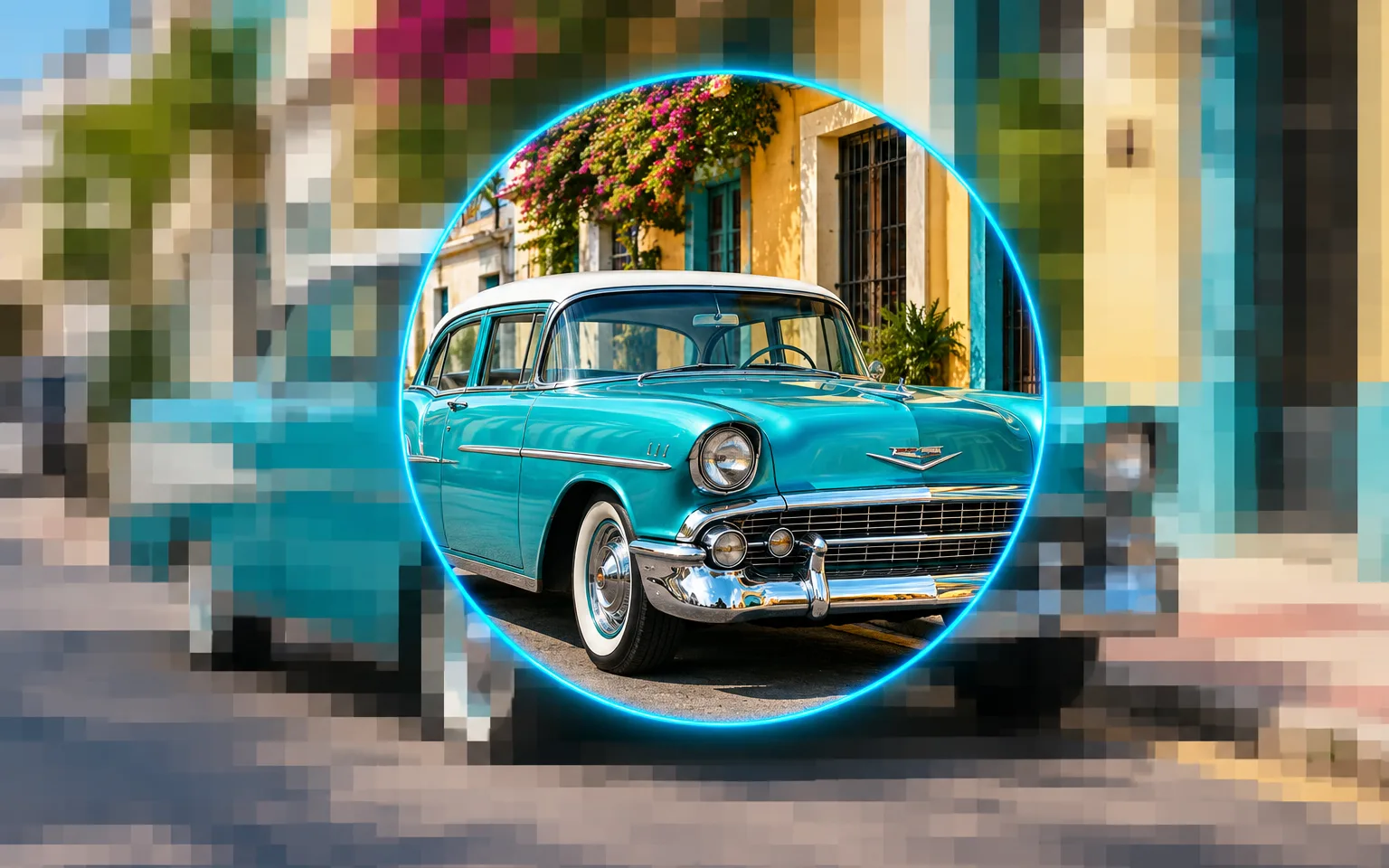
AI Image Unpixelator rebuilds pictures that turned blocky after being enlarged, screenshotted or saved one time too many, giving back smooth edges and clean color. Subjects and composition follow your upload; only the damage is repaired.
Visible squares from enlarging a small image are smoothed away and replaced with clean edges. Diagonal lines and curves lose their staircase steps and read as continuous shapes again.
Try it nowBlotches, halos and color banding left by repeated saving and sharing are cleaned up. Typical targets are the ringing around text, smudged squares in flat skies and stepped bands in smooth gradients.
Try it nowSubjects and composition follow the input image. Colors, layout and every object stay where they were, because the AI Image Unpixelator repairs how the picture is drawn rather than what it shows.
Try it nowScreenshots, icons, illustrations and flat logos suffer from the same blocky edges as photographs. They can be cleaned in the same workflow, with straight lines and solid fills restored rather than given a photographic texture.
Try it nowRefresh small images saved from old sites and forums, which were often squeezed hard so pages would load quickly.
Clean blocky screenshots you took yourself, and thumbnails that were stretched far beyond their intended size.
Smooth jagged edges on your own brand graphics when the original vector file has been lost and only a small bitmap remains.
Improve photos from early digital cameras and phones that saved small, heavily compressed files.
Repair images that lost quality each time they were passed through messaging apps and saved again along the way.
Tidy frames from your own low-quality clips, where fast motion left blocky patches across the picture and colors broke into bands.
Reuse low-quality assets you have rights to when the original high-resolution file cannot be found.
Clean up old logo files and product pictures before they appear on a new website, menu or sign.
Improve early digital photos from past years that survive only as small, compressed copies, such as pictures once sent by email or posted to an early social profile.
Fix blocky images before using them in videos or posts, where large screens make every artifact obvious.
 GPT-Image-2.5OpenAIGPT-Image-2OpenAI
 Seedream 5.0 ProByteDanceSeedream 5.0ByteDanceSeedream 4.5ByteDance
 Nano Banana ProGoogleNano Banana 2GoogleNano BananaGoogle
 Qwen Image 3.0 ProAlibabaQwen Image 3.0Alibaba
 Flux 2Black Forest LabsFlux KontextBlack Forest Labs
 MidjourneyMidjourney
 MiniMax Image 01MiniMaxWan 2.6 ImageAlibabaWan 2.5 ImageAlibaba
 Grok ImagexAI
Add the pixelated image you want to fix.
Optionally say what kind of image it is, or leave the box empty.
Start the task and download the smooth image.
Very tiny images may gain plausible but not exact detail; check important parts such as text, numbers and faces before publishing.
Say in the details box whether the image is a photo, a logo or an illustration.
For a larger output, run the result through the Image Upscaler afterwards.
Skip pixel art and retro game graphics where the blocks are the intended style; the tool will smooth that look away.
Upload the largest, least re-saved copy you can find, since each extra round of compression discards detail that cannot be brought back.
No. It rebuilds plausible detail, not the hidden original, and must not be used to uncover censored faces or information. Mosaicked faces, plates and documents are hidden for a reason, and any output would be invention presented as fact.
It focuses on cleaning up blocks and artifacts rather than adding size. Once the picture looks smooth, use the Image Upscaler to enlarge it for print or a large screen. Cleaning first gives the upscaler a better starting point, because enlarging blocks only makes them bigger.
Pictures that are blocky but still readable, such as a small logo, an old forum photo or an over-compressed screenshot. If the subject is only a handful of squares, the result is an informed guess rather than a restoration. Moderate compression damage on a normal-sized photo usually recovers most convincingly.
Look at the pattern of the damage. Regular squares, staircase edges and smudged blocks around text come from enlarging or over-compressing a file, and that is what this tool rebuilds. Fine, random grain and colored specks spread across a dark photo are sensor noise, which Denoise Image handles better. A night photo shared many times can have both, so clean the blocks first and then check whether grain remains.
Letters and small symbols need exact shapes, and a few blocks rarely define them fully. The model may choose a similar but wrong character, stroke or spacing. For brand work, compare the output with an official reference and recreate critical lettering from that source instead of trusting the reconstruction.
It uses pay-as-you-go credits. The price is shown next to the Generate button before you start.
You can explore the page without signing in. Sign in when you are ready to generate.
Upload an image above and remove the blocks while its subject, colors and layout stay as they were.
Try it now