APIXOAPIXO

Create

AI Video
AI Image
AI Audio

Library

GenerationsAssets

Explore

ModelsAI ToolsPricing
APIXOAPIXO
APIXO
APIXO

Create any content you can imagine. Trusted by millions of creators.

Support@apixo.ai

Models

Claude Sonnet 4.6
Face Swap
Flux 2
FLUX 3
Flux Kontext
Gemini 3.1 Pro Preview
Gemini Omni
GPT-5.5
GPT-Image-1
GPT-Image-2
GPT-Image-2.5
Grok Image
Grok Imagine Video 1.5
Grok Video
Hailuo 2.3
Hailuo 2.3 Fast
HappyHorse
Head Swap
Image Upscaler
Image Watermark Remover
InfiniteTalk
Kling 2.1
Kling 2.5 Turbo Pro
Kling 2.6
Kling 3.0 Omni
Kling 3.0 Std
Kling 3.0 Turbo
LTX-2 19B
Midjourney
MiniMax H3
MiniMax H3 LoRA
MiniMax Image 01
MiniMax Speech 2.8
MiniMax Voice
Nano Banana
Nano Banana 2
Nano Banana Pro
Qwen Image 3.0
Qwen Image 3.0 Pro
Seedance 1.5 Pro
Seedance 2.0
Seedance 2.0 Fast
Seedance 2.0 Mini
Seedance 2.5
Seedream 4.5
Seedream 5.0
Seedream 5.0 Pro
Sora 2
Sora 2 Pro
Suno V6
Veo 3.1
Video Upscaler
Video Watermark Remover
Vidu Q3
Wan 2.2 Animate
Wan 2.5
Wan 2.5 Image
Wan 2.6
Wan 2.6 Image
Wan 2.7
Wan 2.7 Image
Wan 3.0 Video
Wan 3.0 Video LoRA
Wan 3.0 Video Pro LoRA
Z-Image LoRA
Z-Image LoRA Pro

Product

FeaturedImage ModelsVideo ModelsAudio ModelsText Models

Resources

AffiliateCompany InformationTerms of ServicePrivacy PolicyRefund PolicyShipping / Digital Delivery Policy

Other

PricingAPI Docs

© 2026 APIXO. All rights reserved.

MODEL AVAILABILITY, PRICING, AND ROUTING CAN VARY BY PROVIDER AND REGION.

CreateGenerationsAssets
  1. Home
  2. Image Tools
  3. Image Upscaler

AI Image Upscaler

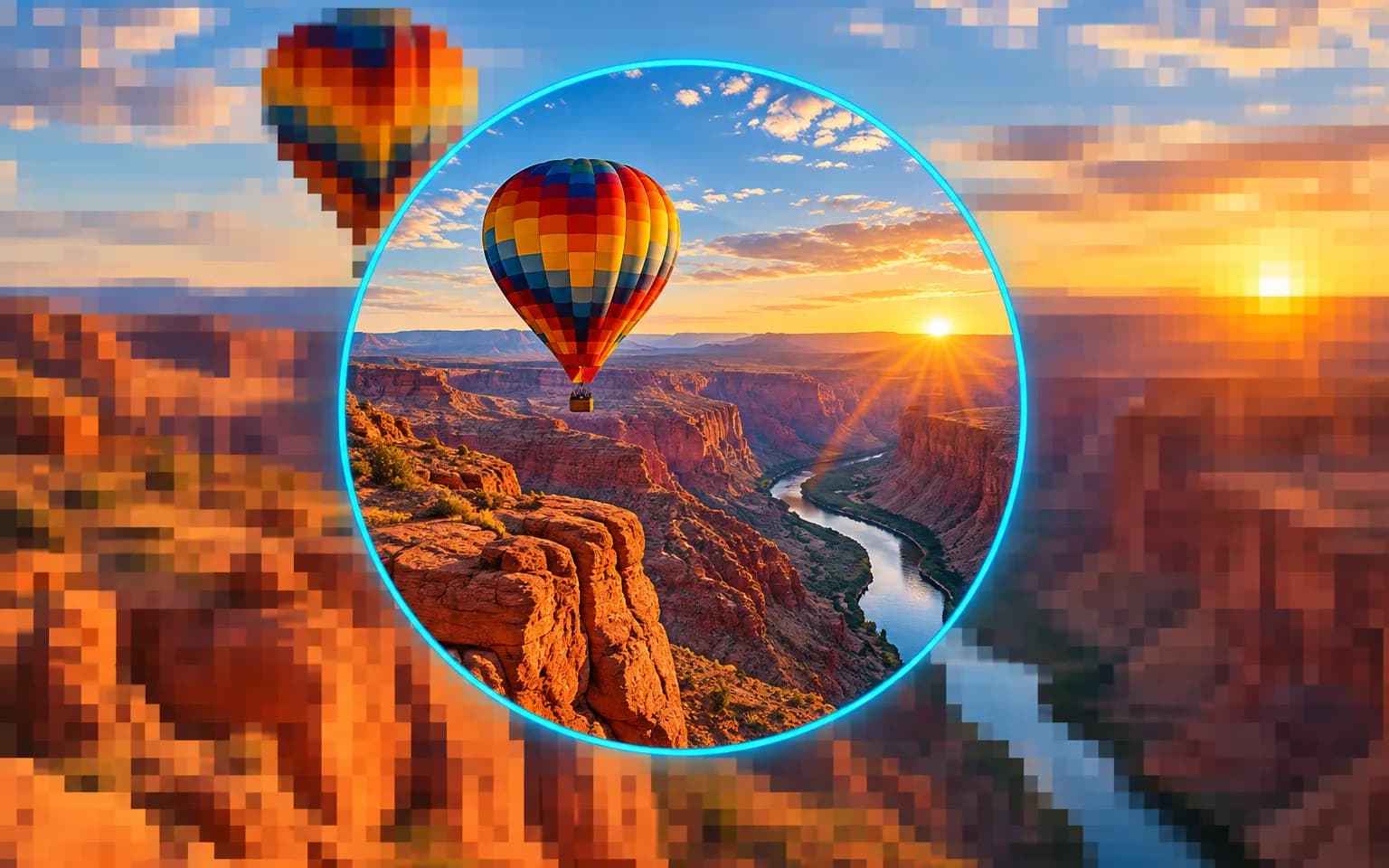
AI Image Upscaler turns a small or low-resolution source into a larger image while refining edges and visible texture. Upload the strongest copy you have, choose the target tier and output format shown in the workbench, review the credit estimate, and create a file suited to your next layout.

  • Image Upscaler
  • Image Enhancer
  • Unblur Image
  • Denoise Image
  • Face Swap
  • Camera Angle Changer
  • Image Relight
  • Background Changer
  • Watermark Remover
  • Object Remover
  • All Tools
Image Upscaler
Why use it

Why creators use AI Image Upscaler

Enhance detail while enlarging

The workflow does more than stretch existing pixels. It interprets outlines, surface texture and local contrast while producing a larger file, which can make a modest source easier to use in a spacious web layout, presentation or print draft. The source still sets the ceiling, so inspect invented fine detail before delivery.

Try it now

Choose the size you need

Select the resolution tier and file format currently offered in the workbench instead of relying on a fixed promise in the page copy. Matching the output to its real destination helps you avoid unnecessary processing while giving a banner, catalog image, slide or archive copy enough room for the intended placement.

Try it now

Keep working in the same place

The uploaded source stays available when you move between supported editing tools in the sidebar. You can compare an enlarged result with Image Enhancer when the priority is color, noise or general cleanup, then keep the version that solves the actual problem instead of applying every operation by default.

Try it now

Review the result against the source

Keep the original file and compare faces, lettering, logos, repeated patterns and product edges at the final display size. AI enhancement can produce plausible texture where the source is unclear, so a careful side-by-side review is part of a reliable image upscale workflow, especially for records or branded assets.

Try it now
Capabilities

Where AI Image Upscaler fits in production

Prepare small product sources

Create a larger working file from an authorized supplier or archive image before placing it in a product page, catalog draft or comparison layout.

Give cropped photos more room

Enlarge a tightly cropped portrait, travel shot or event photo when the selected composition leaves too few source pixels for the intended placement.

Refine simple graphic edges

Improve the perceived definition of authorized icons, clip art and presentation graphics, then verify every line and letter against the original before use.

Choose output for the destination

Match the available target tier and format to a screen, layout, print draft or continued editing step rather than enlarging without a delivery goal.

Support archive access copies

Make small scans easier to inspect or present while keeping the untouched source as the authoritative record for historical and documentary work.

Follow with focused cleanup

Move to Image Enhancer when the enlarged file also needs separate attention to noise, exposure or color, and compare each stage independently.

Teams that need more usable image area
Who it is for

Teams that need more usable image area

Store and marketplace teams

Prepare approved product images for larger listing modules, buying guides and internal merchandising drafts while checking labels and surface detail after generation.

Design and campaign teams

Reuse an authorized visual in slides, banners and layout concepts that require more working pixels than the available source provides.

Photographers and creators

Give selected crops, older exports and portfolio images a larger delivery file before applying final sharpening, color work or publication formatting.

Archives and documentation groups

Create easier-to-view access copies of small scans while retaining the original capture and clearly separating reconstruction from documentary evidence.

Models

Models behind this tool

  • AXImage UpscalerAPIXO
How it works

Create a larger image with AI Image Upscaler

Try it now
01

Upload your image

Add the least-compressed copy available, preferably the original export rather than a screenshot or a file downloaded from a messaging service. A cleaner input gives the model more reliable edges and texture to interpret.

02

Choose resolution and format

Select the target resolution tier and output format displayed in the workbench. Check the visible credit estimate and choose for the intended screen, layout, print draft or editing stage.

03

Generate and download

Submit the task, download the completed file and compare it with the untouched source. Inspect important text, faces, product details and patterned areas before replacing an existing production asset.

Tips & FAQ

Get better results

Tips

01

Begin with the original export or least-compressed copy available because repeated downloads and screenshots leave less trustworthy detail for reconstruction.

02

Choose the smallest available tier that comfortably fits the destination; a larger file does not automatically create a more faithful image.

03

Select a lossless output when more editing is planned, then make delivery copies only after the visual review is complete.

04

Inspect lettering, faces, logos and repeating texture at the intended display size because reconstructed detail may look plausible but be inaccurate.

05

Keep the source beside the result so editors and reviewers can distinguish captured information from detail introduced during image upscale processing.

Frequently Asked Questions

AI Image Upscaler creates a larger output while refining perceived edges, texture and local contrast. It is useful when a source is too small for its planned placement, but it cannot recover an exact record of information that was never captured. Treat newly reconstructed fine detail as an interpretation and review it carefully.

Upload the strongest source, choose the smallest available tier that comfortably fits the final placement, select an appropriate output format and review the estimate before generating. Afterward, compare the enlarged image at its intended display size. This keeps the decision tied to your workflow instead of assuming that the largest option is always better.

The upload control and output selectors show the current file requirements, resolution tiers and formats for this workflow. Those interface options are the source of truth because supported settings can change. Start with an original image when possible, and choose a lossless output when you expect to continue editing.

Upscaling uses pay-as-you-go credits, with the charge determined by the active model and settings. The workbench shows the current estimate beside the Generate button before you submit. Review that figure after changing a target tier or format, since different parameters can change the expected cost.

No. It can improve perceived clarity and reduce the obvious appearance of a small source, but severe blur, clipping, compression and missing focus limit the result. Faces, text and fine patterns may gain plausible details rather than historically exact ones. Keep the source and inspect important regions before publishing.

Upscaling does not create new ownership or expand a license. Commercial use depends on your rights to the source image, the selected model terms and the rules for the final placement. Use authorized material, keep relevant source records and review the generated file before distributing it.

More tools

  • Text to Image
  • Image to Image
  • Image Enhancer
  • Photo Restoration
  • Unblur Image
  • Image Sharpener
  • Denoise Image
  • Face Enhancer
  • Photo Retouching
  • Unpixelate Image
  • Face Swap
  • Head Swap
  • Colorize Photo
  • Camera Angle Changer
  • Image Relight
  • Change Color of Image
  • Face Editor
  • Edit Text in Image
  • Image Translator
  • Background Changer
  • Background Remover
  • Image Layer Decomposition
  • White Background
  • Blur Background
  • Change Background Color
  • Product Staging
  • Product Beautifier
  • Flat Lay Generator
  • Ghost Mannequin
  • Product Photo Generator
  • Clone Product Image
  • Watermark Remover
  • Object Remover
  • Remove Text from Image
  • People Remover
  • Photo to Anime
  • Photo to Sketch
  • Photo to Cartoon
  • Photo to Painting
  • AI Filter
  • Vintage Filter
  • Black and White Filter
  • Glitch Effect
  • Photo to 3D Cartoon
  • Cartoon Avatar Maker

Prepare a larger file with AI Image Upscaler

Upload the strongest source available, choose a practical target tier, review the visible estimate and create a larger version for your next design, archive or publishing step.

Try it now
  • Image Upscaler
  • Image Enhancer
  • Unblur Image
  • Denoise Image
  • Face Swap
  • Camera Angle Changer
  • Image Relight
  • Background Changer
  • Watermark Remover
  • Object Remover
  • All Tools