




APIXOAPIXO

Create

AI Video
AI Image
AI Audio

Library

GenerationsAssets

Explore

ModelsAI ToolsPricing
APIXOAPIXO
APIXO
APIXO

Create any content you can imagine. Trusted by millions of creators.

Support@apixo.ai

Models

Claude Sonnet 4.6
Face Swap
Flux 2
FLUX 3
Flux Kontext
Gemini 3.1 Pro Preview
Gemini Omni
GPT-5.5
GPT-Image-1
GPT-Image-2
GPT-Image-2.5
Grok Image
Grok Imagine Video 1.5
Grok Video
Hailuo 2.3
Hailuo 2.3 Fast
HappyHorse
Head Swap
Image Upscaler
Image Watermark Remover
InfiniteTalk
Kling 2.1
Kling 2.5 Turbo Pro
Kling 2.6
Kling 3.0 Omni
Kling 3.0 Std
Kling 3.0 Turbo
LTX-2 19B
Midjourney
MiniMax H3
MiniMax H3 LoRA
MiniMax Image 01
MiniMax Speech 2.8
MiniMax Voice
Nano Banana
Nano Banana 2
Nano Banana Pro
Qwen Image 3.0
Qwen Image 3.0 Pro
Seedance 1.5 Pro
Seedance 2.0
Seedance 2.0 Fast
Seedance 2.0 Mini
Seedance 2.5
Seedream 4.5
Seedream 5.0
Seedream 5.0 Pro
Sora 2
Sora 2 Pro
Suno V6
Veo 3.1
Video Upscaler
Video Watermark Remover
Vidu Q3
Wan 2.2 Animate
Wan 2.5
Wan 2.5 Image
Wan 2.6
Wan 2.6 Image
Wan 2.7
Wan 2.7 Image
Wan 3.0 Video
Wan 3.0 Video LoRA
Wan 3.0 Video Pro LoRA
Z-Image LoRA
Z-Image LoRA Pro

Product

FeaturedImage ModelsVideo ModelsAudio ModelsText Models

Resources

AffiliateCompany InformationTerms of ServicePrivacy PolicyRefund PolicyShipping / Digital Delivery Policy

Other

PricingAPI Docs

© 2026 APIXO. All rights reserved.

MODEL AVAILABILITY, PRICING, AND ROUTING CAN VARY BY PROVIDER AND REGION.

CreateGenerationsAssets
  1. Home
  2. Image Tools
  3. Image Sharpener

AI Image Sharpener

The AI Image Sharpener gives slightly soft photos cleaner edges and finer texture, without the bright halos a heavy sharpening filter leaves behind. It is meant for frames that are nearly there, such as a portrait where focus landed a touch behind the eyes.

  • Image Upscaler
  • Image Enhancer
  • Unblur Image
  • Image Sharpener
  • Denoise Image
  • Face Swap
  • Camera Angle Changer
  • Image Relight
  • Background Changer
  • Watermark Remover
  • Object Remover
  • All Tools
Image Sharpener
Why use it

Crisp detail that still looks natural

Cleaner edges

Outlines of people and objects become well defined without looking cut out, which matters most where a subject meets a busy or similarly colored background.

Try it now

Finer texture

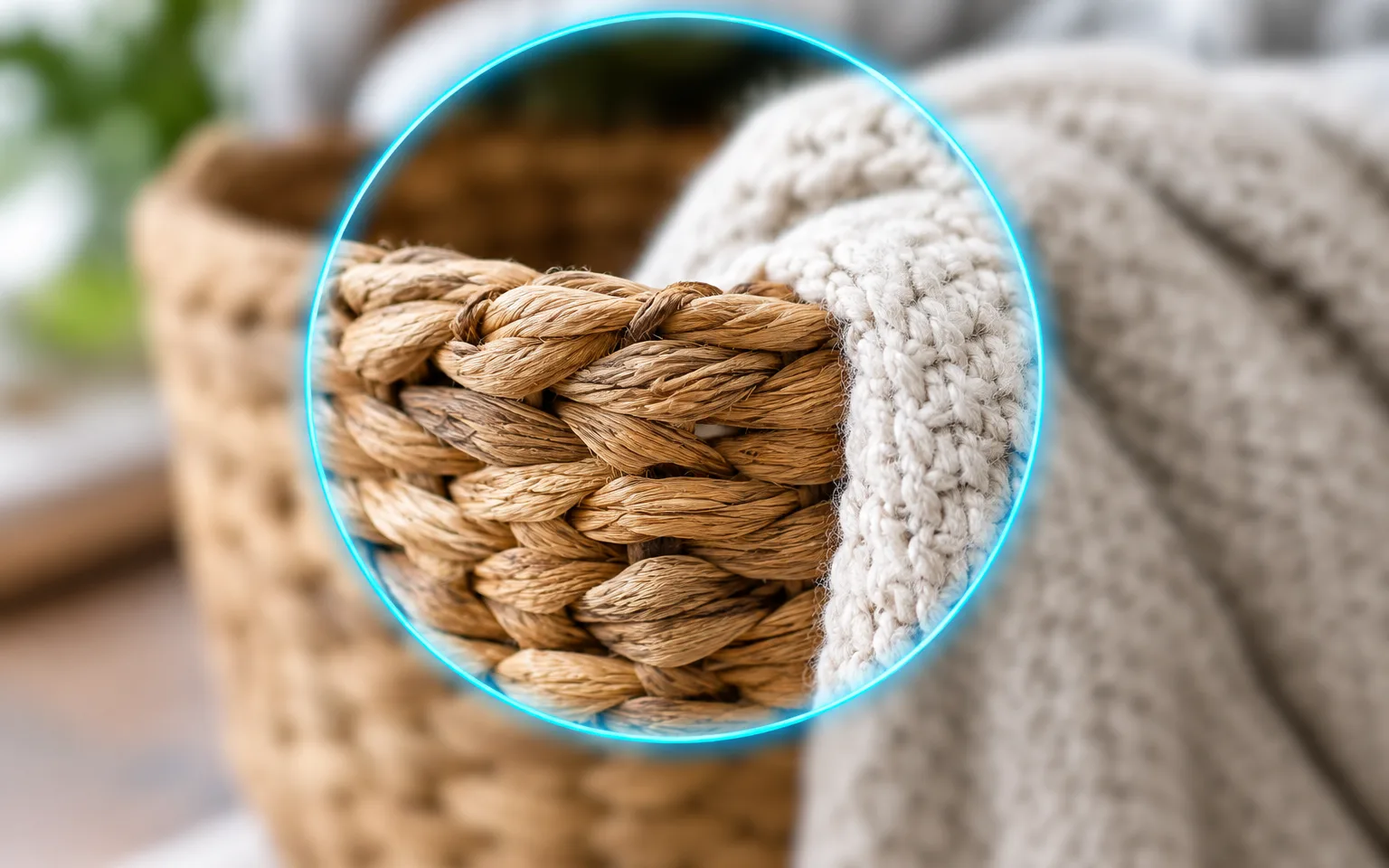
Hair, fabric, foliage and surfaces show more of the detail the camera almost caught. Rather than raising contrast everywhere, the AI Image Sharpener works on structure it can recognize, such as threads, wood grain and leaf veins.

Try it now

No harsh halos

Sharpening is kept natural, without the bright outlines of heavy filters. Smooth areas such as skies, skin and studio backdrops are left calm so they do not turn gritty.

Try it now

Colors and light left alone

The job is limited to edges and texture. Exposure, white balance and color grading are meant to stay as you delivered them, so a sharpened frame still matches the rest of a set edited in the same style.

Try it now
Capabilities

What the AI Image Sharpener can refine

Portrait detail

Crisper eyes, lashes and hair, while skin keeps its natural softness instead of turning rough.

Product texture

Show materials and finishes more clearly, from knitted fabric and brushed metal to the grain of leather or wood.

Landscapes and architecture

Define leaves, rocks, windows and rooflines so distant structures read as more than soft shapes.

Soft phone photos

Counter the smoothing some phone cameras apply, especially in portrait modes and zoomed-in shots.

Food and close-ups

Bring out crumbs, seeds, droplets and surface texture in close-ups where the zone of sharp focus was very thin.

Photos headed for print

Add a little crispness before printing, since ink on paper tends to soften fine detail compared with a bright screen.

Who keeps the AI Image Sharpener handy
Who it is for

Who keeps the AI Image Sharpener handy

E-commerce sellers

Make product photos look crisp on listing pages, where shoppers zoom in to judge stitching, texture and finish.

Photographers

Finish slightly soft frames before delivery when a reshoot is impossible and the softness is small but noticeable, such as a group shot where the back row sits just behind the focus plane.

Designers and marketers

Tighten up supplied images for banners and print when the only available file is a little soft and nobody can supply a better one.

Social media creators

Keep posts looking crisp after cropping, editing and the compression most platforms apply on upload.

Models

Models behind this tool

  • OpenAI logoGPT-Image-2.5OpenAI
  • OpenAI logoGPT-Image-2OpenAI
  • ByteDance logoSeedream 5.0 ProByteDance
  • ByteDance logoSeedream 5.0ByteDance
  • ByteDance logoSeedream 4.5ByteDance
  • Google logoNano Banana ProGoogle
  • Google logoNano Banana 2Google
  • Google logoNano BananaGoogle
  • Alibaba logoQwen Image 3.0 ProAlibaba
  • Alibaba logoQwen Image 3.0Alibaba
  • Black Forest Labs logoFlux 2Black Forest Labs
  • Black Forest Labs logoFlux KontextBlack Forest Labs
  • Midjourney logoMidjourneyMidjourney
  • MiniMax logoMiniMax Image 01MiniMax
  • Alibaba logoWan 2.6 ImageAlibaba
  • Alibaba logoWan 2.5 ImageAlibaba
  • xAI logoGrok ImagexAI
How it works

Sharpen a photo in three steps

Try it now
01

Upload your photo

Add the soft photo you want to sharpen.

02

Add details if you like

Optionally say what to focus on, or leave the box empty.

03

Generate and download

Start the task and download the sharpened photo.

Tips & FAQ

Get better results

Tips

01

For strong motion blur use Unblur Image instead; the sharpener is for photos that are only slightly soft.

02

Ask for a lighter touch in the details box if the result looks too crisp, or name an area such as skin that should stay soft.

03

Start from the least compressed version of the image you have; blocky compression edges get sharpened along with the real ones.

04

Sharpen as the last step, after cropping, color changes and noise cleanup, so later edits do not undo the edge work.

05

Judge the result at the size people will actually see it, because sharpening that looks right when zoomed in can feel harsh or invisible at other sizes.

Frequently Asked Questions

The sharpener refines photos that are only slightly soft. Unblur Image targets stronger motion or focus blur and reconstructs much more of the missing detail, so pick it when a shot is clearly out of focus. A quick test: if you can already see where every edge belongs and the image merely lacks bite, sharpen it; if outlines are doubled or smeared, unblur it.

It is instructed to keep sharpening natural, so you should not see the bright outlines of a heavy filter. If a result still feels too crisp, ask for a lighter touch; grainy low-light shots are better cleaned with Denoise Image first.

No. Its purpose is crisper edges and texture, not a bigger canvas, so do not rely on it to add resolution. When you need more pixels for a large print or a wide banner, Image Upscaler is the tool built for that; you can sharpen the enlarged version afterwards if it still looks soft.

Only to a limited degree. Sharpening makes existing edges and texture easier to see; where the camera recorded nothing but a smooth patch, any detail that appears is generated. That is usually harmless in foliage or fabric, but it matters for text, logos and faces, so compare those areas with the original.

It is designed to improve quality only; people, objects and composition stay the same.

It uses pay-as-you-go credits. The price is shown next to the Generate button before you start.

You can explore the page without signing in. Sign in when you are ready to generate.

More tools

  • Text to Image
  • Image to Image
  • Image Upscaler
  • Image Enhancer
  • Photo Restoration
  • Unblur Image
  • Denoise Image
  • Face Enhancer
  • Photo Retouching
  • Unpixelate Image
  • Face Swap
  • Head Swap
  • Colorize Photo
  • Camera Angle Changer
  • Image Relight
  • Change Color of Image
  • Face Editor
  • Edit Text in Image
  • Image Translator
  • Background Changer
  • Background Remover
  • Image Layer Decomposition
  • White Background
  • Blur Background
  • Change Background Color
  • Product Staging
  • Product Beautifier
  • Flat Lay Generator
  • Ghost Mannequin
  • Product Photo Generator
  • Clone Product Image
  • Watermark Remover
  • Object Remover
  • Remove Text from Image
  • People Remover
  • Photo to Anime
  • Photo to Sketch
  • Photo to Cartoon
  • Photo to Painting
  • AI Filter
  • Vintage Filter
  • Black and White Filter
  • Glitch Effect
  • Photo to 3D Cartoon
  • Cartoon Avatar Maker

Make your photo crisp with the AI Image Sharpener

Upload a photo above and sharpen it in one step, keeping its colors, light and composition as they were.

Try it now
  • Image Upscaler
  • Image Enhancer
  • Unblur Image
  • Image Sharpener
  • Denoise Image
  • Face Swap
  • Camera Angle Changer
  • Image Relight
  • Background Changer
  • Watermark Remover
  • Object Remover
  • All Tools