



APIXOAPIXO

Create

AI Video
AI Image
AI Audio

Library

GenerationsAssets

Explore

ModelsAI ToolsPricing
APIXOAPIXO
APIXO
APIXO

Create any content you can imagine. Trusted by millions of creators.

Support@apixo.ai

Models

Claude Sonnet 4.6
Face Swap
Flux 2
FLUX 3
Flux Kontext
Gemini 3.1 Pro Preview
Gemini Omni
GPT-5.5
GPT-Image-1
GPT-Image-2
GPT-Image-2.5
Grok Image
Grok Imagine Video 1.5
Grok Video
Hailuo 2.3
Hailuo 2.3 Fast
HappyHorse
Head Swap
Image Upscaler
Image Watermark Remover
InfiniteTalk
Kling 2.1
Kling 2.5 Turbo Pro
Kling 2.6
Kling 3.0 Omni
Kling 3.0 Std
Kling 3.0 Turbo
LTX-2 19B
Midjourney
MiniMax H3
MiniMax H3 LoRA
MiniMax Image 01
MiniMax Speech 2.8
MiniMax Voice
Nano Banana
Nano Banana 2
Nano Banana Pro
Qwen Image 3.0
Qwen Image 3.0 Pro
Seedance 1.5 Pro
Seedance 2.0
Seedance 2.0 Fast
Seedance 2.0 Mini
Seedance 2.5
Seedream 4.5
Seedream 5.0
Seedream 5.0 Pro
Sora 2
Sora 2 Pro
Suno V6
Veo 3.1
Video Upscaler
Video Watermark Remover
Vidu Q3
Wan 2.2 Animate
Wan 2.5
Wan 2.5 Image
Wan 2.6
Wan 2.6 Image
Wan 2.7
Wan 2.7 Image
Wan 3.0 Video
Wan 3.0 Video LoRA
Wan 3.0 Video Pro LoRA
Z-Image LoRA
Z-Image LoRA Pro

Product

FeaturedImage ModelsVideo ModelsAudio ModelsText Models

Resources

AffiliateCompany InformationTerms of ServicePrivacy PolicyRefund PolicyShipping / Digital Delivery Policy

Other

PricingAPI Docs

© 2026 APIXO. All rights reserved.

MODEL AVAILABILITY, PRICING, AND ROUTING CAN VARY BY PROVIDER AND REGION.

CreateGenerationsAssets
  1. Home
  2. Image Tools
  3. Edit Text in Image

AI Image Text Editor

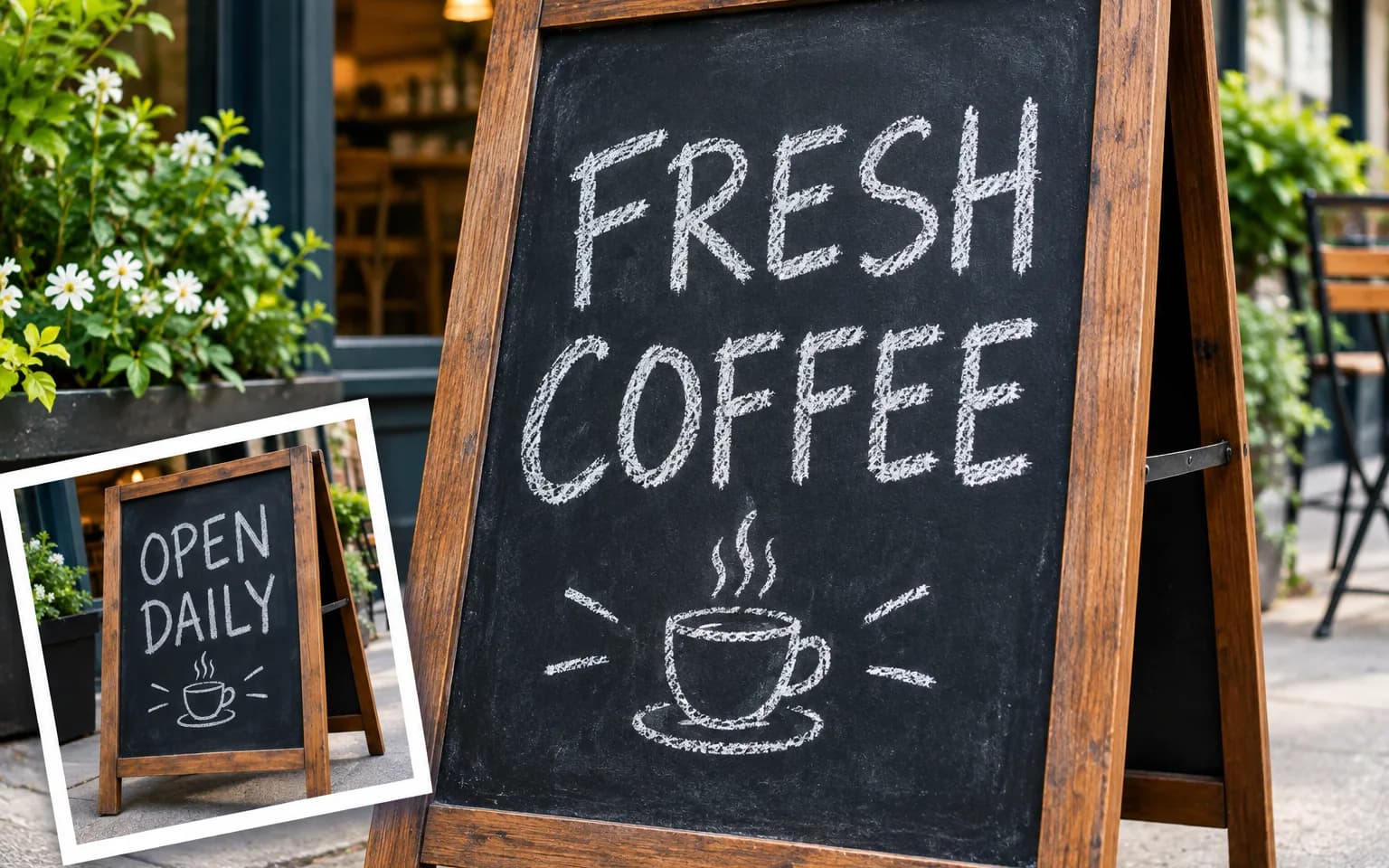
AI Image Text Editor replaces existing words inside a finished visual while keeping the surrounding layout recognizable. Upload one image, provide the replacement wording, and ask the model to match placement, scale, alignment, color and the overall lettering style as closely as the source allows.

  • Image Upscaler
  • Image Enhancer
  • Unblur Image
  • Denoise Image
  • Face Swap
  • Camera Angle Changer
  • Image Relight
  • Edit Text in Image
  • Background Changer
  • Watermark Remover
  • Object Remover
  • All Tools
Edit Text in Image
Why use it

Update designs with AI Image Text Editor

Replace specific wording

Quote the old words and provide the exact replacement so the model knows which region to change. This supports focused corrections to headings, labels, dates or short calls to action while leaving other visible text and design content in place.

Try it now

Follow the existing visual hierarchy

The editing prompt asks the model to match the original placement, alignment, scale, color and broad lettering style. It aims for visual continuity rather than exposing editable font metadata, which is not available from a flattened uploaded image.

Try it now

Repair the area around new copy

Replacement text may be shorter, longer or shaped differently from the original. The model regenerates the local background and spacing around the new words so the result can feel integrated instead of pasted over the old lettering.

Try it now

Test across supported models

Typography is a demanding generative task, especially for small letters, unusual typefaces and dense copy. APIXO lets you compare several image editing models when spelling, spacing or visual matching from the first generation is not suitable.

Try it now
Capabilities

What AI Image Text Editor can update

Typo correction

Fix a visible spelling error in authorized artwork while preserving surrounding illustration, photography and layout.

Campaign refreshes

Update a short headline or call to action in owned promotional imagery without recreating the entire asset.

Product callouts

Replace an outdated feature label while keeping the product, approved branding, background and visual hierarchy recognizable.

Screenshot labels

Revise a short instruction or sample name in a screenshot you are authorized to modify for documentation.

Translation follow-up

Fine-tune one phrase after using Image Translator when a localized asset needs a particular approved wording.

API prototyping

Validate instructions in the visual workbench before integrating a supported model through APIXO for asset operations.

Who uses AI Image Text Editor
Who it is for

Who uses AI Image Text Editor

Marketing teams

Correct or refresh short approved copy in campaign visuals when the layered source file is not immediately available.

Online sellers

Update owned product graphics and feature callouts while keeping merchandise and legitimate brand elements recognizable.

Documentation teams

Revise labels in screenshots or tutorial images after interface wording changes, subject to a careful accuracy review.

Independent creators

Fix a typo or change a short title in personal artwork they own without rebuilding the visual manually.

Models

Models behind this tool

  • OpenAI logoGPT-Image-2.5OpenAI
  • OpenAI logoGPT-Image-2OpenAI
  • ByteDance logoSeedream 5.0 ProByteDance
  • ByteDance logoSeedream 5.0ByteDance
  • ByteDance logoSeedream 4.5ByteDance
  • Google logoNano Banana ProGoogle
  • Google logoNano Banana 2Google
  • Google logoNano BananaGoogle
  • Alibaba logoQwen Image 3.0 ProAlibaba
  • Alibaba logoQwen Image 3.0Alibaba
  • Black Forest Labs logoFlux 2Black Forest Labs
  • Black Forest Labs logoFlux KontextBlack Forest Labs
  • Midjourney logoMidjourneyMidjourney
  • MiniMax logoMiniMax Image 01MiniMax
  • Alibaba logoWan 2.6 ImageAlibaba
  • Alibaba logoWan 2.5 ImageAlibaba
  • xAI logoGrok ImagexAI
How it works

How to use AI Image Text Editor

Try it now
01

Upload the finished visual

Choose a clear image you are allowed to alter, with the original wording visible enough to guide style matching.

02

Provide exact replacement copy

Quote the old text, write the new text exactly, and describe placement or style details that matter.

03

Generate and proofread

Check spelling, spacing, factual accuracy and surrounding design before downloading or trying another model.

Tips & FAQ

Get better results

Tips

01

Quote both the original words and exact replacement so the model can locate and rewrite the right region.

02

Keep replacement copy concise when the available space is narrow or the source letters are very small.

03

Describe alignment, color and general style when the visual contains several different text treatments.

04

Inspect every generated character and factual claim because image models can misspell or reshape lettering.

05

Use Remove Text from Image instead when you want a repaired blank area without replacement wording.

Frequently Asked Questions

AI Image Text Editor is a generative editing workflow for replacing visible wording in a flattened image. It removes and redraws pixels rather than opening an editable text layer. The model uses the source as visual guidance for placement and style, then generates a new result.

It can aim for a similar lettering feel, scale, color, spacing and alignment when the source provides clear visual evidence. It does not identify or license the original font, and an exact match is not guaranteed. Always proofread the replacement and compare models for important assets.

Long copy, tiny letters, unusual scripts, curved baselines and busy backgrounds are difficult for generative models. The output may contain spelling errors or imperfect spacing. Use concise wording, provide exact text, and treat every generated character and factual statement as requiring human review.

Use a clear image accepted by the upload control. A well-lit source with visible edges and enough surrounding context gives the model more information to preserve important details. Very small, heavily compressed, blocked or ambiguous areas can make reconstruction and fine lettering less consistent.

Generation uses credits based on the model and parameters selected for the task. The workbench shows an estimate before submission, so you can review the expected charge before starting. Switching models or output settings can change that estimate without changing the purpose of the tool.

Yes. The models that power the workbench are also available through APIXO APIs for developers building repeatable image workflows. The related model pages explain current request fields and response handling. Use the workbench for visual testing, then choose the matching model documentation for integration.

Commercial use depends on your rights to the source image, its people, logos, artwork and other protected material, together with the terms that apply to your selected model and destination. Only upload content you are authorized to edit, and review relevant permissions before publishing or selling the result.

More tools

  • Text to Image
  • Image to Image
  • Image Upscaler
  • Image Enhancer
  • Photo Restoration
  • Unblur Image
  • Image Sharpener
  • Denoise Image
  • Face Enhancer
  • Photo Retouching
  • Unpixelate Image
  • Face Swap
  • Head Swap
  • Colorize Photo
  • Camera Angle Changer
  • Image Relight
  • Change Color of Image
  • Face Editor
  • Image Translator
  • Background Changer
  • Background Remover
  • Image Layer Decomposition
  • White Background
  • Blur Background
  • Change Background Color
  • Product Staging
  • Product Beautifier
  • Flat Lay Generator
  • Ghost Mannequin
  • Product Photo Generator
  • Clone Product Image
  • Watermark Remover
  • Object Remover
  • Remove Text from Image
  • People Remover
  • Photo to Anime
  • Photo to Sketch
  • Photo to Cartoon
  • Photo to Painting
  • AI Filter
  • Vintage Filter
  • Black and White Filter
  • Glitch Effect
  • Photo to 3D Cartoon
  • Cartoon Avatar Maker

Swap the wording with AI Image Text Editor

Upload an authorized image, provide the exact replacement copy, and review the updated design before you publish it.

Try it now
  • Image Upscaler
  • Image Enhancer
  • Unblur Image
  • Denoise Image
  • Face Swap
  • Camera Angle Changer
  • Image Relight
  • Edit Text in Image
  • Background Changer
  • Watermark Remover
  • Object Remover
  • All Tools