



APIXOAPIXO

Create

AI Video
AI Image
AI Audio

Library

GenerationsAssets

Explore

ModelsAI ToolsPricing
APIXOAPIXO
APIXO
APIXO

Create any content you can imagine. Trusted by millions of creators.

Support@apixo.ai

Models

Claude Sonnet 4.6
Face Swap
Flux 2
FLUX 3
Flux Kontext
Gemini 3.1 Pro Preview
Gemini Omni
GPT-5.5
GPT-Image-1
GPT-Image-2
GPT-Image-2.5
Grok Image
Grok Imagine Video 1.5
Grok Video
Hailuo 2.3
Hailuo 2.3 Fast
HappyHorse
Head Swap
Image Upscaler
Image Watermark Remover
InfiniteTalk
Kling 2.1
Kling 2.5 Turbo Pro
Kling 2.6
Kling 3.0 Omni
Kling 3.0 Std
Kling 3.0 Turbo
LTX-2 19B
Midjourney
MiniMax H3
MiniMax H3 LoRA
MiniMax Image 01
MiniMax Speech 2.8
MiniMax Voice
Nano Banana
Nano Banana 2
Nano Banana Pro
Qwen Image 3.0
Qwen Image 3.0 Pro
Seedance 1.5 Pro
Seedance 2.0
Seedance 2.0 Fast
Seedance 2.0 Mini
Seedance 2.5
Seedream 4.5
Seedream 5.0
Seedream 5.0 Pro
Sora 2
Sora 2 Pro
Suno V6
Veo 3.1
Video Upscaler
Video Watermark Remover
Vidu Q3
Wan 2.2 Animate
Wan 2.5
Wan 2.5 Image
Wan 2.6
Wan 2.6 Image
Wan 2.7
Wan 2.7 Image
Wan 3.0 Video
Wan 3.0 Video LoRA
Wan 3.0 Video Pro LoRA
Z-Image LoRA
Z-Image LoRA Pro

Product

FeaturedImage ModelsVideo ModelsAudio ModelsText Models

Resources

AffiliateCompany InformationTerms of ServicePrivacy PolicyRefund PolicyShipping / Digital Delivery Policy

Other

PricingAPI Docs

© 2026 APIXO. All rights reserved.

MODEL AVAILABILITY, PRICING, AND ROUTING CAN VARY BY PROVIDER AND REGION.

CreateGenerationsAssets
  1. Home
  2. Image Tools
  3. Remove Text from Image

AI Image Text Remover

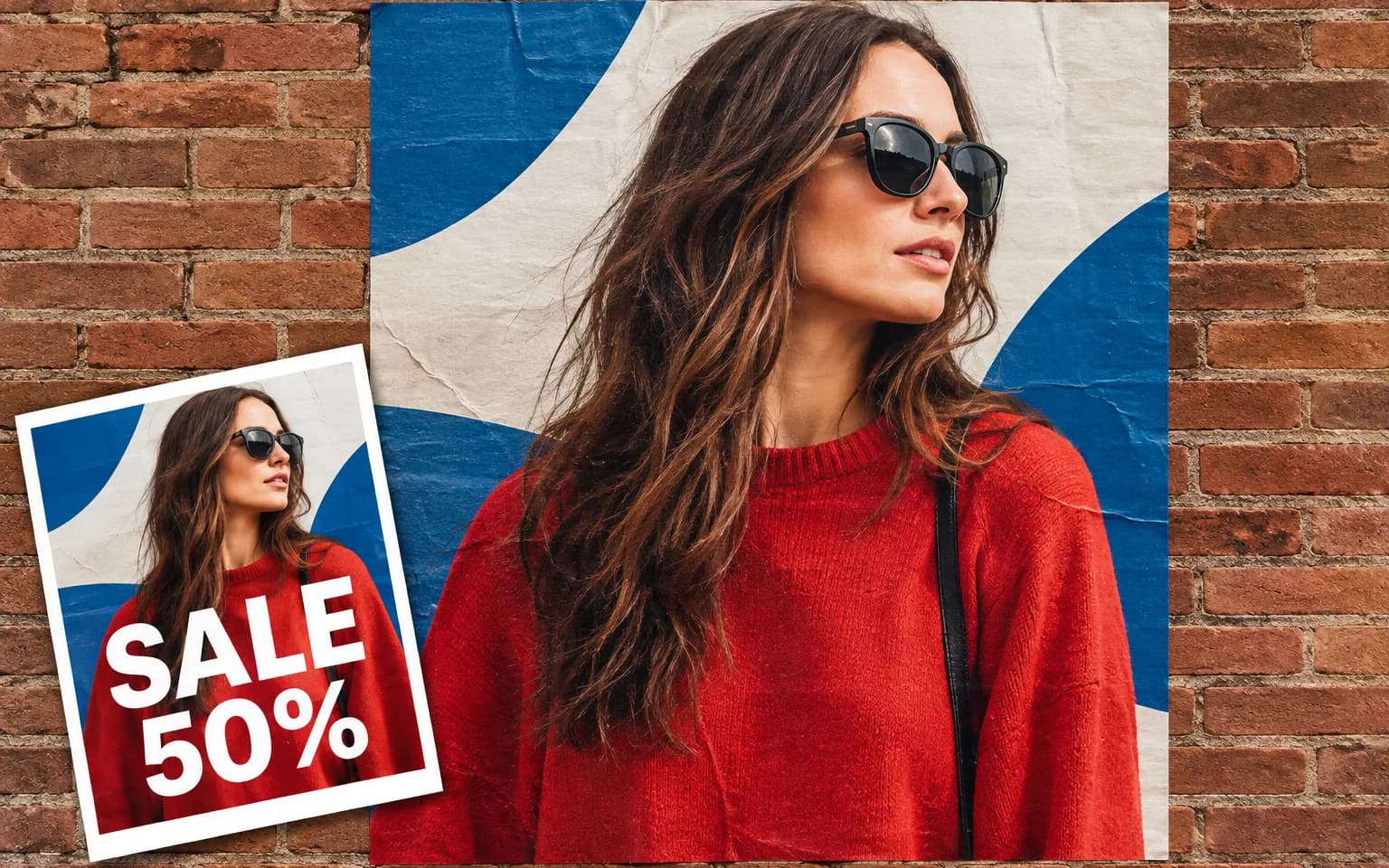
AI Image Text Remover erases unwanted lettering and reconstructs the design or photo beneath it. Upload a single visual, describe the caption, label or overlay to remove, and generate a clean version that keeps surrounding subjects, colors, texture and composition recognizable.

  • Image Upscaler
  • Image Enhancer
  • Unblur Image
  • Denoise Image
  • Face Swap
  • Camera Angle Changer
  • Image Relight
  • Background Changer
  • Watermark Remover
  • Object Remover
  • Remove Text from Image
  • All Tools
Remove Text from Image
Why use it

Clean visuals with AI Image Text Remover

Erase only the named lettering

Point to the words, caption, date, stamp or label that should disappear. The instruction limits removal to that content instead of stripping every readable element, which is useful when product labels, signs or other intentional text must remain visible.

Try it now

Repair what sits behind the words

Text overlays often cover gradients, photographs, paper grain or illustrations. The model uses nearby color and texture to generate a plausible continuation, helping the cleared area belong to the image rather than looking like an opaque rectangle placed over it.

Try it now

Preserve surrounding layout

The system instruction asks the editor to keep people, objects, composition and visual style stable. This makes the tool suitable for preparing a clean source before using Edit Text in Image, Image Translator or another workflow that adds purposeful wording.

Try it now

Choose a model for the material

A photographic sky, patterned package and illustrated poster require different reconstruction judgments. APIXO provides several supported image editing models, so you can compare how they handle edges, typography remnants and detailed backgrounds without changing tools.

Try it now
Capabilities

What AI Image Text Remover can handle

Caption cleanup

Remove an obsolete caption or subtitle from a still image while rebuilding the photographic area beneath the letters.

Poster source recovery

Clear outdated event wording from artwork before adding authorized replacement copy through the separate text editing workflow.

Product graphic cleanup

Erase temporary promotional callouts while preserving the product, approved packaging details and overall campaign design.

Screenshot simplification

Remove an irrelevant annotation from a screenshot you may edit while keeping interface structure and necessary labels intact.

Creative preparation

Build a cleaner starting point for Background Changer, Image Relight or new campaign copy without recreating the whole visual.

API automation

Validate a cleanup prompt visually, then integrate a bound image model through APIXO for authorized recurring asset workflows.

Who needs to remove text from image assets
Who it is for

Who needs to remove text from image assets

Marketing teams

Prepare owned campaign artwork for refreshed messaging by clearing expired copy before an approved replacement is added.

Online sellers

Clean temporary callouts from product visuals while retaining product identity, legitimate branding and important package information.

Designers

Recover a workable background from an authorized flattened image when the editable source is unavailable and copy must change.

Documentation authors

Remove stale notes from screenshots you control before adding current labels or translating instructions for another audience.

Models

Models behind this tool

  • OpenAI logoGPT-Image-2.5OpenAI
  • OpenAI logoGPT-Image-2OpenAI
  • ByteDance logoSeedream 5.0 ProByteDance
  • ByteDance logoSeedream 5.0ByteDance
  • ByteDance logoSeedream 4.5ByteDance
  • Google logoNano Banana ProGoogle
  • Google logoNano Banana 2Google
  • Google logoNano BananaGoogle
  • Alibaba logoQwen Image 3.0 ProAlibaba
  • Alibaba logoQwen Image 3.0Alibaba
  • Black Forest Labs logoFlux 2Black Forest Labs
  • Black Forest Labs logoFlux KontextBlack Forest Labs
  • Midjourney logoMidjourneyMidjourney
  • MiniMax logoMiniMax Image 01MiniMax
  • Alibaba logoWan 2.6 ImageAlibaba
  • Alibaba logoWan 2.5 ImageAlibaba
  • xAI logoGrok ImagexAI
How it works

How to use AI Image Text Remover

Try it now
01

Upload an authorized image

Choose a clear visual that you own or have permission to modify, with the unwanted lettering visible.

02

Identify the text to erase

Describe the words and location, and mention any surrounding labels, artwork or brand elements that must remain untouched.

03

Generate and review the background

Inspect the repaired texture and nearby edges, then refine the instruction or compare another model when needed.

Tips & FAQ

Get better results

Tips

01

Quote the visible words when possible and describe their location so intentional labels are not removed accidentally.

02

Specify whether shadows, boxes or decorative elements attached to the lettering should also disappear.

03

Check fine patterns and straight lines behind the cleared text because they make reconstruction seams easier to notice.

04

Use Edit Text in Image when the goal is replacement rather than a blank repaired area.

05

Only remove logos, watermarks or protected marks when you own the content or have explicit permission to alter it.

Frequently Asked Questions

AI Image Text Remover deletes described lettering from one uploaded visual and generates a plausible continuation of the covered background. It does not extract an editable design layer. The result is a newly generated image, so users should inspect reconstructed textures and important details.

Name or quote the unwanted words and explain where they appear. Also state which labels, signs or package details should remain. A precise prompt gives the model a narrower editing boundary than a broad request such as remove all text, especially in a dense design.

The model may be able to remove visible marks, but capability is not permission. Only alter a watermark, logo or attribution when you own the underlying image and mark or have authorization from the rights holder. Do not use the tool to hide ownership or misrepresent content.

Use a clear image accepted by the upload control. A well-lit source with visible edges and enough surrounding context gives the model more information to preserve important details. Very small, heavily compressed, blocked or ambiguous areas can make reconstruction and fine lettering less consistent.

Generation uses credits based on the model and parameters selected for the task. The workbench shows an estimate before submission, so you can review the expected charge before starting. Switching models or output settings can change that estimate without changing the purpose of the tool.

Yes. The models that power the workbench are also available through APIXO APIs for developers building repeatable image workflows. The related model pages explain current request fields and response handling. Use the workbench for visual testing, then choose the matching model documentation for integration.

Commercial use depends on your rights to the source image, its people, logos, artwork and other protected material, together with the terms that apply to your selected model and destination. Only upload content you are authorized to edit, and review relevant permissions before publishing or selling the result.

More tools

  • Text to Image
  • Image to Image
  • Image Upscaler
  • Image Enhancer
  • Photo Restoration
  • Unblur Image
  • Image Sharpener
  • Denoise Image
  • Face Enhancer
  • Photo Retouching
  • Unpixelate Image
  • Face Swap
  • Head Swap
  • Colorize Photo
  • Camera Angle Changer
  • Image Relight
  • Change Color of Image
  • Face Editor
  • Edit Text in Image
  • Image Translator
  • Background Changer
  • Background Remover
  • Image Layer Decomposition
  • White Background
  • Blur Background
  • Change Background Color
  • Product Staging
  • Product Beautifier
  • Flat Lay Generator
  • Ghost Mannequin
  • Product Photo Generator
  • Clone Product Image
  • Watermark Remover
  • Object Remover
  • People Remover
  • Photo to Anime
  • Photo to Sketch
  • Photo to Cartoon
  • Photo to Painting
  • AI Filter
  • Vintage Filter
  • Black and White Filter
  • Glitch Effect
  • Photo to 3D Cartoon
  • Cartoon Avatar Maker

Clear unwanted lettering with AI Image Text Remover

Upload an image you may edit, point out the text to clear, and let the model rebuild the area it covered.

Try it now
  • Image Upscaler
  • Image Enhancer
  • Unblur Image
  • Denoise Image
  • Face Swap
  • Camera Angle Changer
  • Image Relight
  • Background Changer
  • Watermark Remover
  • Object Remover
  • Remove Text from Image
  • All Tools