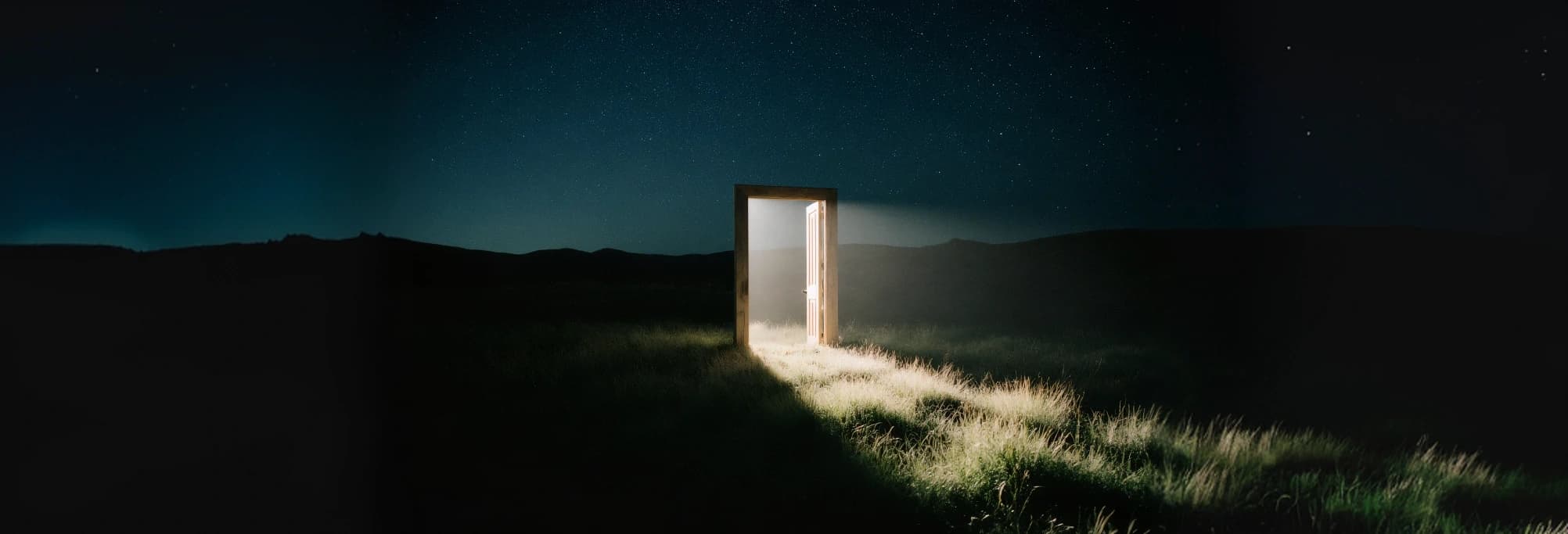
This APIXO route generates still images. It is separate from FLUX 3 video workflows and does not expose duration, motion, speech, or audio controls. Choose the image model when you need a photograph, poster, product scene, or a reference-guided image revision.


Text-to-ImageImage-to-Image
Create still images with a deliberate photographic or graphic direction using FLUX 3 Image. Explore portraits, tactile products, editorial art, and reference-guided revisions by describing the composition, surfaces, light, and details your audience should notice.
APIXO Price
$0.05 / image
Resolution
1K / 2K / 4K
Reference Images
Up to 10 images
Output Format
JPEG / PNG
Create with FLUX 3 Image
Creative Capabilities
Shape the photograph, not just the subject
Direct the visual choices that make a portrait, product scene, or campaign image feel intentional.
Realistic surfaces and light
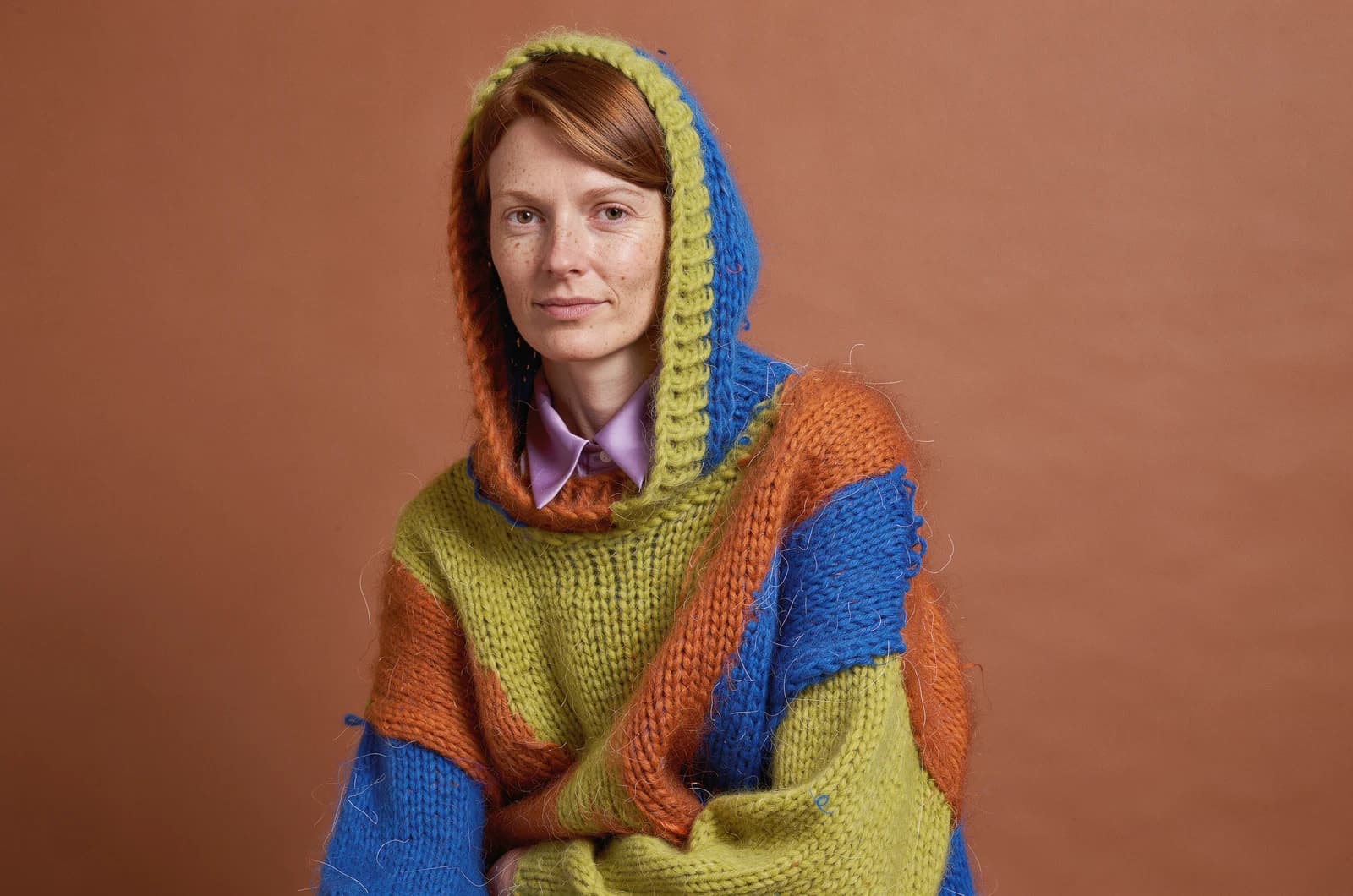
Describe how light meets the subject: soft illumination on skin, a reflected highlight on glass, or a narrow rim across brushed metal. Use the result to assess texture, reflection, and atmosphere together rather than relying on a generic request for realism.
Intentional composition
Tell the model where the focal object belongs, how close the camera should be, and which area should remain open. This helps you explore campaign frames and editorial scenes with a useful hierarchy. Choose an aspect ratio that fits the destination from the outset.
Several references, one scene
Combine references for subjects, objects, environments, and style cues in an image-to-image brief. Keep their order clear and identify what to take from each. Describe the relationship between the parts so the request reads as a coherent scene rather than a list of unrelated assets.
Editing with a defined change
Use an existing image to explore a new setting, visual treatment, or selected detail. Describe the change precisely and say which parts should stay stable. Check edges, reflections, faces, and neighboring objects after the edit to assess whether the revision serves the original brief.
Typography with visual context
Request labels, headlines, and signs as part of a designed image. Include the exact wording and describe the scale, position, and finish. Review every character before publication, especially small labels or text wrapped across curved and reflective surfaces.
Optional prompt expansion
For a short brief, prompt expansion can add descriptive context before generation. Keep it disabled when you have already written specific art direction and want to retain that wording. Compare results using the same visual goal rather than assuming more prompt detail is always better.
APIXO Workflows
Start with an idea or build on an image
Text-to-Image Generation
Use a prompt to build a new image from scratch. Lead with the subject and the intended medium, then describe the camera, light, palette, and spatial relationships. A focused brief can be more useful than a long collection of quality adjectives.
Create from text
Image-to-Image Editing
Supply references for the subject, object, or visual direction you want to retain, then describe the requested revision. Give each reference a clear job and avoid conflicting instructions. When framing is left automatic, the first reference guides the output ratio.
Edit with images
APIXO Configuration
Verified output controls
Choose 1K / 2K / 4K output, JPEG / PNG files, and a frame that fits the final placement.
1K / 2K / 4K
Resolution
Up to 10 images
Reference Images
14 options
Aspect Ratios
JPEG / PNG
Output Formats
Async / Callback
Delivery
Optional
Prompt Expansion
Production Uses
Move from visual exploration to a usable campaign frame
Fashion & Editorial
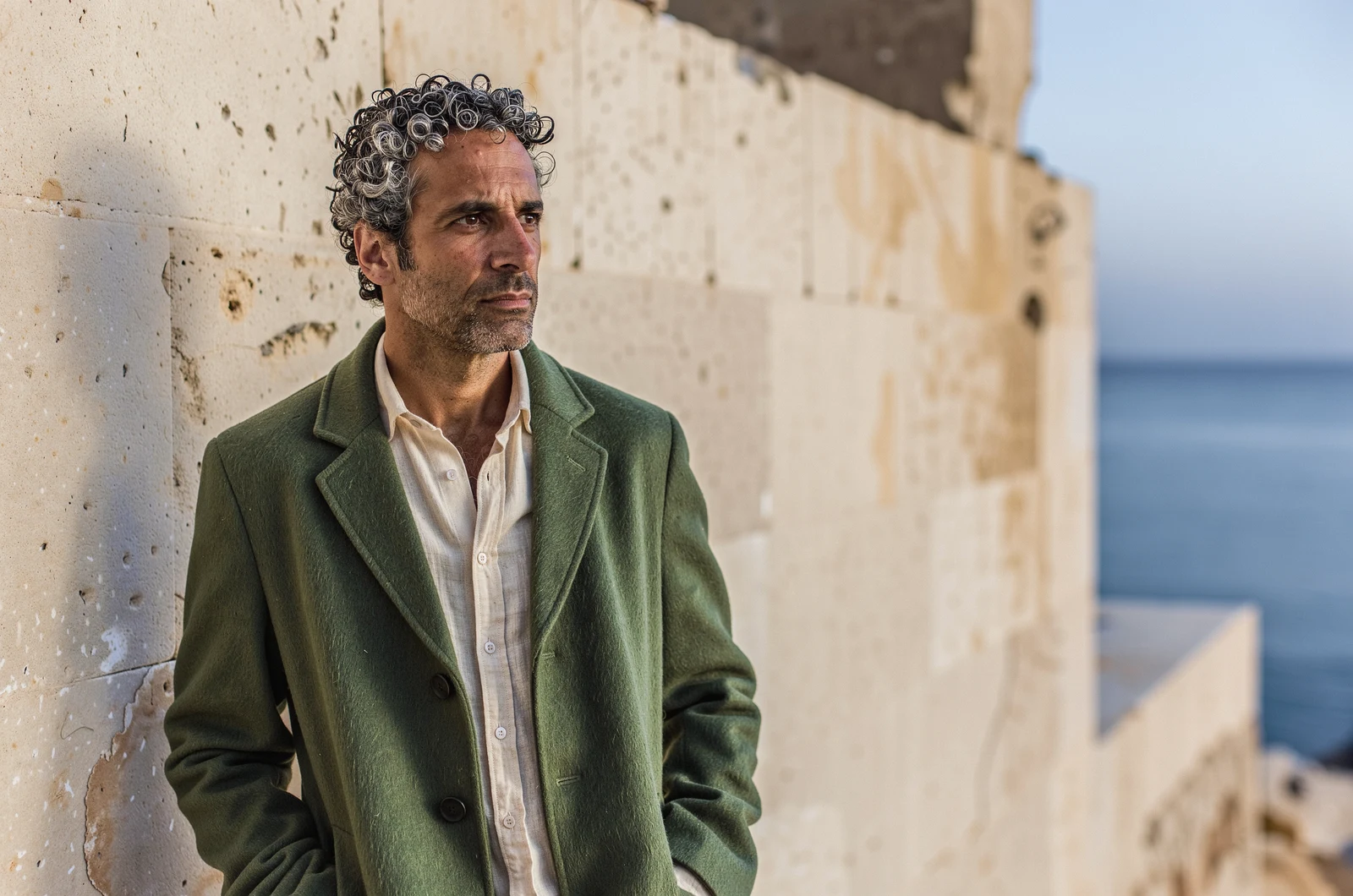
Portraits that feel tactile
Explore wardrobe, skin texture, and studio light as a single visual treatment. Define the color palette and textile finish, then review the face, pose, and fabric details before selecting an image for a lookbook, editorial cover, or campaign concept.
Product Photography
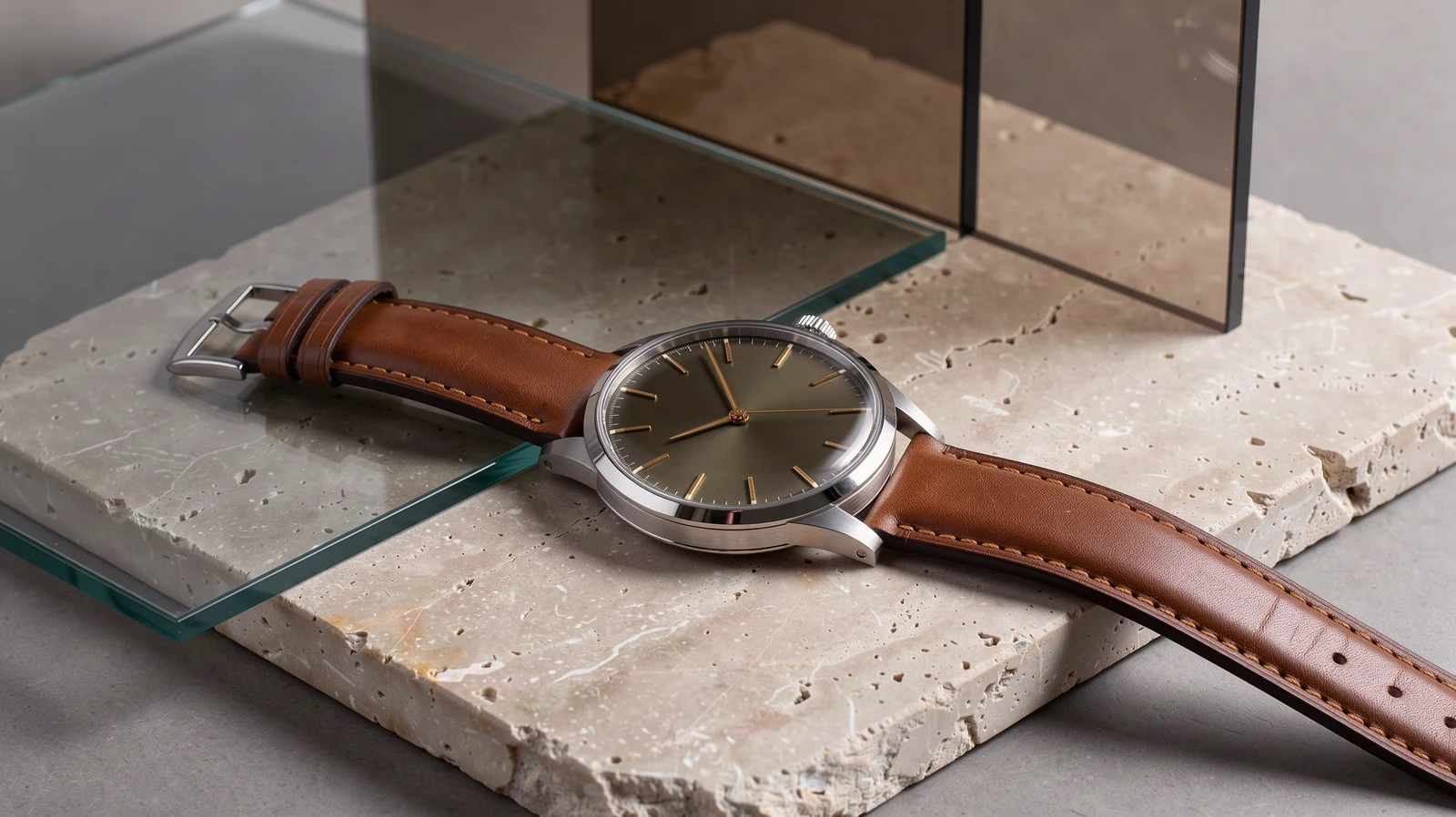
Materials that tell the product story
Build a still life around glass, metal, stone, water, or other surfaces that support the brand mood. Describe the light path and the label clearly, then check reflections, geometry, and text before preparing a product advertisement.
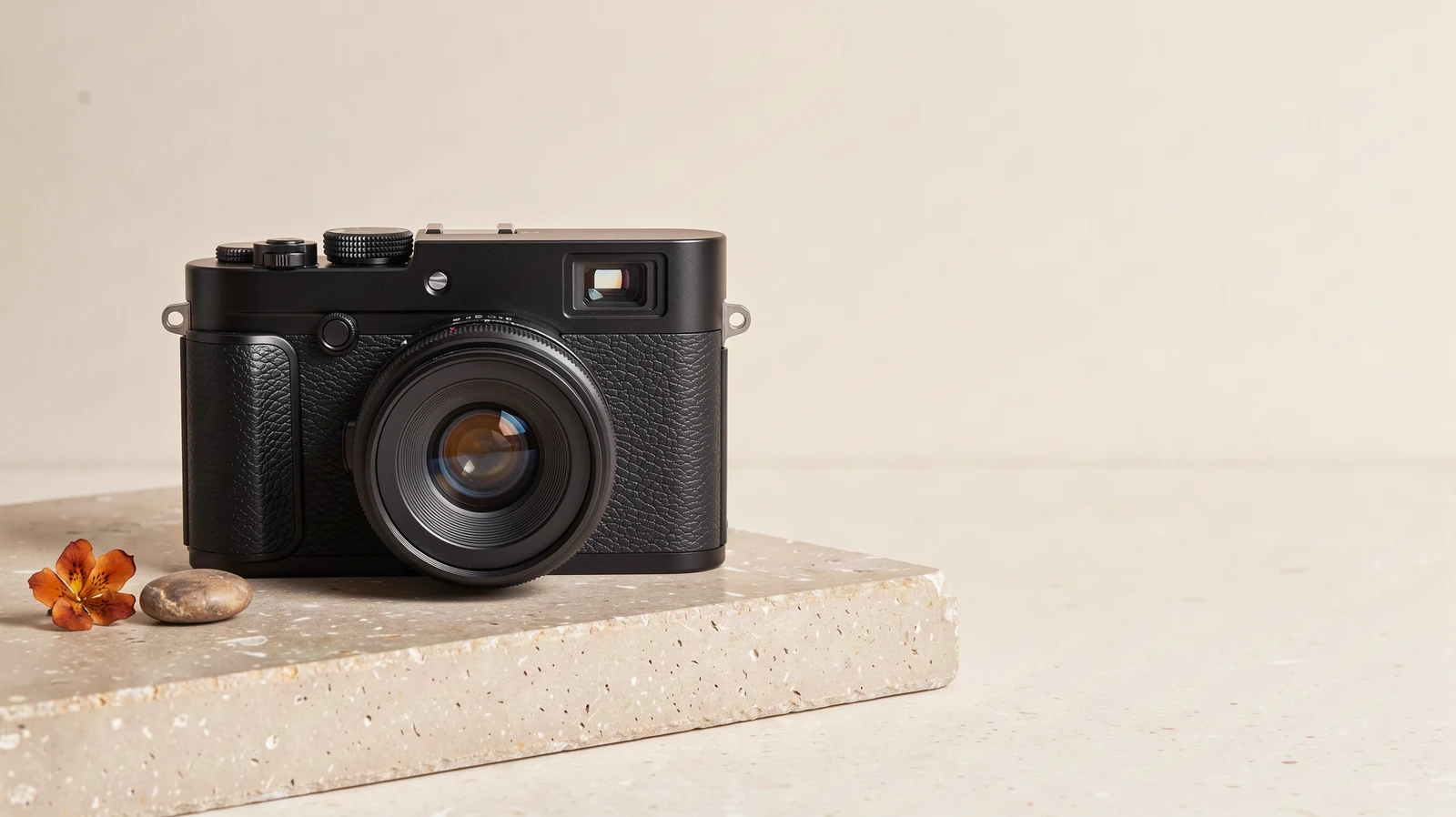
Campaign Composition
Frames with space for the message
Place the focal subject deliberately and reserve an area for later copy or interface overlays. Use the destination ratio to guide the original composition rather than depending entirely on a crop after generation.
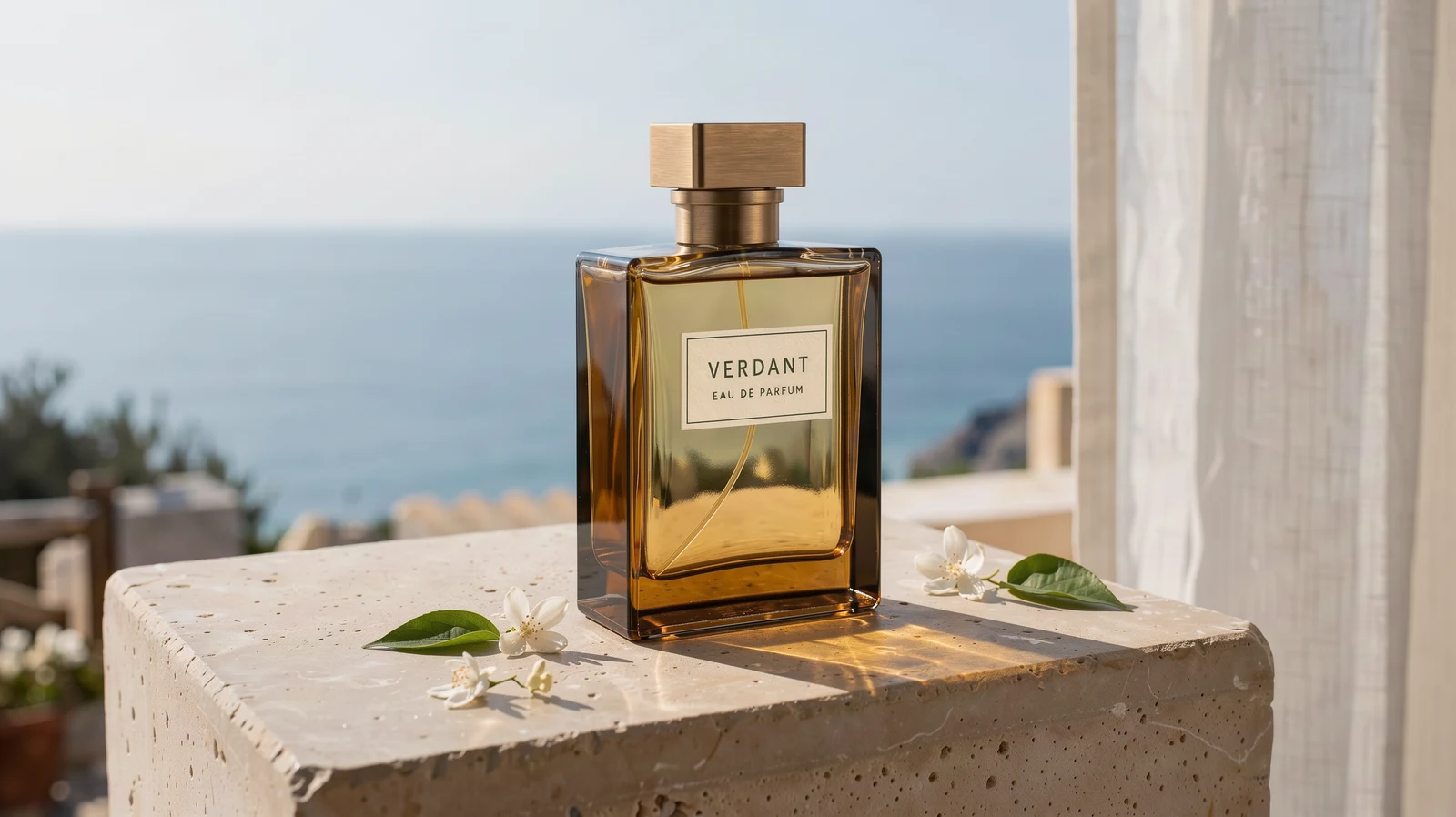
Creative Iteration
Reference-led scene variations
Keep a product or subject reference while exploring another location, lighting treatment, or styling choice. Change one major decision at a time so the resulting candidates are easier to compare and the creative direction remains recognizable.
API Workflow
Build a brief, inspect the image, refine the direction
Choose a mode
Begin with text for a new image or add references for an image-to-image revision. Select framing for the destination and decide whether the brief needs prompt expansion.
Write the visual brief
Describe the subject, camera viewpoint, light, palette, and materials. For references, explain what to use from each image. Quote any exact lettering and give the focal object a clear place in the frame.
Review your result
Inspect the image at useful zoom levels, checking text, faces, geometry, and small details. Download the result you want to keep; for another revision, submit that image with a new instruction. Use the API tab to carry the workflow into your application.
Notes & FAQ
Before you build with FLUX 3 Image
Practical boundaries
01
Each reference image must be at least 256 pixels wide and 256 pixels high, with no more than 4000000 total pixels.
02
Describe the placement you want in the prompt. This APIXO route does not expose a dedicated layout-box control, even where another provider offers one.
03
Review generated lettering, identity-sensitive features, product geometry, and factual details before publication.
04
Download and store important outputs promptly.
Frequently Asked Questions
Specify the subject, medium, composition, lighting direction, palette, and materials. Use camera or lens language when it communicates the framing you want. Prioritize the details you need to control and avoid contradictory lighting or style instructions.
Use the order of the uploaded references in your instruction. Explain which image provides the subject, which supplies the environment, and which guides styling or a prop. The result should be checked for visual continuity and unintended combinations.
For text-to-image, an omitted or blank ratio produces a square composition. For image-to-image, it follows the first reference image. Select a specific ratio when the output has a fixed destination such as a cover, banner, or presentation.
The current public APIXO schema provides prompt and image-reference controls, but no dedicated bounding-box or mask field. Describe placement and editing intent in the prompt. Follow the API tab for this route's accepted request fields.
Try it when your starting brief is short and you want the model to elaborate on it. Disable it when the prompt already contains exact wording, a defined lighting setup, and detailed composition. Both settings can be evaluated against the same creative brief.
Output images per successful task: 1. Create another task to explore a different candidate or visual direction. The selected resolution determines the per-image price, and reference count does not add a separate charge.
Review the final image before use. Check lettering, packaging proportions, metal and glass reflections, hands, faces, and any detail tied to a real product. Use the source assets as your standard when a campaign requires faithful reproduction.
FLUX 3 Image is billed per generated image based on the selected resolution tier. The current starting price is $0.05 per image; see the Pricing tab for every tier.
Poll the task status or use a webhook callback. Parse resultJson after the task succeeds.
Explore Other Models
Discover more AI models for your next creative workflow
Black Forest Labs


Flux 2
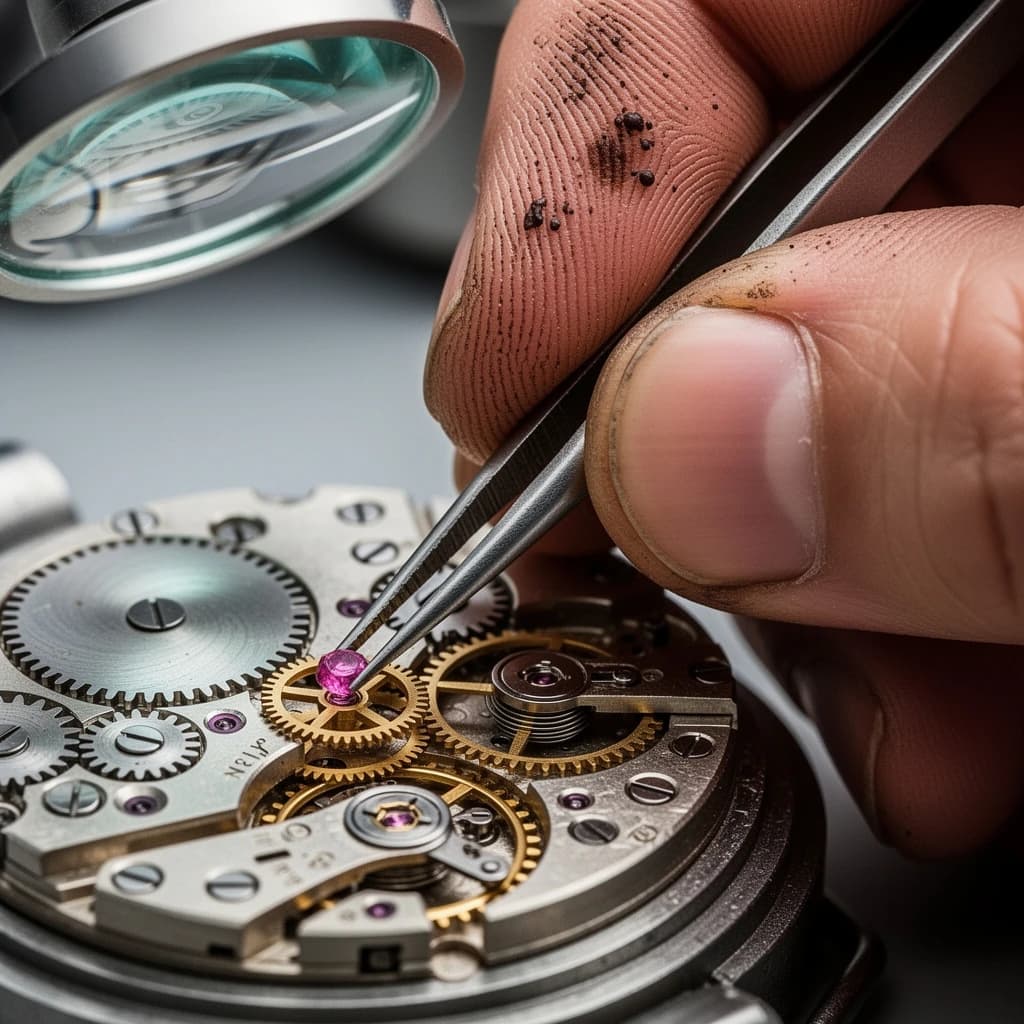
Flux 2 is available on APIXO for Image. The model page brings examples, creation controls, pricing, and results into one focused workspace.
ImageNew
$0.04/pic Image
Image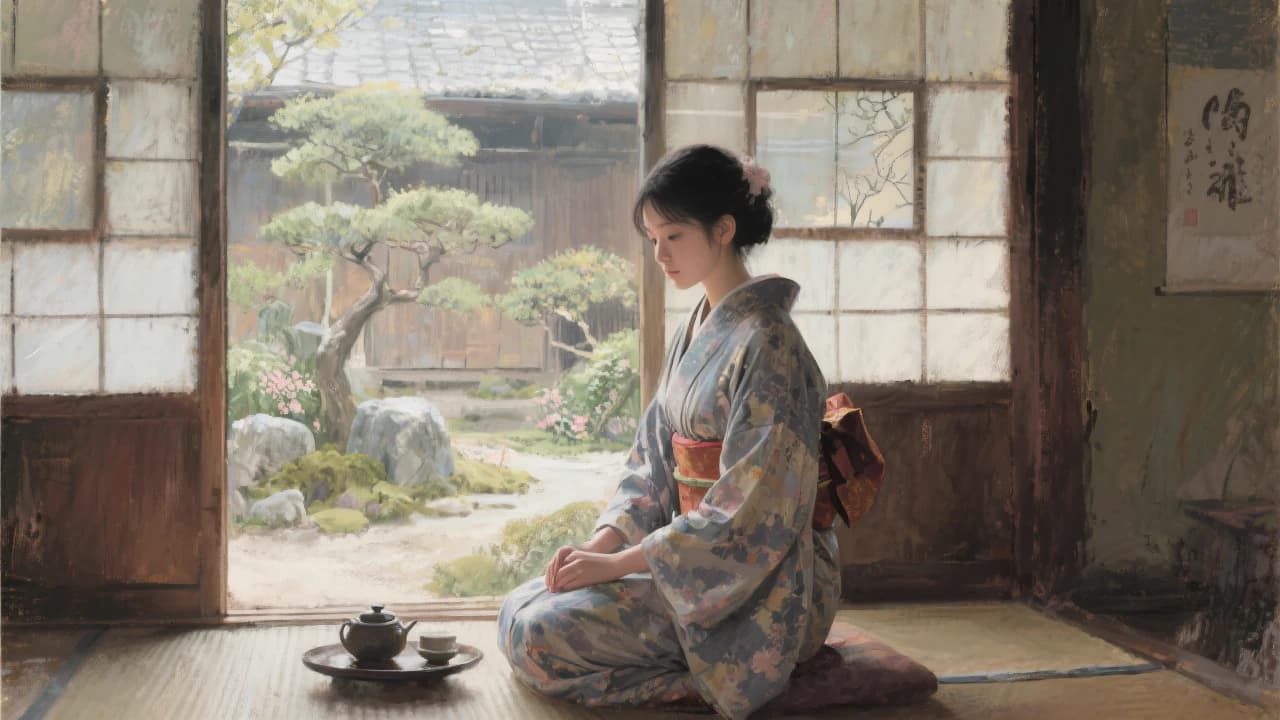
Black Forest Labs

Flux Kontext
Flux Kontext is available on APIXO for Image. The model page brings examples, creation controls, pricing, and results into one focused workspace.
Image
$0.04/pic
Google

Nano Banana 2.1
Nano Banana 2.1 is available on APIXO for Image. The model page brings examples, creation controls, pricing, and results into one focused workspace.
ImageNew
$0.04/pic