
Guides
How to Make a Santa Caught on Camera AI Video From One Photo
Use one room photo and one prompt to make a Santa security-camera clip. Start with our Seedance 2.5 example, then try a different story or a black-and-white look.
Ethan Wang
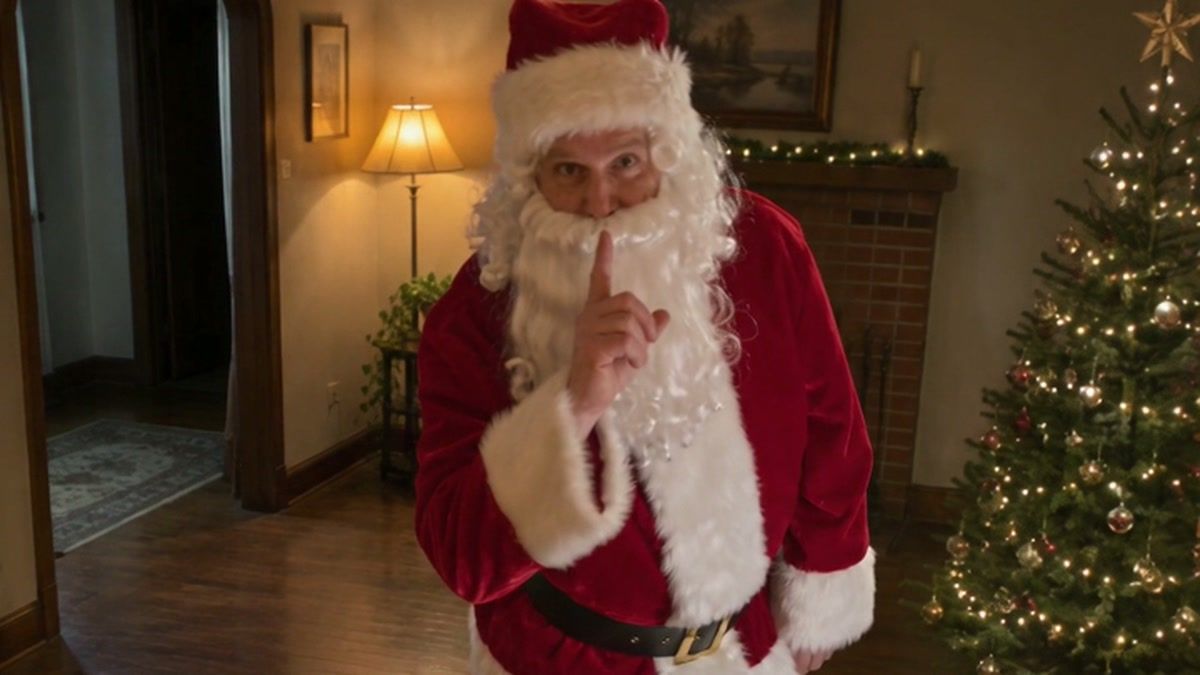
Make a Santa security-camera video from one vertical living-room image in APIXO AI. In Seedance 2.5, upload the image as the first frame, leave the end frame empty, choose Auto, 10 seconds, and 720p, then paste one prompt for the fixed camera and gift drop. The clip below came from those settings.
Try the same Santa scene in black-and-white night vision, or keep the fixed camera and let a different story unfold. Below, you’ll find prompt lines for both.
Take the photo from a security-camera angle
Stand in a corner and angle the camera slightly down. Include the open doorway, the tree, and a clear patch of floor between them. Santa needs room to enter and crouch without disappearing behind a sofa or leaving the frame.
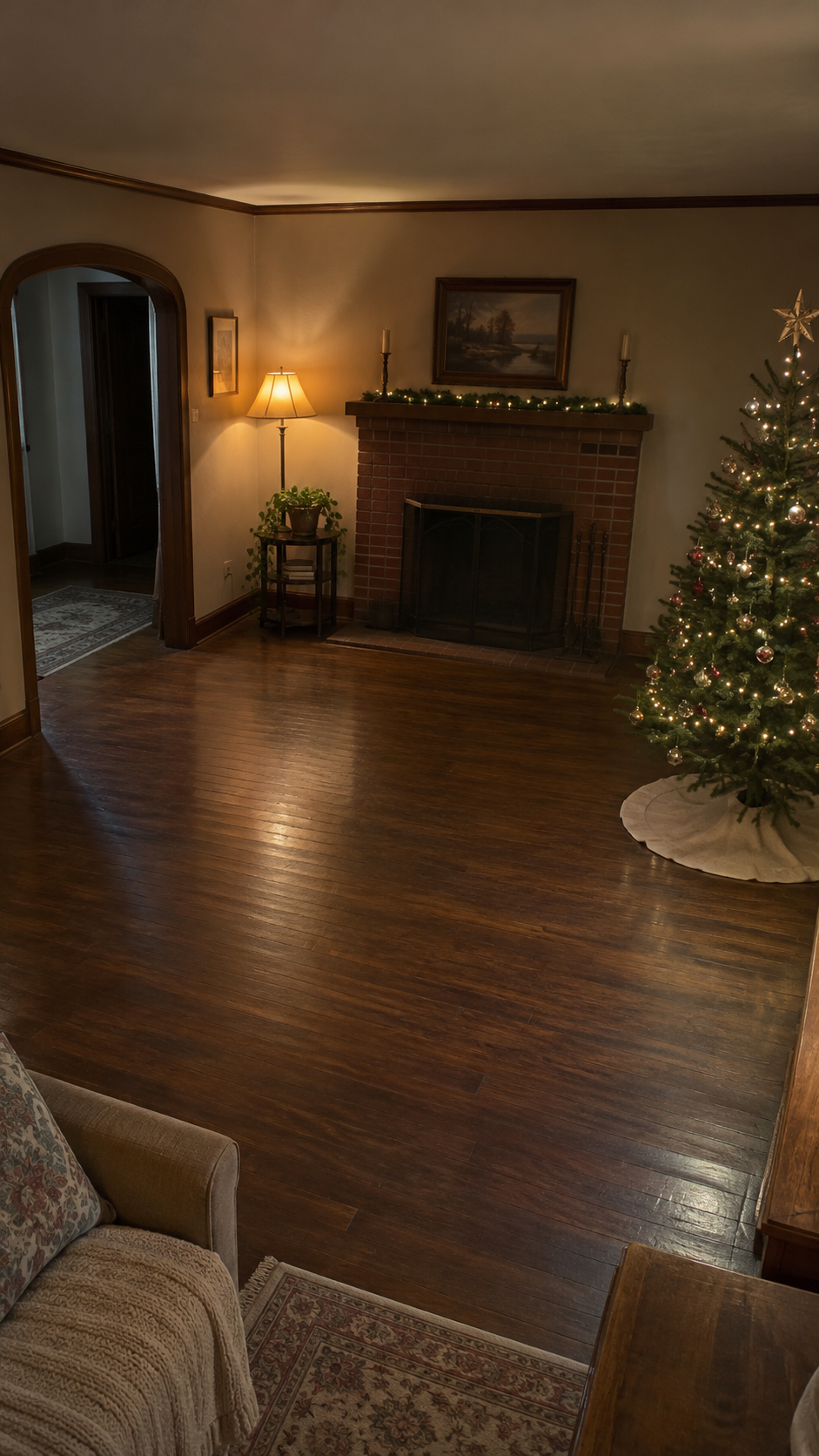
If you want a vertical clip, start with a vertical photo. Keep enough light on the floor to make out Santa’s hand and the gift. A dim room with one lamp or visible tree lights is a good starting point. If a sofa hides the floor or the door is outside the frame, move back and retake the photo before generating.
Generate the security-camera clip with one prompt
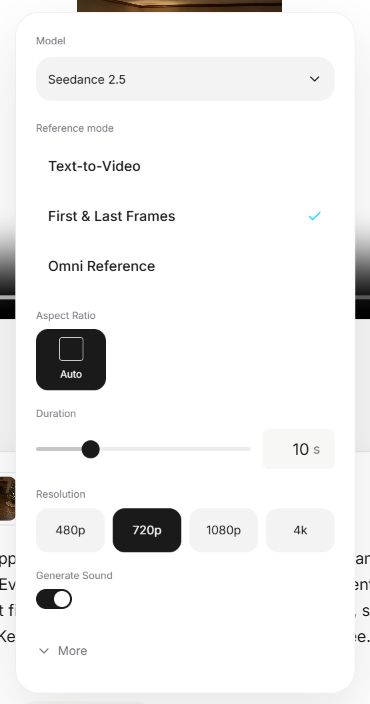
- Open Seedance 2.5 in the APIXO AI video generator, then select First & Last Frames.
- Upload your room photo to Start. Leave the end frame empty.
- Set Aspect Ratio to Auto, Duration to 10 seconds, and Resolution to 720p. Turn on Generate Sound if you want dialogue or room sounds. These were the settings for our 720 × 1280 sample.
- Paste the reference prompt below, adapt it to your scene, and select Create. Seedance 2.5 settings
Use our original prompt as a starting point. Change the doorway and tree positions to match your photo. For a new story, replace Santa’s action or spoken line. For a different look, change the color and grain. Keeping the camera fixed helps the clip read like surveillance footage.
Use the supplied empty living room as the exact starting frame. A 10-second recording from an old indoor home security camera on Christmas Eve. One locked high-corner wide view for the entire clip. Keep the doorway on the left, the brick fireplace, furniture and tree on the right fixed. Muted color, slightly soft low-light detail, subtle digital grain and compression, ordinary flat consumer surveillance exposure. Keep enough light to see the floor beside the tree.

Start on the empty room. One Santa in a red coat and white beard enters through the open left doorway holding one small wrapped gift, walks to the tree, crouches and sets it down on the visible floor. He lets go and the gift stays there. He stands, takes one step toward the camera, looks up into the lens, gestures shh and whispers once, “Shh. Merry Christmas.” Hold the shot briefly at the end. Quiet room tone, soft footsteps, slight paper rustle. No music.

Two small plain white fixed on-screen labels, with a narrow safe margin: CAM 01 in the top left and 12/24 11:58 PM in the bottom right. Keep both labels steady and leave the clock static. No moving camera, zoom, cuts, other people, extra gifts, subtitles, branding, or other text.
Check the gift drop and the camera labels
What if the CCTV timestamp is garbled? Remove the date from the prompt and keep only CAM 01. A fixed camera and light compression keep the security-camera look.
Compare the doorway in the first and last frames to see whether the viewpoint drifted. Pause just after Santa lets go of the gift and check that the box is resting on the floor. In our sample, CAM 01 is visible before the date appears. The lamp and wood floor also look warmer than requested. Those are the details to check on a phone before sharing.
- The clip ends before the gift is down Shorten Santa’s walk or keep him by the tree after he places the gift.
- The doorframe or tree shifts Keep the locked-camera instruction and simplify the movement to one action near the tree.
- The date is garbled or distracting Remove the date line and leave just CAM 01. The fixed angle and image texture still establish the look.
- The floor is too dark to see the gift Start with a slightly brighter photo or ask for less aggressive darkening.
Switch the look from soft color to black-and-white or retro CCTV
Replace the picture-quality sentences in the prompt and keep the room, camera angle, and action the same. That gives you two takes you can compare without changing the story.
- Soft-color home camera Muted colors, flat low-light exposure, slightly soft edges, light digital compression. The red coat and warm tree lights should still be recognizable. This is the look we requested for the sample.
- Black-and-white infrared Monochrome infrared night vision, with gray midtones, pale highlights and soft grain. Keep Santa’s hands and the box readable in grayscale.
- Older DVR recording Blocky shadows, subdued contrast, soft edges and a slightly choppy motion feel. Keep the main action clear. A choppy appearance is a visual cue, so check the exported file separately if you need a particular frame rate.
- Analog playback Faint horizontal noise, mild edge warping and one brief tracking ripple. Keep the interference light enough that you can see the gift touch the floor.
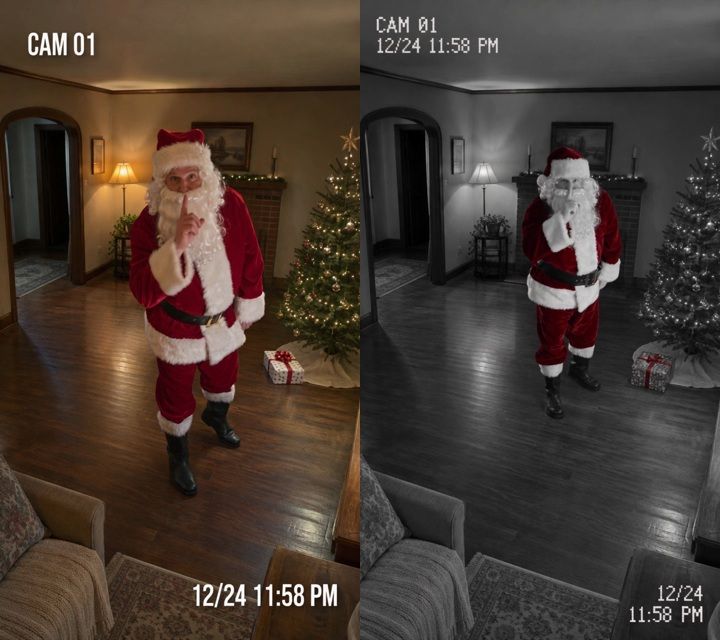
How do you keep a CCTV clip black and white throughout? Use a grayscale first frame and ask for monochrome infrared night vision for the entire shot, even as Santa passes the lamp.
Use the supplied image as the reference for the room layout. Keep the camera locked. Render the scene in black-and-white infrared night vision, with soft grain, pale highlights and clear gray midtones. Keep the tree base and gift visible. Keep the image monochrome even when Santa moves past the lamp.
Copy the full black-and-white night-vision prompt
For a complete night-vision take, upload a grayscale room image as Start and leave the end frame empty. Use Seedance 2.5, First & Last Frames, Auto, 10 seconds and 720p. Turn on Generate Sound if you want the footsteps and whisper. Adapt the room details to your photo, then paste this complete prompt.
Use the uploaded grayscale living-room image as the exact first frame. Create a 10-second indoor CCTV recording on Christmas Eve. Keep one fixed high-corner wide shot, with the doorway on the left, the fireplace and furniture unchanged, and the tree on the right. Render the entire shot in black-and-white infrared night vision, with soft grain, pale highlights, clear gray midtones and light digital compression. Keep the floor by the tree visible, even as Santa passes the lamp.

Start with the empty room. One Santa in a classic coat and white beard enters through the doorway carrying one small wrapped gift. He walks to the tree, crouches, sets the gift on the visible floor and lets go. The gift stays there. Santa stands, steps toward the camera, looks up, holds a finger to his lips and whispers once, “Shh. Merry Christmas.” Hold the fixed shot briefly. Quiet room tone, footsteps and soft paper rustle.

Keep all corners clear for overlays added in editing. No text, timestamp, camera labels, subtitles, graphics, music, extra people, extra gifts, camera movement, zoom or cuts.
In your video editor, set saturation to zero if any color remains. Add CAM 01 and a single static 12/24 11:58 PM timestamp as text overlays. Preview the full clip before exporting to check that the overlays stay readable and the gift remains visible.
Five more stories for the same fixed-camera setup
For each idea, start with a still that shows where the action happens. Update the camera position and room details to match the image, then replace the action paragraph with a line below. Choose one look from the previous section and keep any timestamp short. These five variations are prompt ideas for future clips.
- Santa just outside the window Living room window and a clear view of the snowy porch. Black-and-white infrared. A Santa silhouette passes the window, pauses long enough for his hat and sack to read, then disappears. The room stays empty.
- A gift at the front door Doorbell-height view showing the steps and the doormat. Muted color. Santa steps onto the porch, puts one parcel beside the mat, looks at the lens and gives a small wave.
- The elf moves along the shelf Fixed high corner of a hallway with both ends of a shelf in frame. Older DVR look. A toy elf takes two tiny steps along the shelf, then freezes when the hall light turns on. Hold on its new position.
- The cat investigates the gift Same living room with one gift already under the tree and a clear path in front of it. Black-and-white infrared. A cat walks in, sniffs the box, taps the ribbon with one paw and backs off when the ribbon moves.
- The shop sign comes to life Empty storefront from a fixed corner with an open display area. Analog playback. A snowman decoration slowly raises one arm after the display lights flicker. It freezes again when the lights settle.
The same idea works outside Christmas. Start with one place, one unexpected action, and a short hold that lets the viewer notice what changed. A porch camera might catch a raccoon nudging an empty planter. A toy display might hold its pose until the lights go out.
Use a room image you have permission to share. If you post the clip publicly, label it as an AI-generated recreation.
Build with APIXO
Explore image, video, and audio models in one place.