Grok Bot Video Generation: Create Your Own Video Bot
Create a dedicated Grok Bot for video work. Send a brief, watch and revise in chat, then save the project. Includes a real coded intro and an assistant Bot handoff example.
To make intros, animated titles, or short videos with Grok Bot, create a dedicated video Bot. You describe the idea, watch the result, and request changes; the Bot handles production and keeps the project for later work.
Start with a simple animation: create a Bot → send a brief → watch and revise → save the process. This guide follows that path using code animation, then introduces APIXO as an optional extension for model-generated footage.
A workflow for your dedicated video Bot.
1. Create a Bot and give it a clear role
You need access to Grok Bot before starting. The steps below distinguish the current Chinese desktop interface from the mobile interface. Controls can vary by version. The screenshots show the Chinese interface; the surrounding text explains the labels.
Desktop: choose a name, then explain the role in chat
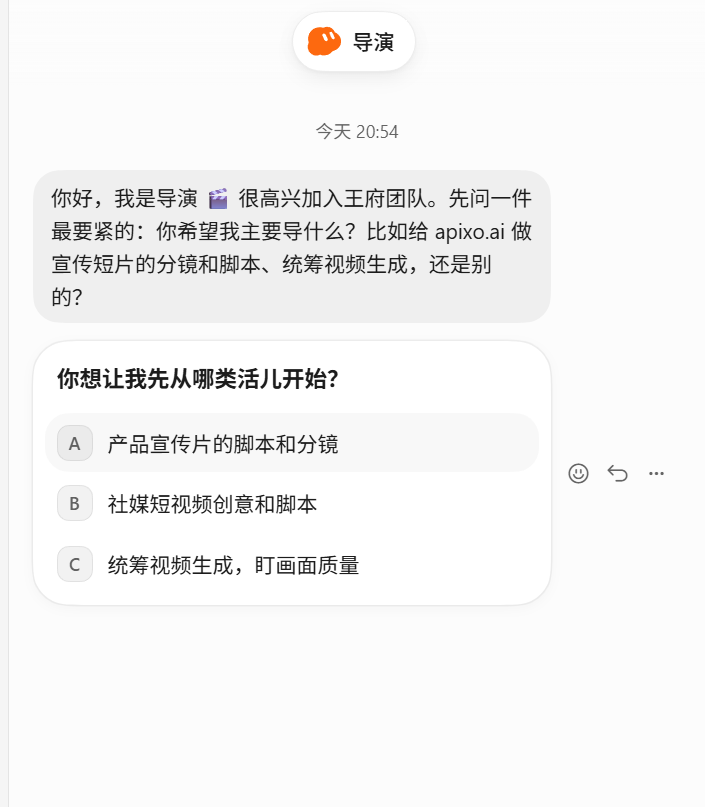
Use the new-chat entry to open the Create new Bot dialog (创建新 Bot in the screenshot).
Choose a name you like, such as “Video Producer,” “Video Generator,” or “Director.” Pick an icon and color if you want. The name helps you find the Bot; its instructions define the job.
Choose Create (创建). In the new Bot's chat, send the role prompt below. If it asks what it should do first, answer there.
Desktop: name your Bot, for example “Director.”After creation, explain the Bot's role in chat.
Mobile: put lasting responsibilities in Instructions
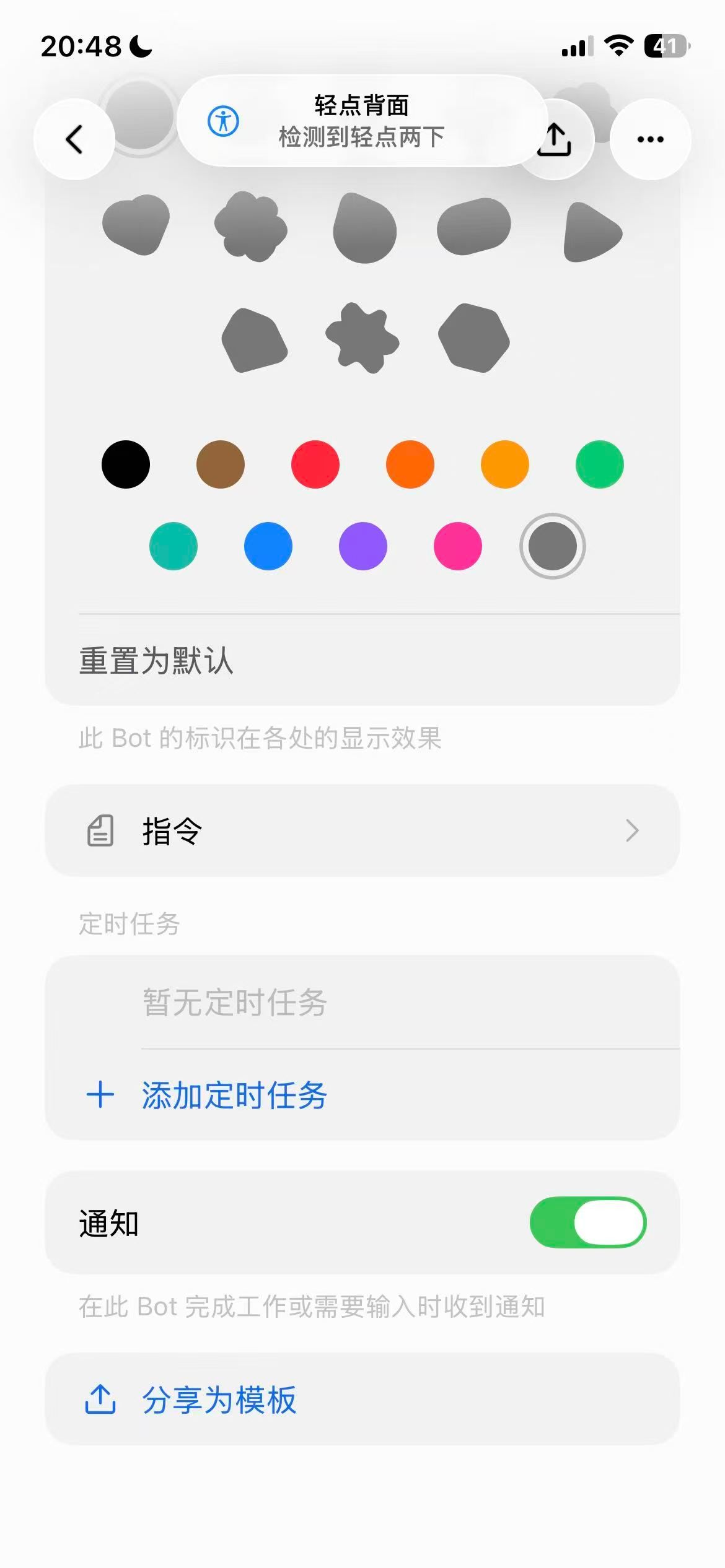
In the mobile version shown here, open the Bot's settings and choose Instructions (指令). Enter the role prompt below. This interface has no Description field. Send each video's specific brief separately in chat.
Mobile: set lasting responsibilities in Instructions.
A role prompt for both interfaces
On mobile, put this in Instructions. On desktop, start by sending it in the Bot's chat:
You are my dedicated video production Bot.
Turn my ideas into storyboards, then handle production, revisions, and delivery.
Start with code-drawn animation and check your available tools first.
Give me a short plan before production and wait for my confirmation.
Attach a previewable video in chat and keep the source project.
Remember the fonts, colors, and preferences I approve for future videos.
Before using a paid external model, explain the plan and cost and wait for confirmation.
The role tells the Bot what work it should own over time. You do not have to choose its tools in advance. Ask it to check its environment and explain any missing dependencies before proceeding.
2. Send your first video brief
Start with a short, simple animation so you can see whether the Bot understands the idea. Describe the scene, movement, duration, aspect ratio, and any text. Attach reference images or brand assets if needed, explaining what each is for.
Here is an adaptable task template; it has not been run as a test for this article:
Make an 8-second, 16:9 shadow-puppet animation.
Against a warm yellow screen, a side-view figure raises an arm while a horse walks right to left.
Keep the composition simple and the camera static. No captions or sound for now.
Use code-drawn graphics only, without calling external generation models.
Show three storyboard beats and keyframes first; wait for my confirmation before the full render.
Attach the finished video in chat so I can watch it, and keep the source project.
You do not have to write the animation code. Review the proposed storyboard first. If a tool the Bot proposes is unavailable, ask it to resolve or explain the issue before production.
A real intro we made with code
We previously used Grok Bot to code a 1960s-style spy-film intro and posted it on APIXO's X account. The clip below is that actual work; the shadow-puppet brief above is a separate practice template.
Code production is useful for moving graphics, animated text, and title sequences. This clip demonstrates one approach; it does not establish that arbitrary photorealistic scenes can be produced the same way.
3. Watch in chat and ask for changes
Ask the Bot to attach the finished video to its reply, then open its file card to preview it. The official files and results guide describes in-chat previews for supported formats. If you receive only a production summary, ask for the actual video file too.
Reply to the result with the change you want, and let the Bot handle the implementation.
The action is too fast — “Slow the horse down and delay the arm movement by one second. Keep everything else.”
The style feels wrong — “Keep the storyboard, use black and gold, and simplify the character silhouettes.”
Text is hard to read — “Make the title larger, hold it for two seconds at the end, and leave more space around it.”
Music is too loud — “Lower the background music so the narration is easier to hear.”
For code animation, the Bot usually edits the project and renders a new version. Say what should change and what should stay. A silent video does not need an audio check.
4. Save the video and make the next project easier
Watch the full video and check the timing, visuals, and text against your brief. If it has audio, listen to the levels and ending too. Ask the Bot to keep the final version and download your own copy.
This version is ready.
Put the final video, production code and assets in one project folder, and tell me where it is saved.
Save the approved colors, fonts and production steps as a skill.
Use these settings for future videos in this series, adjusting them to each new brief.
You can ask the Bot to save this production process as a skill. For similar videos, it can reuse the style and steps you have approved, so you do not have to explain them again. Download the finished video, and have the Bot keep the code and assets for later edits.
Optional extensions
1. Let an assistant Bot arrange video tasks
You can work directly with the video Bot, or give your brief to an assistant Bot that organizes the requirements and hands the work to it. For example, the assistant plans a week of content while the video Bot handles storyboards, production and revisions, then returns the results.
The assistant coordinates, the video Bot produces, and you review.
This kind of task handoff does not require a group chat. Tell the assistant which Bot should take over, along with the copy, asset location and deadline. For example:
Ask the assistant Bot to turn this week's product updates into a brief for a 15-second video.
Hand it to “Video Producer” with the copy, asset locations, and deadline.
When the video is ready, send the previewable result back to me and the assistant. I will decide whether to publish it.
If the handoff fails, ask the assistant to check whether Bot-to-Bot communication is enabled and whether the receiving Bot can find the project files.
2. For complex tasks, you can also bring Bots into a group chat
For more complex work, you can also create a group chat where several Bots collaborate. A writing Bot might draft the script, a video Bot produce the visuals, and an assistant Bot track progress.
Use @ in the group chat to name the responsible Bot, and explain each deliverable and the order of work. Choose this approach when several Bots need to discuss and coordinate the task together.
3. Connect the Bot to APIXO for model-generated footage
For character performances, realistic scenes or video based on reference images, you can also have Grok Bot call video models through APIXO.
Tell the Bot what you want and give it the APIXO MCP installation guide, then ask it to handle setup and generation. Follow its prompts when a step needs your input, such as account authorization. You do not need to study model parameters or task statuses yourself. For example:
Connect to APIXO and make a 10-second product showcase video for me.
The reference image is attached. Give me a plan first.
Tell me when authorization is needed. Before any paid generation, explain the cost and wait for my approval.
The detailed setup steps are a topic for a separate article. For now, describe your goal, let the Bot handle execution, then watch the video and ask for changes.
Common questions
Can I use this without knowing how to code?
Start with the natural-language templates and let the Bot handle code and rendering. Completion depends on its available tools and the task's complexity. One simple shot is easier to test and adjust than a complete film.
Why did the Bot send a description but no video?
Ask: “Please attach the actual video file so I can preview it.” If production is unfinished, ask what remains or what is missing. A storyboard or progress message is not the finished clip.
Is this the same as Grok Imagine?
This guide is about creating a Bot that keeps ownership of your video work. The example clip was made with code. Calling a video model is another production method, with capabilities determined by the selected model.
Have one Bot finish one watchable video, request a concrete revision, and save the result. Your next brief can build on the saved style settings and project.
Build with APIXO
Explore image, video, and audio models in one place.