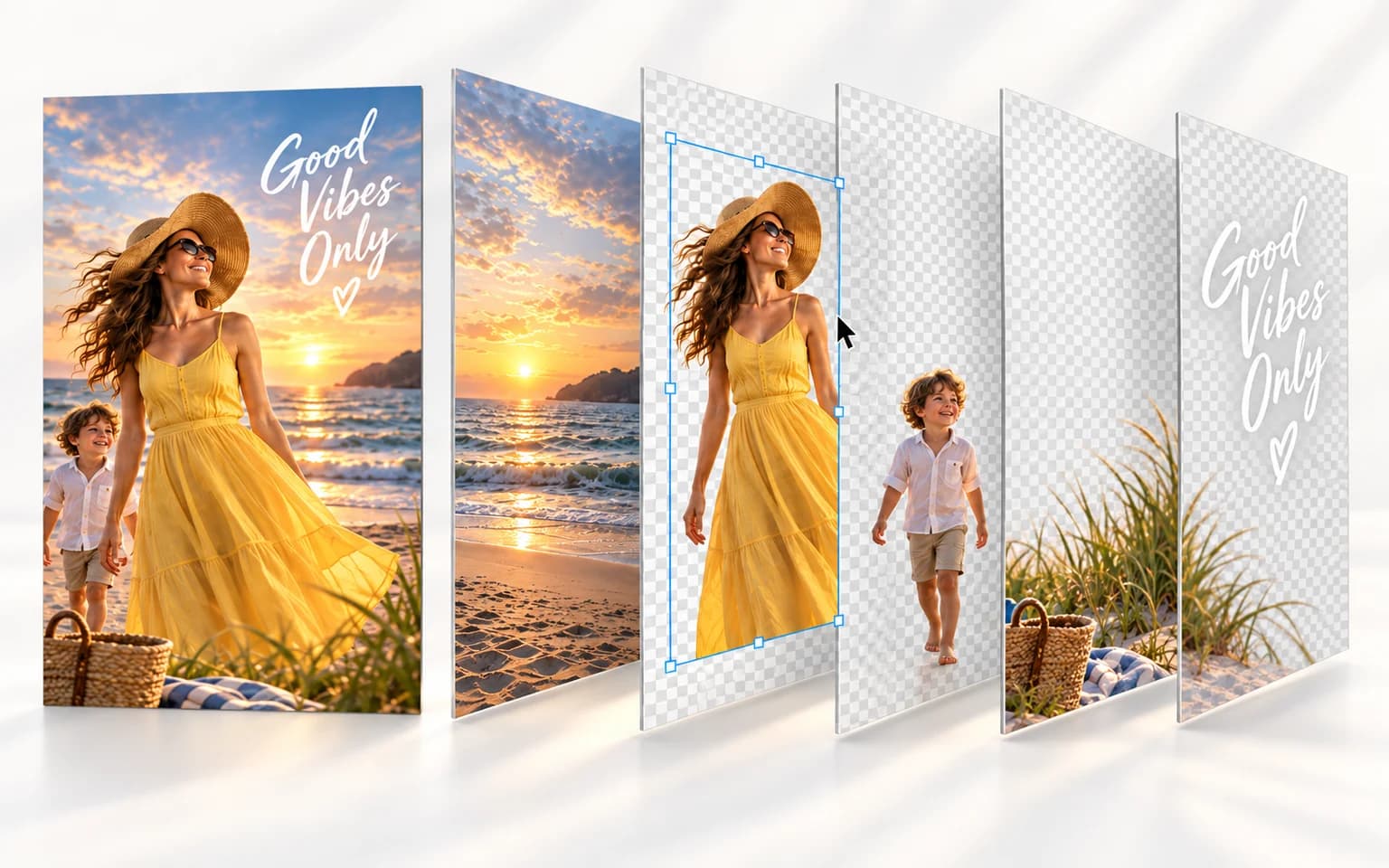

It takes one flat image and returns its parts as separate layers in stacking order, starting from the base layer. You can preview the stack in the result view and download each layer as its own image.


AI Image Layer Decomposition splits one flat image into separate layers, such as the background, the main subjects and other elements. Upload a single picture and the tool returns the layers in stacking order, starting from the base layer, so you can preview how they fit together and download each one on its own.
Start from a finished, flattened picture instead of a layered source file. The tool returns the parts of the image as individual layers, each with its own file, so an element can be reused without the rest of the scene.
Try it nowLayers come back ordered from the base layer upward, and the result view stacks them in that order so you can check how they combine before you download anything.
Try it nowThe description is optional. When only one area matters, draw a box on the uploaded image to point the model at the region you want decomposed.
Try it nowDecomposition uses the dedicated layer mode of Seedream. The layers are generated by the model, so compare them with your original and generate again if an element is split in a way you did not expect.
Try it nowPull apart a finished poster or ad so the background, product and headline area can be moved or replaced separately.
Separate a product from its setting to reuse it in another layout or campaign image.
Split characters, props and scenery in a flat illustration into parts you can edit or animate one at a time.
Break a scene into its main subjects and the background when you need each piece as its own image.
Box one area of the image to guide the decomposition there instead of across the whole picture.
Use Background Remover when you only need one subject cut out, or Object Remover to delete an element instead of separating it.
Recover editable parts from a flattened image when the original layered file is missing.
Adapt an existing visual to new sizes and channels by rearranging its separated elements.
Get foreground and background as separate images to add depth or movement between them.
Try the result visually here, then call the same model and mode through the APIXO API in your own pipeline.
Choose the picture you want to split. Only images you are allowed to edit should be uploaded.
Select the output size, and draw a box if you want the model to focus on one area.
Preview the stacked result, then download the layers you need one by one.
Upload exactly one image; this tool works on a single source picture at a time.
Pictures with clearly separated elements, such as a subject in front of a background, are easier to split into layers.
Draw a box on the image when only one area needs to be decomposed.
The number of layers is decided by the model and can differ from image to image.
Check the price shown before you generate; it changes with the size you choose.
It takes one flat image and returns its parts as separate layers in stacking order, starting from the base layer. You can preview the stack in the result view and download each layer as its own image.
The model decides how many layers an image is split into, so the number can vary from image to image. The price shown before you generate is an estimate based on an expected layer count, not on the final result.
No. The description is optional. Use it together with the box tool when you want to guide the decomposition to one region of the image.
Choose Auto or one of the fixed resolutions listed in the size control. The price depends on the size you pick and is shown before you generate.
Upload one picture and get its parts back as separate layers.
Try it now