Guides
How to Make a 90s VHS Horror Photo from an Existing Image
Start with a photo, choose a tape-still direction and keep the important subject readable through the texture.
APIXO Team
Start creating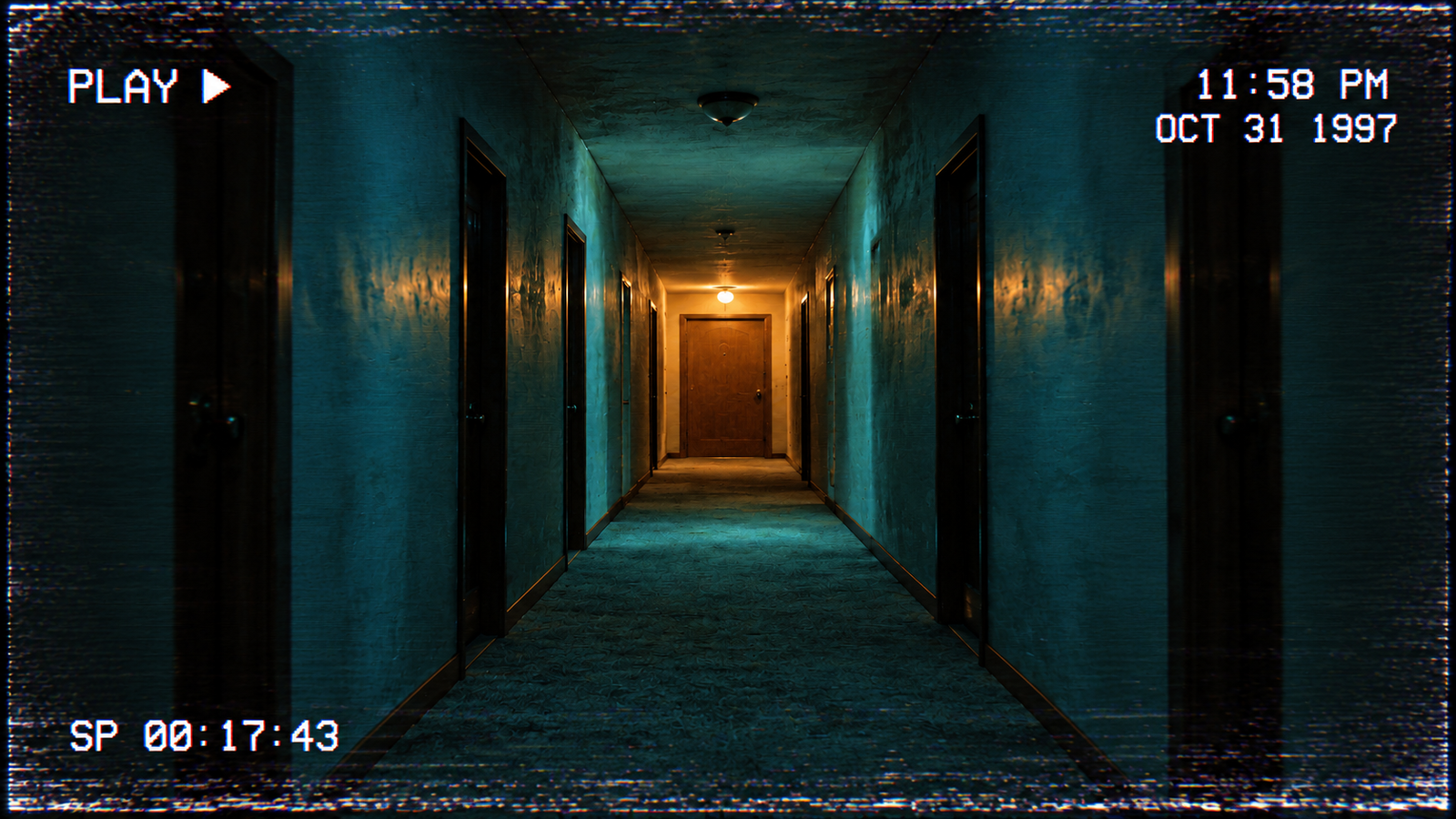


Guides
Start with a photo, choose a tape-still direction and keep the important subject readable through the texture.
To turn an existing photo into a 90s VHS horror still, upload a clear image, describe the mood and tape wear, and request a REC or PLAY overlay. This guide takes you through the settings, generation and review process, with three prompts you can adapt to your own photo.
Open APIXO’s 90s VHS Horror Filter
The three illustrations below are AI-generated style concepts, not before-and-after tests made with the APIXO tool. The workflow produces a still image.
Start with a well-lit image and decide what must remain recognizable. Use light tape wear for the first version so you can inspect the subject before increasing the effect.
REC suggests recording; PLAY suggests playback. Usually one is enough. The English month labels and fictional 1995–1997 dates in these illustrations imitate a period camcorder display; they are not the photos’ actual capture dates.
Open the tool linked above and use its default image-to-image mode in the creation area. Upload your photo and check that the face, main furniture or distant doorway is visible. If you want a scene from scratch, the tool also offers text-to-image mode; this walkthrough uses a photo.
Copy the portrait, room or corridor prompt below. Replace the subject and date with your own choices. State what to preserve, the atmosphere, where to put stronger tape damage, and the exact overlay text and corner position.
Request REC, PLAY and the timestamp in the description. They are prompt instructions rather than separate switches. Keep labels short; add precision-sensitive event details later in a layout editor.
Choose from the aspect ratios, resolutions and quality options currently offered. If 4:3 is available, it suits an old television frame; choose a wider ratio when your final cover layout needs it. Start with restrained wear, review the displayed usage estimate, and submit the generation. Available options and usage depend on the current page.
Compare the result with the source at the same display size before deciding whether to keep it.
Adjust the description and generate again if needed. To continue from a preferred candidate, upload that candidate as the new reference and specify what to keep. Recheck the whole result after each attempt; a new generation can change other details too.
For example: keep the person, framing, warm light and REC label, but reduce scanlines over the face and move stronger wear to the lower edge. Download the chosen version, then check the final crop. Finish details that must match exactly in an image editor.
Use these as starting directions, not guarantees of matching the illustrations. Change the wording to fit what is actually in your source image.
Use warm colors and gentle softness while keeping the face clear. Put the date away from the face.

Use the uploaded portrait as the reference for a 1990s home-video still.
Keep the person, expression and pose recognizable, with clear eyes and mouth.
Add faded warm colors, gentle softness, subtle scanlines and light color bleed. Put stronger tracking wear at the lower edge, away from the face.
Top left: a red dot and white pixel lettering REC.
Bottom right, on two lines: OCT 31 1995 and 04:15 PM.
No PLAY label, unrelated captions, watermark or extra people.
Keep the familiar layout and introduce a mild green cast. If the source has no television, replace the television-light instruction with its actual lamp or window light.
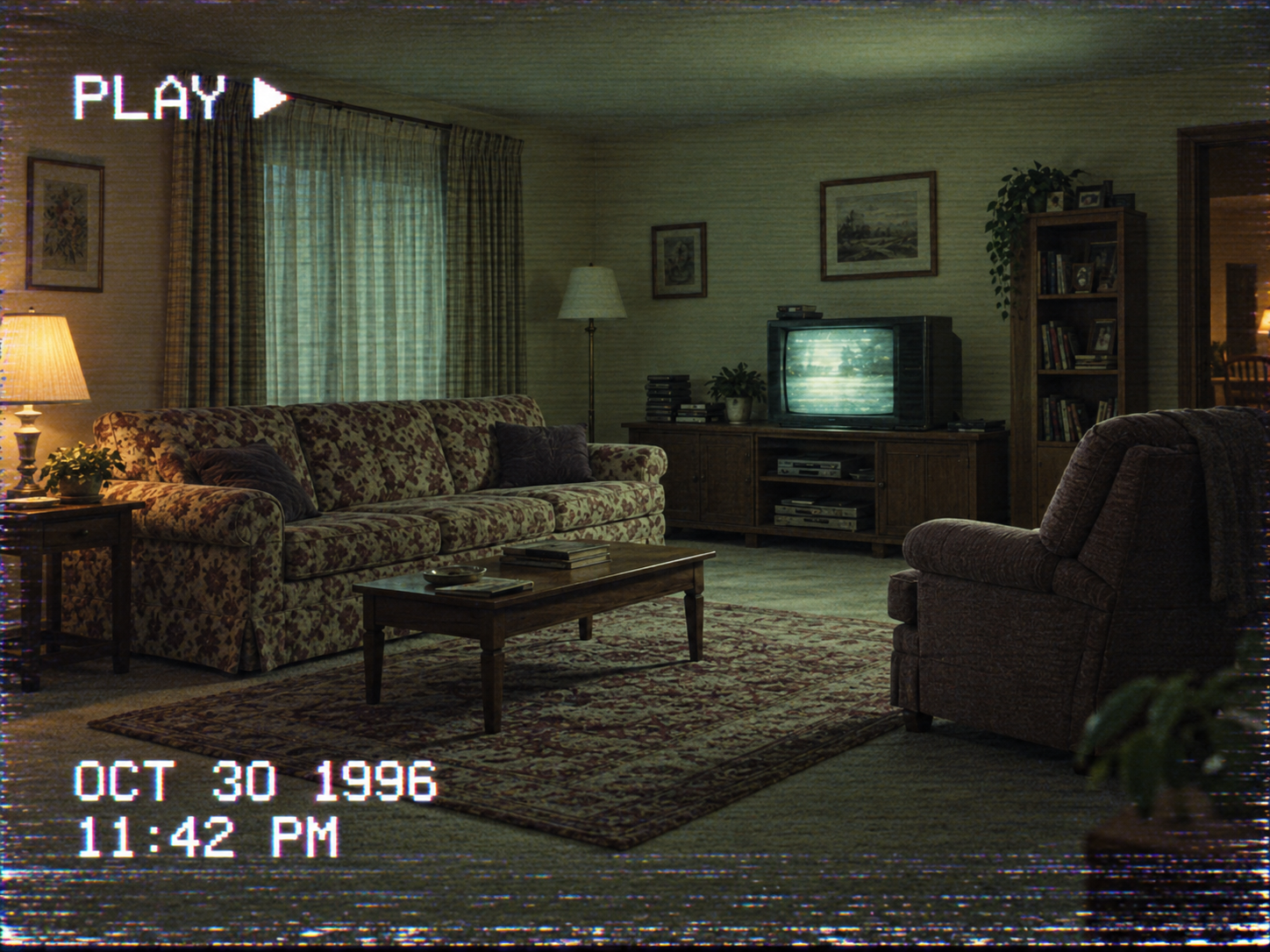
Use the uploaded living room photo as the reference for a quiet, unsettling VHS still.
Keep the furniture layout recognizable and the main silhouettes visible.
Add a mild green cast, dim television light, restrained scanlines and color bleed. Keep heavier tape wear near the top and bottom edges.
Top left: white pixel lettering PLAY followed by a right-pointing triangle.
Bottom left, on two lines: OCT 30 1996 and 11:42 PM.
No REC label, new people, ghosts or unrelated captions.
Let one warm doorway carry the scene. The counter is optional: remove that instruction if you want a simpler overlay.
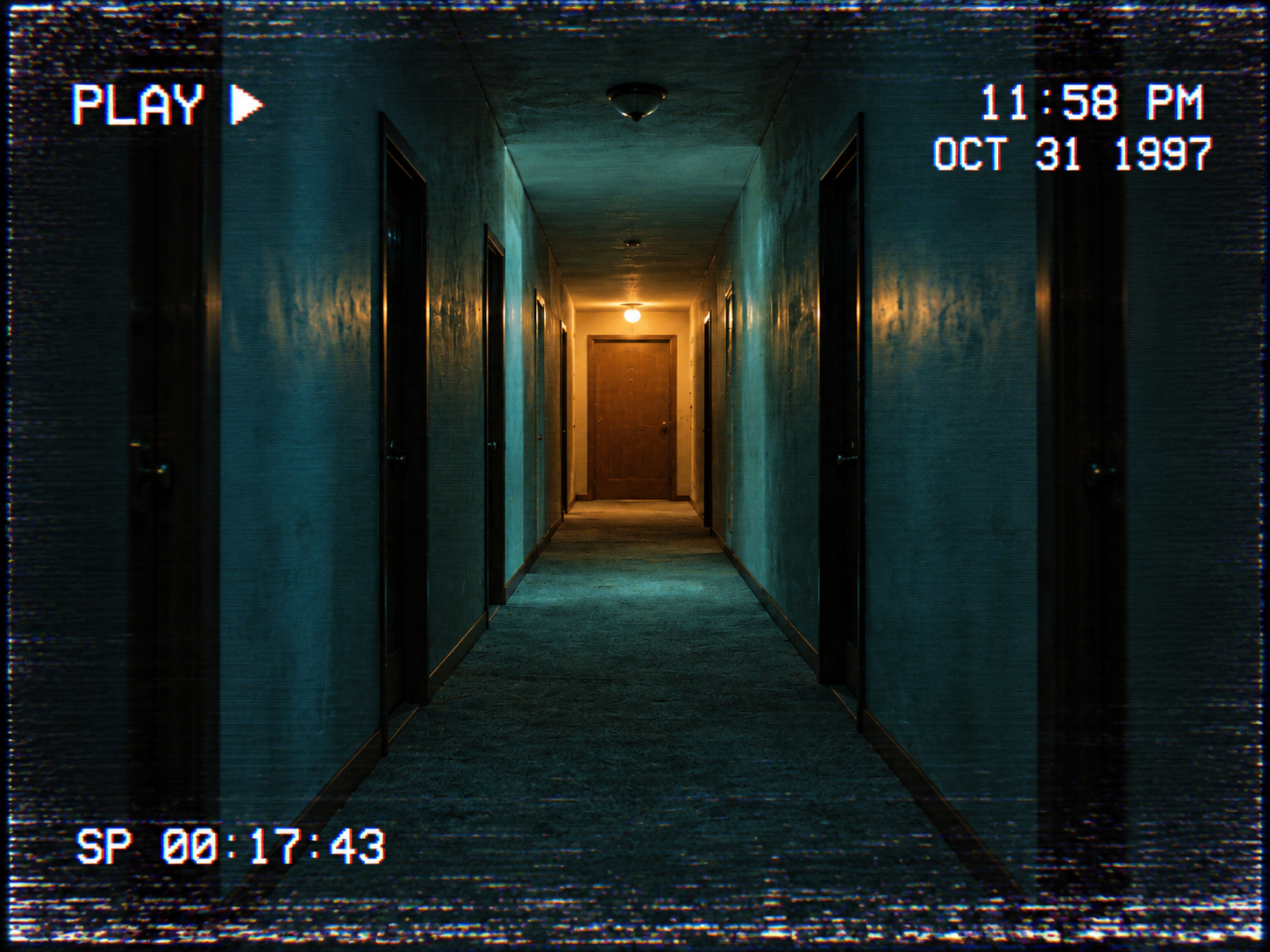
Use the uploaded corridor photo as the reference for a 1990s horror-tape still.
Keep the perspective and far doorway readable, with a small warm light at the doorway.
Add faded cyan shadows, fine analog grain and light color bleed. Confine strong horizontal tracking noise to the top and bottom edges.
Top left: white pixel lettering PLAY and a right-pointing triangle.
Top right, on two lines: 11:58 PM and OCT 31 1997.
Bottom left: SP 00:17:43 as a fictional playback counter.
No REC label, figures, monsters, signs or other text.
Yes. Switch to text-to-image and describe the subject, setting, lighting, tape wear and overlay. Use image-to-image when you want an existing photo to guide the composition.
Request the exact short text and corner position in the prompt, then check every character. Use an image editor afterward when the font, placement or wording must be exact.
The tool generates a static AI image. You can use a chosen still in a separate image-to-video workflow later; motion, audio and usage must be checked in that tool.
Generative editing can alter details. Compare important features with the source and finish precision-sensitive areas with direct editing.
The portrait, room and corridor prompts teach the basic workflow. For more directions, the tool page provides six examples to explore:
Bring your photo and chosen prompt to the tool. For inspiration, open an example with View and check its generation mode, prompt and parameters. Some examples start from text; others use a photo, with an input reference to compare when provided. Choose Use this example if it suits your idea, adapt the subject, lighting and overlay, then review the result.
Open the VHS tool to use your photo or explore all six examples
Use five analog horror scene prompts when you want to create a setting from scratch
Browse the Halloween AI collection for other image and character tools
Build with APIXO
Explore image, video, and audio models in one place.