




APIXOAPIXO

Create

AI Video
AI Image
AI Audio

Library

GenerationsAssets

Explore

ModelsAI ToolsPricing
APIXOAPIXO
APIXO
APIXO

Create any content you can imagine. Trusted by millions of creators.

Support@apixo.ai

Models

Claude Sonnet 4.6
Face Swap
Flux 2
FLUX 3
Flux Kontext
Gemini 3.1 Pro Preview
Gemini Omni
GPT-5.5
GPT-Image-1
GPT-Image-2
GPT-Image-2.5
Grok Image
Grok Imagine Video 1.5
Grok Video
Hailuo 2.3
Hailuo 2.3 Fast
HappyHorse
Head Swap
Image Upscaler
Image Watermark Remover
InfiniteTalk
Kling 2.1
Kling 2.5 Turbo Pro
Kling 2.6
Kling 3.0 Omni
Kling 3.0 Std
Kling 3.0 Turbo
LTX-2 19B
Midjourney
MiniMax H3
MiniMax H3 LoRA
MiniMax Image 01
MiniMax Speech 2.8
MiniMax Voice
Nano Banana
Nano Banana 2
Nano Banana Pro
Qwen Image 3.0
Qwen Image 3.0 Pro
Seedance 1.5 Pro
Seedance 2.0
Seedance 2.0 Fast
Seedance 2.0 Mini
Seedance 2.5
Seedream 4.5
Seedream 5.0
Seedream 5.0 Pro
Sora 2
Sora 2 Pro
Suno V6
Veo 3.1
Video Upscaler
Video Watermark Remover
Vidu Q3
Wan 2.2 Animate
Wan 2.5
Wan 2.5 Image
Wan 2.6
Wan 2.6 Image
Wan 2.7
Wan 2.7 Image
Wan 3.0 Video
Wan 3.0 Video LoRA
Wan 3.0 Video Pro LoRA
Z-Image LoRA
Z-Image LoRA Pro

Product

FeaturedImage ModelsVideo ModelsAudio ModelsText Models

Resources

AffiliateCompany InformationTerms of ServicePrivacy PolicyRefund PolicyShipping / Digital Delivery Policy

Other

PricingAPI Docs

© 2026 APIXO. All rights reserved.

MODEL AVAILABILITY, PRICING, AND ROUTING CAN VARY BY PROVIDER AND REGION.

CreateGenerationsAssets
  1. Home
  2. Image Tools
  3. People Remover

AI People Remover

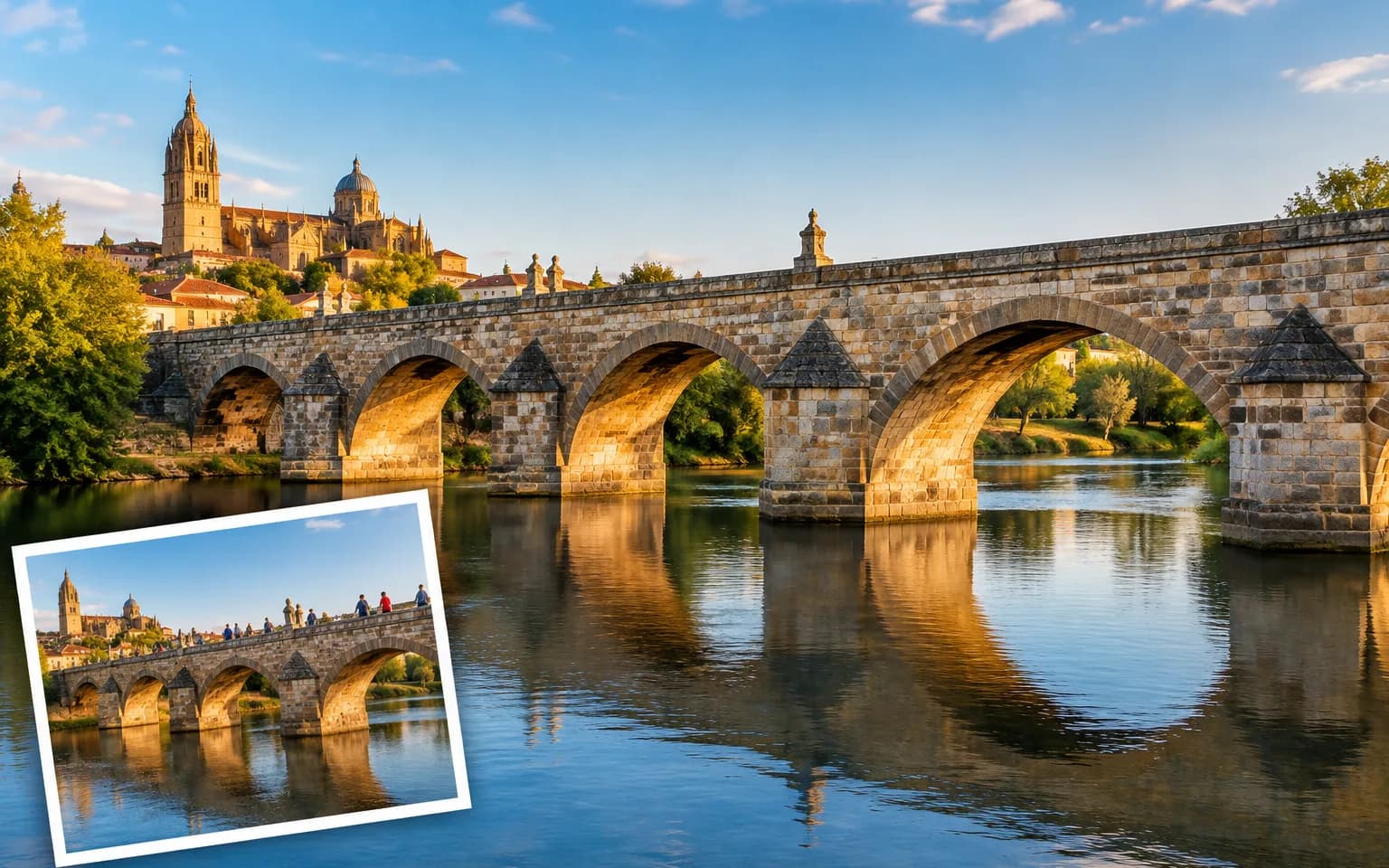
AI People Remover removes distracting people from a photo you have the right to edit and reconstructs the background they covered. Upload one image, identify the bystander or group, and generate a cleaner scene while keeping the intended subject, remaining people and composition recognizable.

  • Image Upscaler
  • Image Enhancer
  • Unblur Image
  • Denoise Image
  • Face Swap
  • Camera Angle Changer
  • Image Relight
  • Background Changer
  • Watermark Remover
  • Object Remover
  • People Remover
  • All Tools
People Remover
Why use it

Why use AI People Remover for authorized photo cleanup

Separate the subject from bystanders

Describe who should be removed and who must remain. That distinction is important in travel, event and street photographs where several people appear at different depths and a vague instruction could erase the intended subject or alter a face.

Try it now

Rebuild the obscured environment

A removed person may cover pavement, furniture, landscape or architectural detail. The model generates a plausible continuation from surrounding context, including perspective, light and texture, instead of leaving a cutout or simply smearing nearby pixels across the gap.

Try it now

Preserve remaining identities

The system prompt asks the model to keep all remaining people and their identities stable along with foreground objects, color and framing. This boundary reduces unrelated edits, although every generated result should still be checked closely before publication.

Try it now

Use a rights-aware workflow

People removal changes the record represented by an image. APIXO positions this workflow for content you own or are authorized to modify, not for deceptive documentary alteration, impersonation or editing private images without permission from the relevant rights holder.

Try it now
Capabilities

What AI People Remover can help clean

Travel photos

Remove an incidental background visitor while retaining the traveler, landmark, weather, light and original point of view.

Property imagery

Clear authorized listing photographs of passersby while keeping rooms, streets, boundaries and permanent property details honest.

Event selections

Create an alternate crop-like composition by removing an unrelated bystander from an image you may edit and share.

Product scenes

Remove an accidental person in the background while keeping the product, styling and intentional talent unchanged.

Background preparation

Prepare a less crowded source before using Background Changer or Blur Background for a separate creative treatment.

Developer workflows

Test a lawful cleanup instruction in the workbench, then use the corresponding model API for approved asset pipelines.

Who uses AI People Remover responsibly
Who it is for

Who uses AI People Remover responsibly

Travel photographers

Clean authorized personal photographs when an incidental bystander distracts from the intended person or place.

Property marketers

Prepare owned interior or exterior images while preserving permanent features and avoiding misleading structural changes.

Event teams

Create approved promotional variants from commissioned photography when distracting attendees appear outside the main action.

Creative studios

Simplify licensed scenes before a background, lighting or campaign treatment is developed for a client asset.

Models

Models behind this tool

  • OpenAI logoGPT-Image-2.5OpenAI
  • OpenAI logoGPT-Image-2OpenAI
  • ByteDance logoSeedream 5.0 ProByteDance
  • ByteDance logoSeedream 5.0ByteDance
  • ByteDance logoSeedream 4.5ByteDance
  • Google logoNano Banana ProGoogle
  • Google logoNano Banana 2Google
  • Google logoNano BananaGoogle
  • Alibaba logoQwen Image 3.0 ProAlibaba
  • Alibaba logoQwen Image 3.0Alibaba
  • Black Forest Labs logoFlux 2Black Forest Labs
  • Black Forest Labs logoFlux KontextBlack Forest Labs
  • Midjourney logoMidjourneyMidjourney
  • MiniMax logoMiniMax Image 01MiniMax
  • Alibaba logoWan 2.6 ImageAlibaba
  • Alibaba logoWan 2.5 ImageAlibaba
  • xAI logoGrok ImagexAI
How it works

How to use AI People Remover

Try it now
01

Upload an image you may edit

Choose an authorized photo with a clear intended subject and visible context around the person to remove.

02

Identify people precisely

Describe the bystander or group by position and clothing, and state which people and identities must stay unchanged.

03

Generate and check the scene

Inspect reconstructed edges, remaining faces, shadows and reflections before downloading or refining the instruction.

Tips & FAQ

Get better results

Tips

01

Identify the person by clothing, position and depth, then state clearly which people must remain.

02

Use images with enough visible background around the person to guide reconstruction of hidden surfaces.

03

Inspect hands, faces, reflections and overlapping bodies because those boundaries are difficult to reconstruct reliably.

04

Avoid presenting generated cleanup as an unchanged documentary record when the removed person affects the meaning.

05

Only process images you own or have permission to edit, publish and use for the intended purpose.

Frequently Asked Questions

AI People Remover is a prompt-guided image editor that removes a described person or group and generates a plausible version of the background they obscured. It operates on one uploaded image without a separate mask, so the description must distinguish people to remove from people to retain.

Describe both sides of the boundary. Identify the unwanted person by location, clothing or role, then identify the main subject and details that must remain. After generation, check faces, limbs and overlaps carefully because a single image does not reveal what was hidden behind them.

Use it only for images you own or have permission to edit and for lawful purposes consistent with the rights of pictured people and other rights holders. Do not use generated edits to deceive, harass, impersonate or misrepresent an image as an unchanged factual record.

Use a clear image accepted by the upload control. A well-lit source with visible edges and enough surrounding context gives the model more information to preserve important details. Very small, heavily compressed, blocked or ambiguous areas can make reconstruction and fine lettering less consistent.

Generation uses credits based on the model and parameters selected for the task. The workbench shows an estimate before submission, so you can review the expected charge before starting. Switching models or output settings can change that estimate without changing the purpose of the tool.

Yes. The models that power the workbench are also available through APIXO APIs for developers building repeatable image workflows. The related model pages explain current request fields and response handling. Use the workbench for visual testing, then choose the matching model documentation for integration.

Commercial use depends on your rights to the source image, its people, logos, artwork and other protected material, together with the terms that apply to your selected model and destination. Only upload content you are authorized to edit, and review relevant permissions before publishing or selling the result.

More tools

  • Text to Image
  • Image to Image
  • Image Upscaler
  • Image Enhancer
  • Photo Restoration
  • Unblur Image
  • Image Sharpener
  • Denoise Image
  • Face Enhancer
  • Photo Retouching
  • Unpixelate Image
  • Face Swap
  • Head Swap
  • Colorize Photo
  • Camera Angle Changer
  • Image Relight
  • Change Color of Image
  • Face Editor
  • Edit Text in Image
  • Image Translator
  • Background Changer
  • Background Remover
  • Image Layer Decomposition
  • White Background
  • Blur Background
  • Change Background Color
  • Product Staging
  • Product Beautifier
  • Flat Lay Generator
  • Ghost Mannequin
  • Product Photo Generator
  • Clone Product Image
  • Watermark Remover
  • Object Remover
  • Remove Text from Image
  • Photo to Anime
  • Photo to Sketch
  • Photo to Cartoon
  • Photo to Painting
  • AI Filter
  • Vintage Filter
  • Black and White Filter
  • Glitch Effect
  • Photo to 3D Cartoon
  • Cartoon Avatar Maker

Clean up your shot with AI People Remover

Upload a photo you are allowed to edit, point out the distracting person, and let the scene be rebuilt around your intended subject.

Try it now
  • Image Upscaler
  • Image Enhancer
  • Unblur Image
  • Denoise Image
  • Face Swap
  • Camera Angle Changer
  • Image Relight
  • Background Changer
  • Watermark Remover
  • Object Remover
  • People Remover
  • All Tools