
Updates
GPT Image 2.6 Is Now on APIXO: Features and Examples
Explore GPT Image 2.6 GIFs, SVG artwork and markup edits on APIXO, including a controlled Flare–Sunburst comparison and real output examples.
Ethan Wang
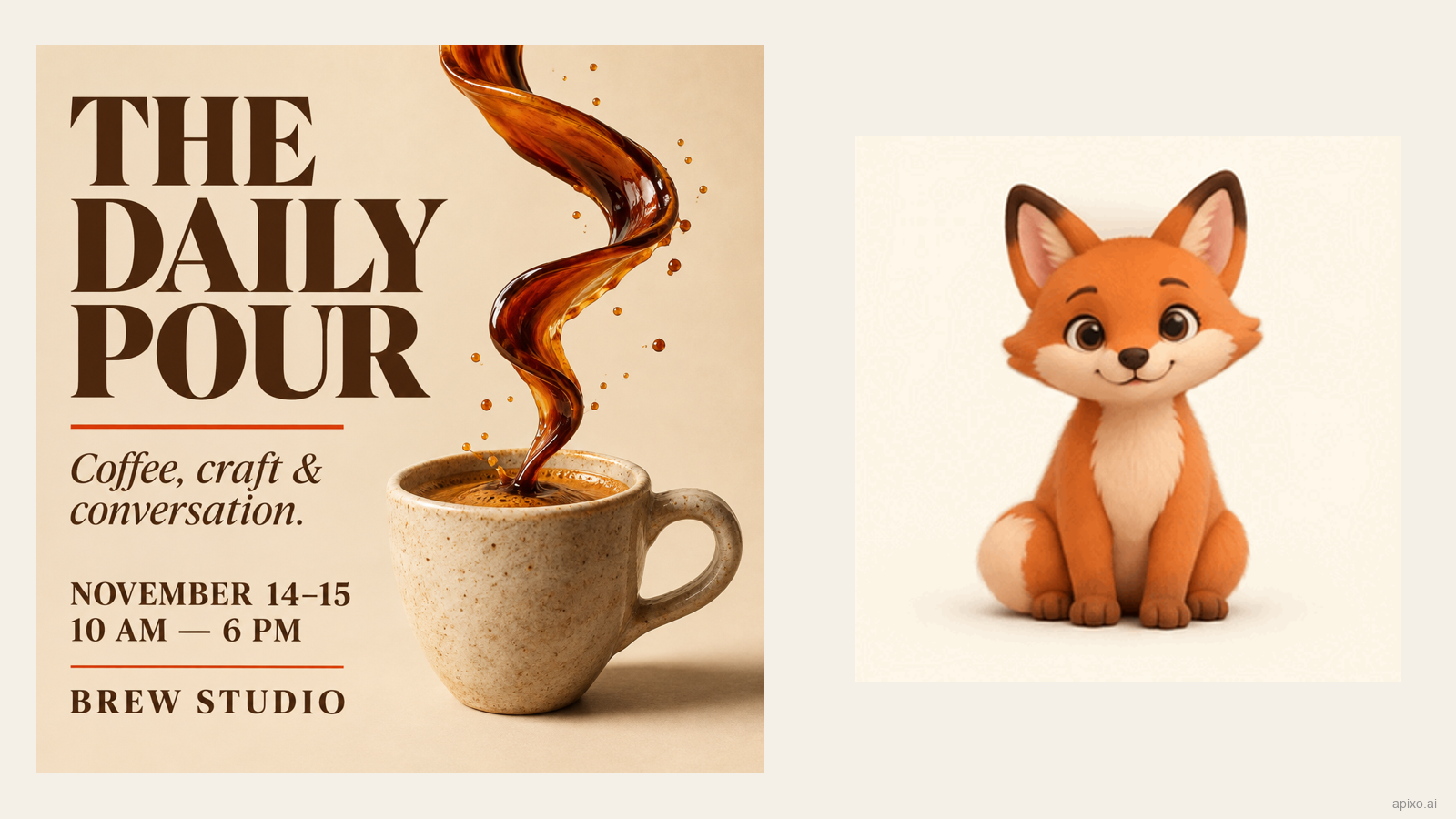
Flare examples: a coffee poster and a frame from the fox GIF.
GPT Image 2.6 is available on APIXO for image generation and editing, with Flare and Sunburst options. The practical additions to explore are short animated GIFs, static SVG artwork and more explicit control over how an image is planned. For edits, a separate markup layer lets you point to the part of an image you want changed.
Creators can use these features for a waving mascot in a community post, a vector illustration to refine in a design tool, or a product photo that needs a new color. The poster, animation and vase edit below show how those tasks fit the available features.
What changed after the early specification hints?
Our earlier preview covered references to GPT Image 2.6 in an API specification. This launch article follows that preview with confirmed availability and recorded examples: OpenAI's November 4 changelog lists Flare and Sunburst. APIXO's model page and published integration documentation show access as of November 5, 2026.
You can start in the GPT Image 2.6 workspace. Use text-to-image for GIF or SVG output. Image-to-image is the route for editing reference images and returns PNG, JPEG or WebP.
Turn one small action into a GIF
A greeting mascot is a useful first brief because the intended action is easy to judge. Ask for a fixed camera, one wave and a return to the initial pose. Keeping the scene simple makes unwanted movement more obvious.
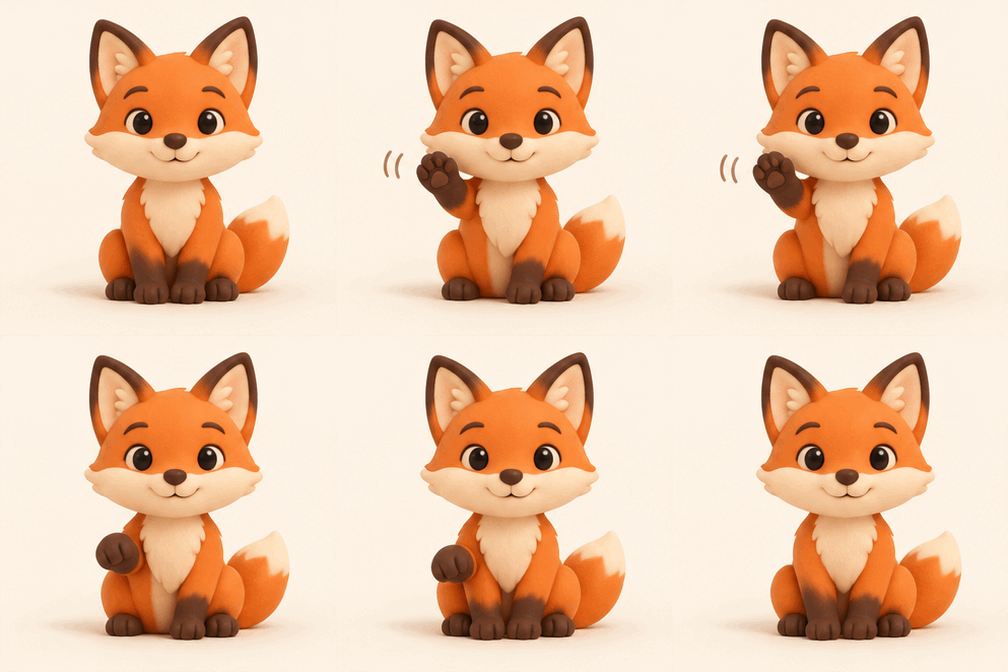
For APIXO's current integration, GIF output accepts 2–16 frames. Nine frames at 200 milliseconds each give a duration of 1.8 seconds. Frame count determines how many poses can be represented; frame duration determines how long each pose stays visible.
Watch the exported file through several cycles. Check the last-to-first transition, the character's silhouette and the background. If the subject or camera drifts, simplify the action before increasing the number of frames.
Refine vector shapes with SVG
SVG provides static vector artwork that you can open in a design application to inspect paths and adjust shapes and colors.
Flare generated the coffee-cup icon below directly as SVG using 1:1, 1k, medium quality and medium complexity. The file contains seven paths, two ellipses and a background rectangle. You can select and adjust the cup, handle and steam separately in a vector editor.

Download the original SVG · Copy the full prompt
Show the model where to edit
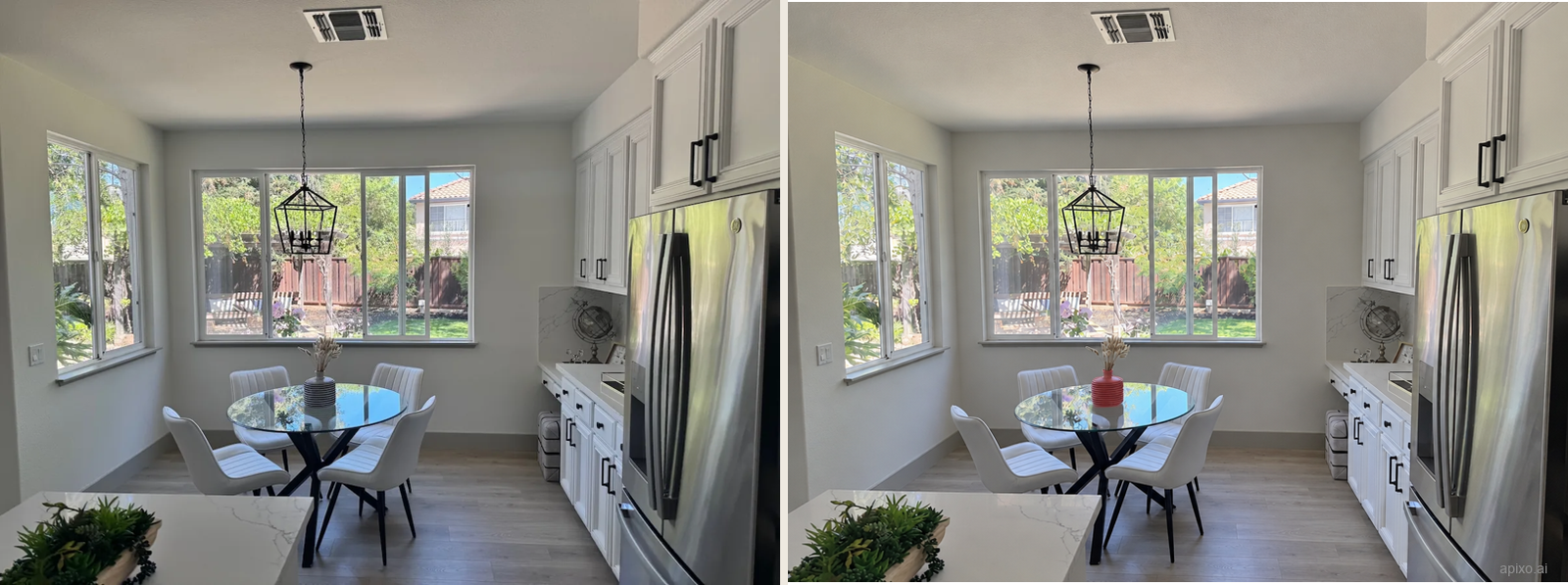
Markup editing combines a source image, a transparent annotation PNG and a written instruction. For our vase edit, a red circle identifies the vase on the table. The prompt requests coral red and names the furniture, windows and lighting to preserve.
On APIXO, the markup applies to the first reference image. Keep the source and markup in their separate input roles. Do not combine a markup image with a mask in the same request. The APIXO Flare documentation describes the fields used for this workflow.
Here is the Flare result using OpenAI’s public kitchen photo and annotation: the vase became coral red, and the room became brighter overall. When reviewing an edit, compare both the target object and its surroundings with the source.
Flare or Sunburst: how do their edits differ on the same image?
We submitted the same kitchen photo, transparent annotation and recoloring prompt to Flare and Sunburst. Both requests used 4:3, 1k, medium quality, low complexity and PNG output; only the model changed.
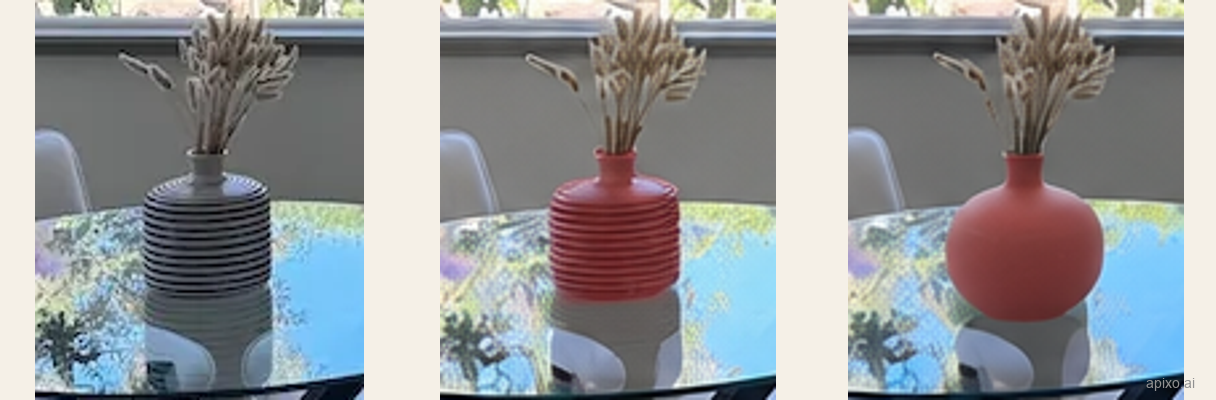
- Color and surface: Flare: Red finish with horizontal ridges retained ; Sunburst: Muted coral red with a smoother surface
- Vase shape: Flare: Retains a straighter body ; Sunburst: Rounder body with a fuller base
- Output dimensions: Flare: 1184 × 880 ; Sunburst: 1184 × 880
- Server-reported time for this run: Flare: 30.847 seconds ; Sunburst: 22.237 seconds
For this pair, Flare is the closer choice for retaining the original vase shape. Sunburst removes more of the horizontal texture and produces a smooth, solid-color body, while changing its shape. Both outputs make the surrounding room brighter than the source.
View the full-scene comparison
Text-led posters: combine copy and product imagery

The large headline, smaller event details and coffee cup create a clear reading order. This layout is useful for event announcements or café promotions. Before using a generated poster, check each word, date and time against your brief, then check readability at the final display size.
Set Quality and complexity separately
Quality controls the rendering tier; complexity controls planning effort. The GIF and markup tutorials both used medium quality + low complexity, providing a concrete starting configuration for those examples. For a more demanding layout, keep the prompt, model, size and quality fixed and change only complexity from low to medium. Compare layout, detail and generation time before choosing a setting.
Choose a task and start creating
Start with a waving GIF for your community, a text-led event poster or a new color for a product photo. Save the prompt, settings and output together so you can refine and reuse the result.
Start creating with GPT Image 2.6 on APIXO.
Build with APIXO
Explore image, video, and audio models in one place.