
Guides
How to Make a Looping GIF with GPT Image 2.6
Create a waving fox GIF with GPT Image 2.6 Flare: settings for two APIXO interfaces, the exact prompt, frame timing and loop checks.
Ethan Wang
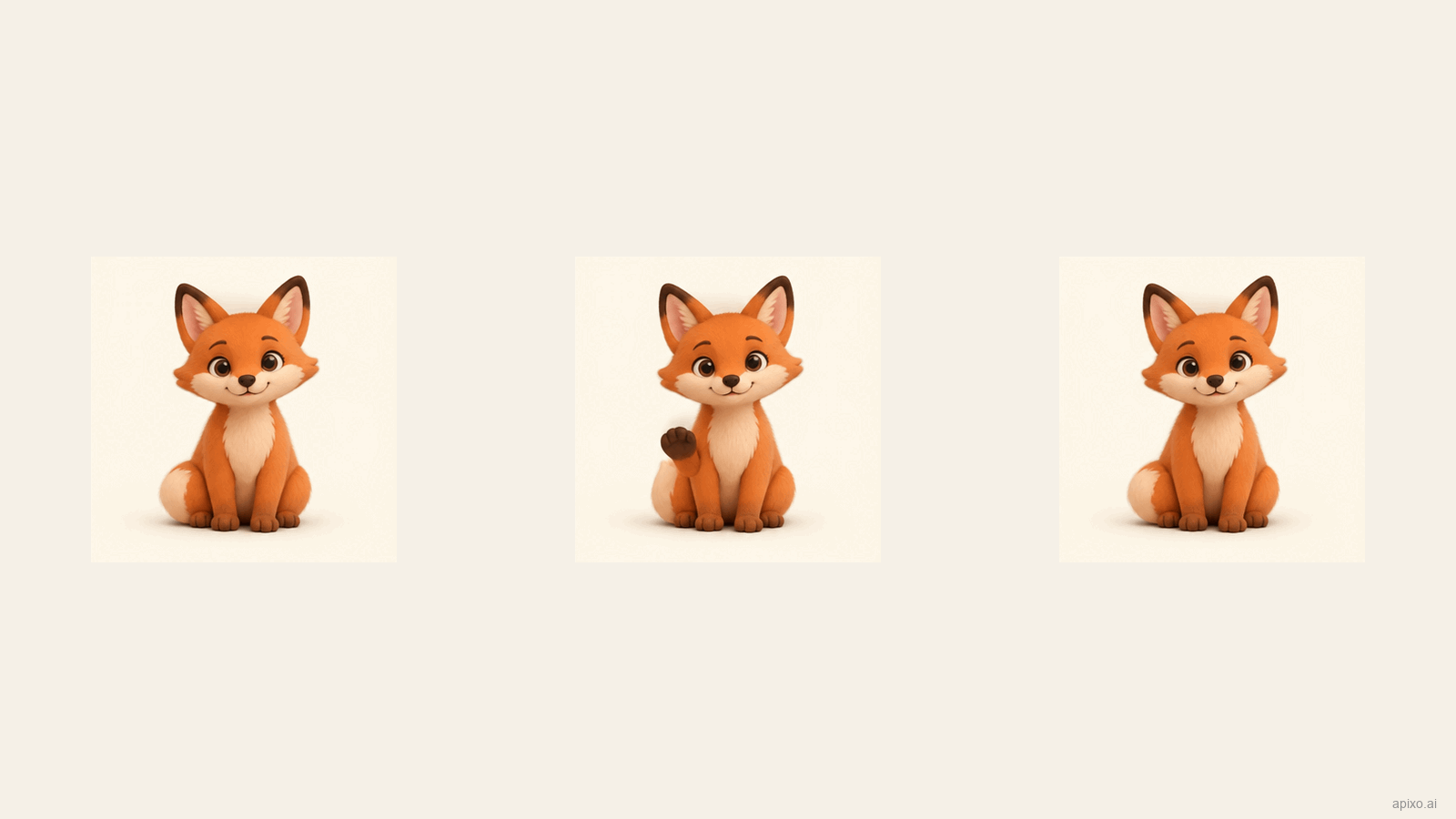
Frames 1, 4 and 9 from the fox GIF.
A small, repeatable action is a useful starting point for an AI-generated GIF. In this walkthrough, the brief is an orange fox that raises a paw, waves and returns to its initial pose. The goal is a readable greeting animation with a stable character and background.
This tutorial uses GPT Image 2.6 Flare and includes the full prompt, parameters and configuration steps for both the model page and AI Generator. The example was generated through APIXO MCP; browser screenshots show the corresponding settings and saved result.
Keep the first animation brief small
Use one character, one main action and a fixed camera. A wave is easier to inspect than a character jumping, turning and speaking while the camera moves. Keep enough space around the paw so it does not leave the frame.
Choose text-to-image and leave reference images empty; APIXO uses this mode for GIF output.
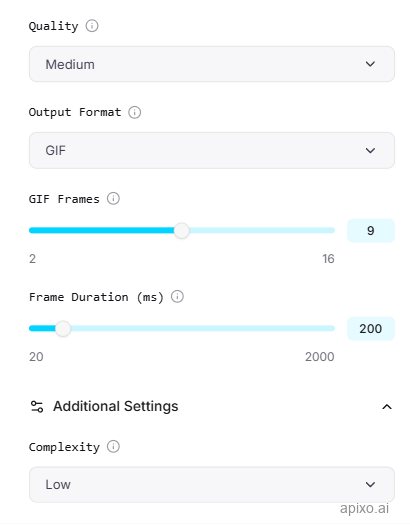
Set the model and animation parameters
On the GPT Image 2.6 model page, open Playground → Form. Select GPT Image 2.6 Flare under Model and Text-to-Image under Mode. Set Output Format → GIF to reveal GIF Frames and Frame Duration (ms). Expand Additional Settings for Complexity. Use the following values for a first recorded attempt:
- Model: GPT Image 2.6 Flare /
gpt-image-2.6-flare - Aspect ratio: 1:1
- Resolution tier: 1k
- Quality: medium
- Complexity: low
- GIF frame count: 9
- Frame duration: 200 ms
See the APIXO schema for the complete parameter ranges. We selected the 1k tier and received a 336 × 336 GIF. Use the downloaded file’s dimensions when planning its display size.
APIXO currently supports 2–16 frames. Our nine frames at 200 milliseconds each give a duration of 1.8 seconds.
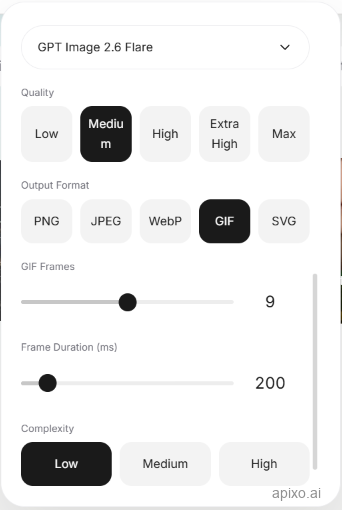
Starting from AI Generator
Open AI Generator in image mode. Click the model-settings button beside Image, open the model list and choose GPT Image 2.6. Set Aspect Ratio → 1:1 and Resolution → 1K, then expand More and scroll within that settings panel. Choose GPT Image 2.6 Flare, Quality → Medium, Output Format → GIF and Complexity → Low. Set GIF Frames → 9 and Frame Duration (ms) → 200.
Describe movement and what stays still
Use this prompt for the new attempt:
A charming orange fox mascot made of soft matte clay, centered against a clean warm ivory background. Create a seamless looping animation: the fox raises one front paw, gives a small friendly wave, then returns to its exact starting pose. Keep the camera completely fixed. Keep the fox's face, body proportions, colors and position consistent throughout. Only the waving paw should move. Soft studio lighting, subtle contact shadow, generous empty space around the character. No text, no logos, no motion lines and no additional objects. The first and last poses should match for a smooth loop.
The prompt concentrates movement in the paw and asks for a return to the starting pose to connect the loop. Get the wave working first, then try adding actions such as blinking.
Before generating, save a screenshot of the selected model and expanded settings. After generating, download the original GIF rather than a still preview and keep it with the exact prompt you used.
To retrieve an existing Studio conversation, open the prompt box's More menu, choose Recent, and select the conversation. This is a different More menu from the one inside generation settings. Open the result or use its Download control.
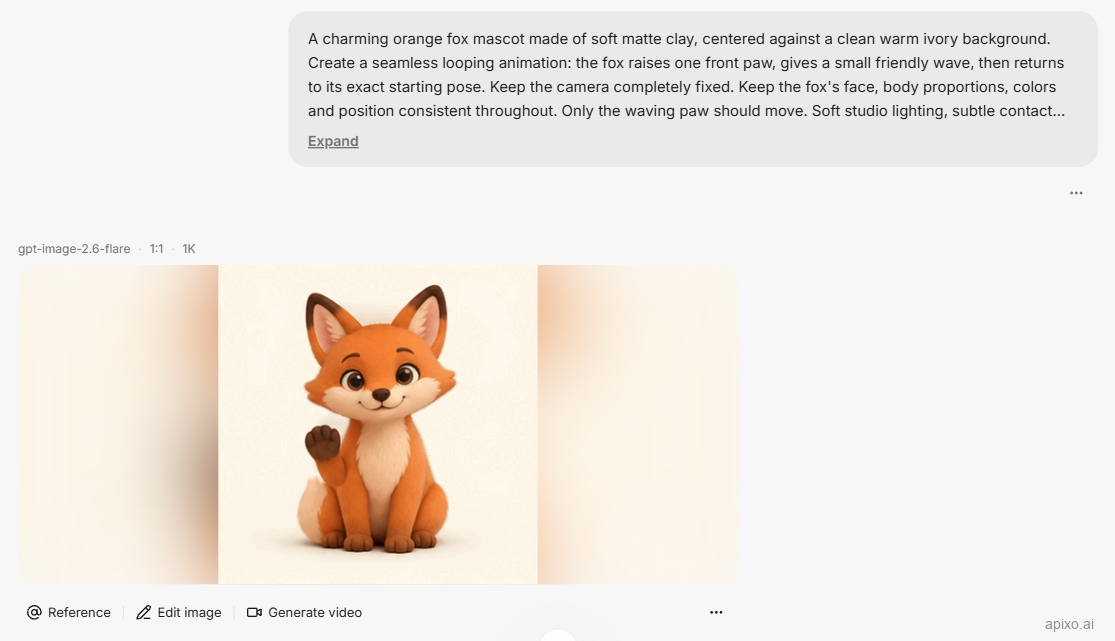
Inspect the loop before sharing
Play the GIF repeatedly at its intended display size. Inspect three things independently:
- Action: the paw actually rises and waves rather than the whole body rocking.
- Continuity: the face, ears, tail and background remain recognizable throughout.
- Loop seam: the final pose returns to the opening pose without a distracting jump.
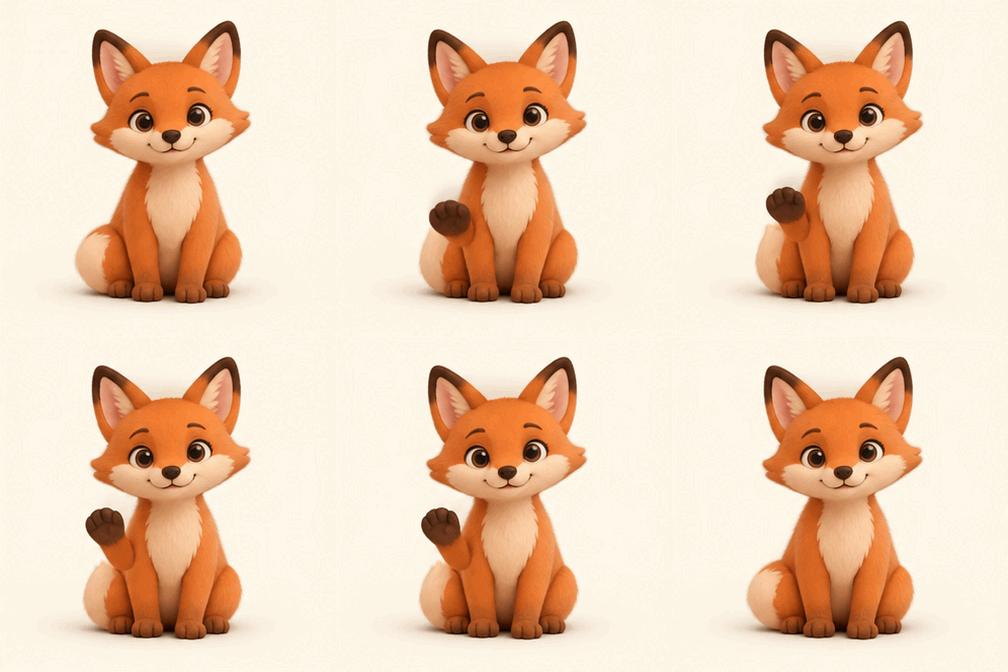
After playback, compare the first, middle and final frames to inspect anatomy and changes in pose. The nine-frame sheet below makes that comparison easier.
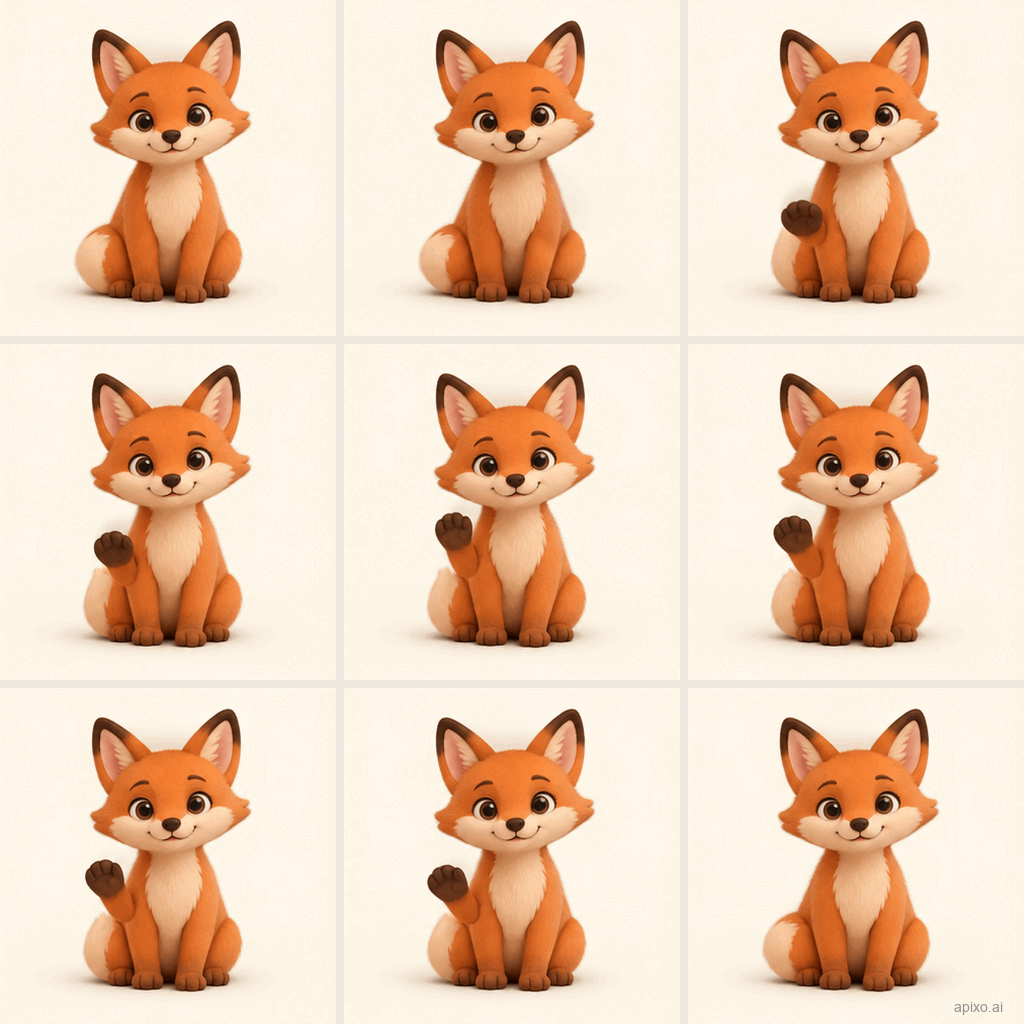
During repeated playback at its original 336 × 336 size, the paw wave is easy to recognize. The head and body also shift slightly, and the return to the opening pose has a small jump. The action works as a short greeting; for a smoother loop, start by reducing the wave amplitude as described below.
Change one variable when the loop fails
If the scene moves more than the paw, first shorten the motion instruction and repeat the fixed-camera constraint. Keep the settings unchanged so you can assess the effect of that prompt revision.
If the action is readable but the timing feels too fast, try changing only frame duration from 200 to 300 ms. With nine frames, that gives 2.7 seconds. Compare the action and pacing after regenerating. To change only the speed of the existing GIF, adjust its frame duration in a GIF editor.
If motion is too coarse, an optional test can increase frame count from 9 to 12 while retaining 200 ms. The duration also becomes 2.4 seconds, so compare the pacing as well.
If the loop seam jumps, ask for a smaller wave and a clearer return to the resting pose. Avoid changing model, prompt, quality and timing together—you would lose track of what helped.
Keep the settings with the file
Save the model, full prompt, settings screenshot, output dimensions, frame count, frame durations and a brief note on the result. While refining it, record which changes solved a problem so you can reuse them next time.
To try Sunburst, keep the prompt and other settings fixed, then compare the action, character details and generation time.
Open the GPT Image 2.6 workspace and start with one small action.
Build with APIXO
Explore image, video, and audio models in one place.