
Guides
How to Create Product Image Sets with Kling Image 4.0
Use one product photo to make a hero image, a lifestyle shot, and a close-up. Copy the prompt and check whether the packaging stays consistent.
Ethan Wang
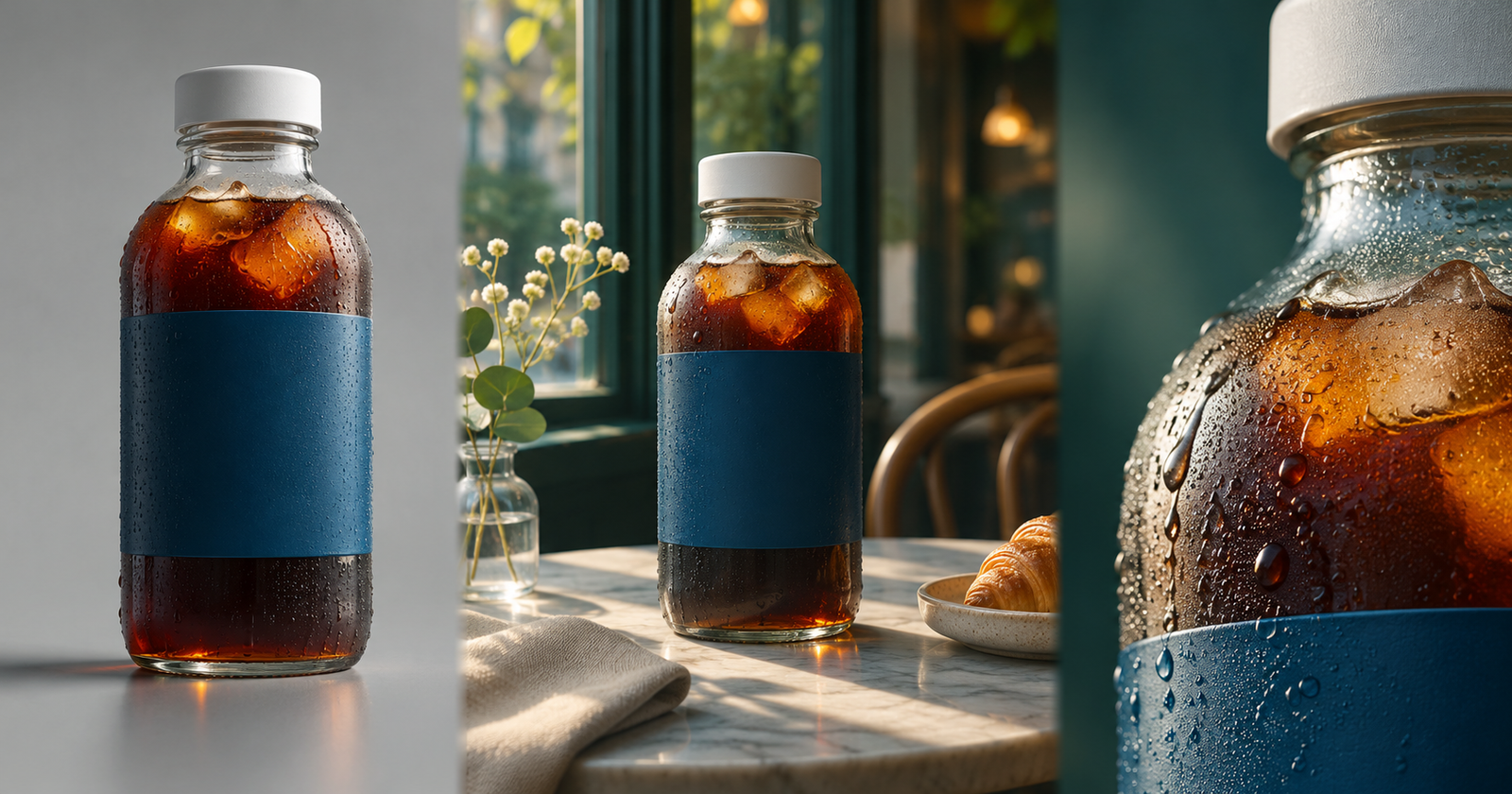
AI-generated editorial illustration, not a Kling Image 4.0 output.
Turn one product photo into three assets: a hero image, a lifestyle shot, and a detail close-up. This cold-brew example shows how to assign references, brief an image set, and decide when higher resolution is worth using.
Create a three-image product set on APIXO
- Open the Kling Image 4.0 model page and choose Image Set. For a single hero image, choose Image.
- Upload a clear front-facing product photo. Select it with the prompt field’s @ reference control, then list the details each image should preserve, such as the bottle shape, cap, and label.
- Set the output count to 3 and start at 2K. Describe the hero, lifestyle shot, and close-up in order. Compare the packaging across all three outputs.
Copy this image-set prompt and insert the reference tag from the form into the first line.
Use the first reference as the source for the product. Keep the same clear bottle, white cap, blue label, and label placement in all three images. Add no new logos or lettering.
1. Hero: front-facing at eye level, light gray background, room on the right.
2. Lifestyle: the same cold-brew bottle by a café window, with its packaging intact.
3. Close-up: the shoulder of the bottle and condensation, with the original label preserved.
Give each reference one job
- Reference 1: Product truth. Use a front-facing photo you own or have permission to use. Preserve the clear bottle, white cap, blue label, and its placement.
- Reference 2: Composition. Use a café reference for window placement and table space, not for its bottle, branding, or props.
- Reference 3: Lighting, if needed. Borrow the side light and color temperature. If it changes the apparent product color, prioritize the product photo.
Use the front-facing product photo as your first reference. Add a scene photo only if you need to control the window placement or space on the table, then say what the scene photo should guide.
Product hero: when to choose 2K, 4K, or 8K
Watch Kling AI’s official launch film, When Time Stands Still. At around 0:08, look at the eye close-up; at 0:23, look at the backlit fabric. Bring the same habit to product images: check the whole frame, then inspect the detail the deliverable depends on.
Watch Kling AI’s official launch film, When Time Stands Still
https://x.com/Kling_ai/status/2122707362603794601One hero, three crops. In a banner, check the space for copy. In a square listing image, make sure the cap and bottle base stay in frame. In a label close-up, inspect small lettering, label edges, and condensation. Start at 2K for thumbnails, try 4K for moderate crops, and consider native 8K for a tight detail crop. Compare the same crop at the intended display size, not just at the same zoom percentage.
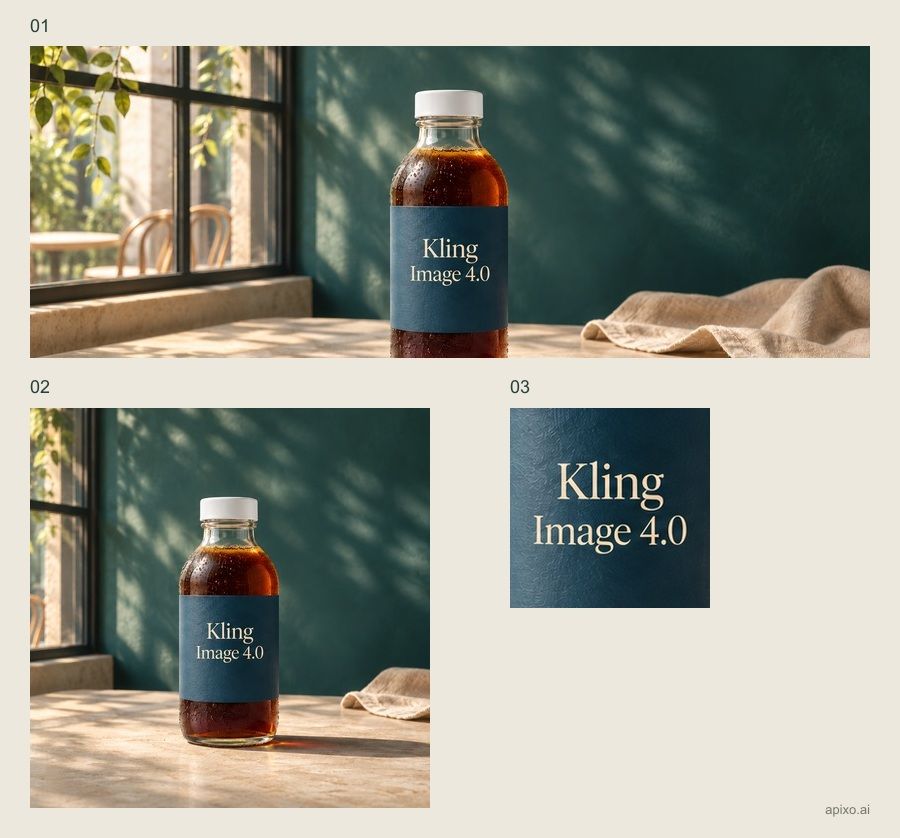
For a small product tile, settle the composition at a lower resolution. If one hero must also supply a wide banner, a square listing image, and a label detail, test native 8K. Extra pixels give you cropping room; they do not fix a misspelled label or distorted bottle.
Use the product photo as the sole product reference. Preserve the clear bottle,
white cap, blue label, and label placement. Front-facing and eye-level,
with soft side lighting on a light gray background. Keep the whole bottle
inside the frame and leave room on the right for banner copy.
No new props, logos, or lettering. Deliver one product hero.
Review at final display size, then inspect the actual crop around the cap, glass edge, and label. If the product changes, retry using only the product reference before increasing resolution. For print, check final dimensions, effective pixel density, and bleed separately.
If the packaging drifts in one frame, remake that frame using the original product photo. For bilingual lettering or an e-commerce layout, see the poster and product page guide.
Check the set before export
Compare the bottle shape, cap, and label across the set, then view each frame at its delivery size. Check the hero for room to crop, the lifestyle shot for a product you can recognize at a glance, and the close-up for the detail it needs to show.
For the release timeline and platform availability, see the launch coverage.
Build with APIXO
Explore image, video, and audio models in one place.