
Guides
Tiny Desk AI Trend: Origins and How to Make It
Learn the Tiny Desk AI trend’s origins, choose a template or custom workflow, and make a video from 1–5 photos with checks for faces, cuts, and sound.
APIXO Team

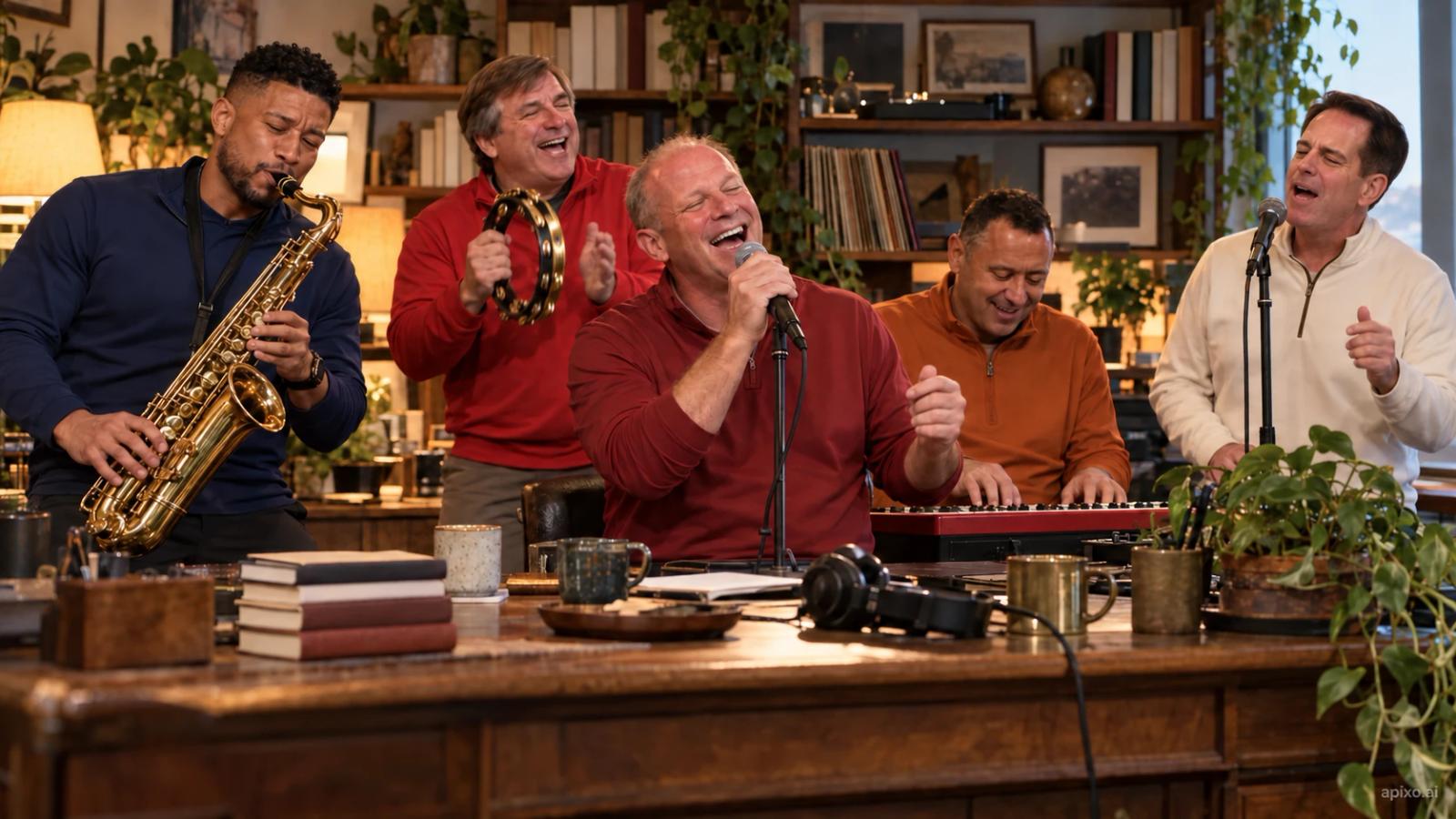
AI contrast illustration: a fictional juxtaposition of defeat and joyful performance; not actual postgame photography or frames from the original post.
The Tiny Desk AI trend on TikTok uses AI to put familiar faces into an unexpectedly joyful concert. A band crowds behind an office desk, a singer performs “Outstanding,” laughter breaks out, and the camera moves to the saxophonist. Cast coaches who have just lost a game, and the joke becomes: the game is over, but the concert must go on. Cast yourself and your friends, and you have a very different kind of band reunion.
Also called the Outstanding Tiny Desk meme, the format connects a classic song, a Charlie Wilson performance, and AI recasts of losing football coaches. Here is where it came from, followed by how to make a Tiny Desk AI video from photos with one to five performers on APIXO. A five-friend birthday band carries us through preparation, role assignment, generation, and checking the result; choose the cast size that fits your own idea.
Contents
- Where the meme came from
- How to make a Tiny Desk AI video from photos
- Casting ideas and post descriptions
- Before posting to TikTok or Reels
- FAQ
- For developers
Where the meme came from: “Outstanding” and a band of losing coaches
“Outstanding” is a 1982 funk/R&B song by The Gap Band; Universal Music’s uDiscover retrospective covers its release background. The performance used in these edits comes from the band’s lead singer Charlie Wilson’s NPR Tiny Desk Concert. NPR Music published it on June 5, 2023, with “Outstanding” as the final song in the set.
NPR Tiny Desk Concert
https://www.youtube.com/watch?v=J3jUEB7qmt8Books, records, and office clutter surround the tightly packed band. Singing gives way to a laughing close-up, then a saxophone solo. Those expressions, movements, and cuts make the format recognizable: viewers recognize a performance, not just an office backdrop.
In October 2026, that joyful performance met an unlikely cast: losing college football coaches. Sport & State’s October 22 interview with the creator reports that five of the top seven teams lost on October 17. Nashville songwriter Jake Whipple (@theburnerfromhe11) used AI to recast the band with Alabama’s Kalen DeBoer, Georgia’s Kirby Smart, Texas’s Steve Sarkisian, Notre Dame’s Marcus Freeman, and Indiana’s Curt Cignetti. Freeman appears as the saxophonist.
View the coach-version post linked in the interview (TikTok)
The contrast carries the joke: people facing defeat appear to be having the time of their lives. The edit described in the report ran about 19 seconds and had passed two million TikTok views by publication. That duration belongs to that particular edit; use the actual shots in your chosen template when making your own.
Friends and coworkers can take the place of coaches, too. What carries across is the familiar concert format and the surprise of seeing this particular group enjoying it so much.
How to make a Tiny Desk AI video from photos
The APIXO Tiny Desk video template lets you choose one to five performers to replace. Decide who is appearing, then upload each portrait to the matching role.
Choose a workflow: role template, custom generation, or editing
For a new cast performing the preset concert, start with the role template. For a different scene or changes to an existing clip, choose according to the task:
- Put yourself or friends into roles in the preset performance — Workflow: Tiny Desk role template; What to confirm first: Choose 1–5 performers and prepare their portraits; review identities, movement, and sound afterward
- Design another office, wardrobe, or set of shots — Workflow: APIXO video workspace; What to confirm first: Use the character/video reference inputs actually supported by your chosen model, and plan the new scene and action
- Crop, cut, or adjust sound in a usable video you already have — Workflow: Video editing tools; What to confirm first: Prepare the material and permissions, then work on framing, cuts, and audio
The three steps below use a five-friend birthday band as the example. Birthday guest B takes the red-cap close-up; the other four fill the keyboard, saxophone, and two backing-singer roles.
1. Prepare portraits and match people to roles
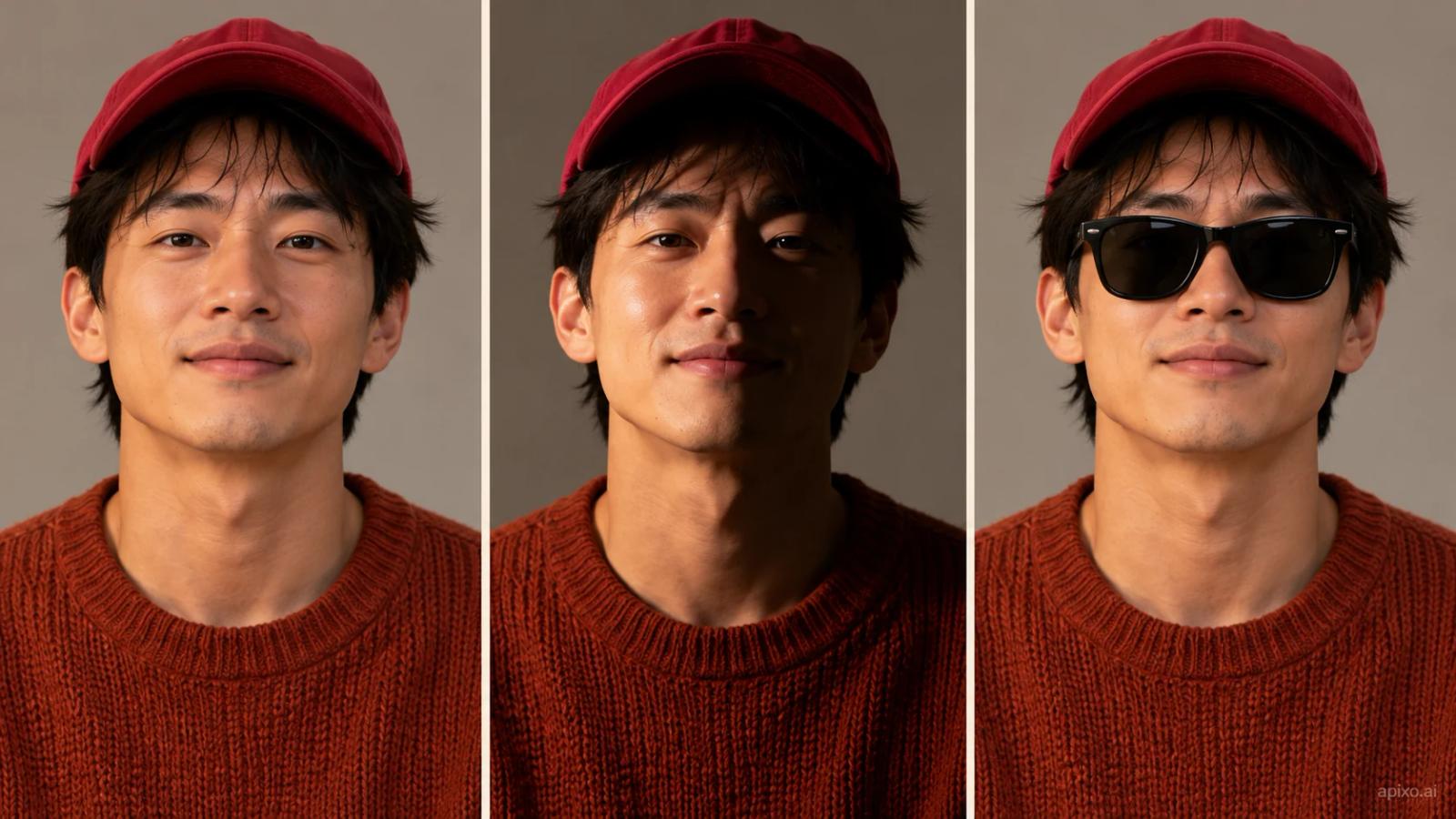
Prepare one clear individual portrait for each participant. A face directed toward the camera, even lighting, and unobstructed eyes and mouth give you a clearer input to work with. Avoid blurry screenshots, heavy filters, and extreme side angles. You do not need to find a photo of each person already singing or laughing.
Use your own photos or get your friends’ permission first. Prepare one photo for each role shown after choosing your cast size, and keep the originals. The table below is the five-person example; for one to four replacements, prepare only the roles actually displayed:
- White-cap keyboard singer — Friend A
- Red-cap close-up singer — Birthday guest B
- Saxophonist — Friend C
- White-shirt backing singer — Friend D
- Red-shirt backing singer — Friend E
2. Choose the cast size, upload by label, and generate
Open the template and select 1, 2, 3, 4, or 5 performers to fit your idea. Upload each portrait to the labeled role currently shown. The number of upload positions changes with your selection; you do not need five participants to use the template.
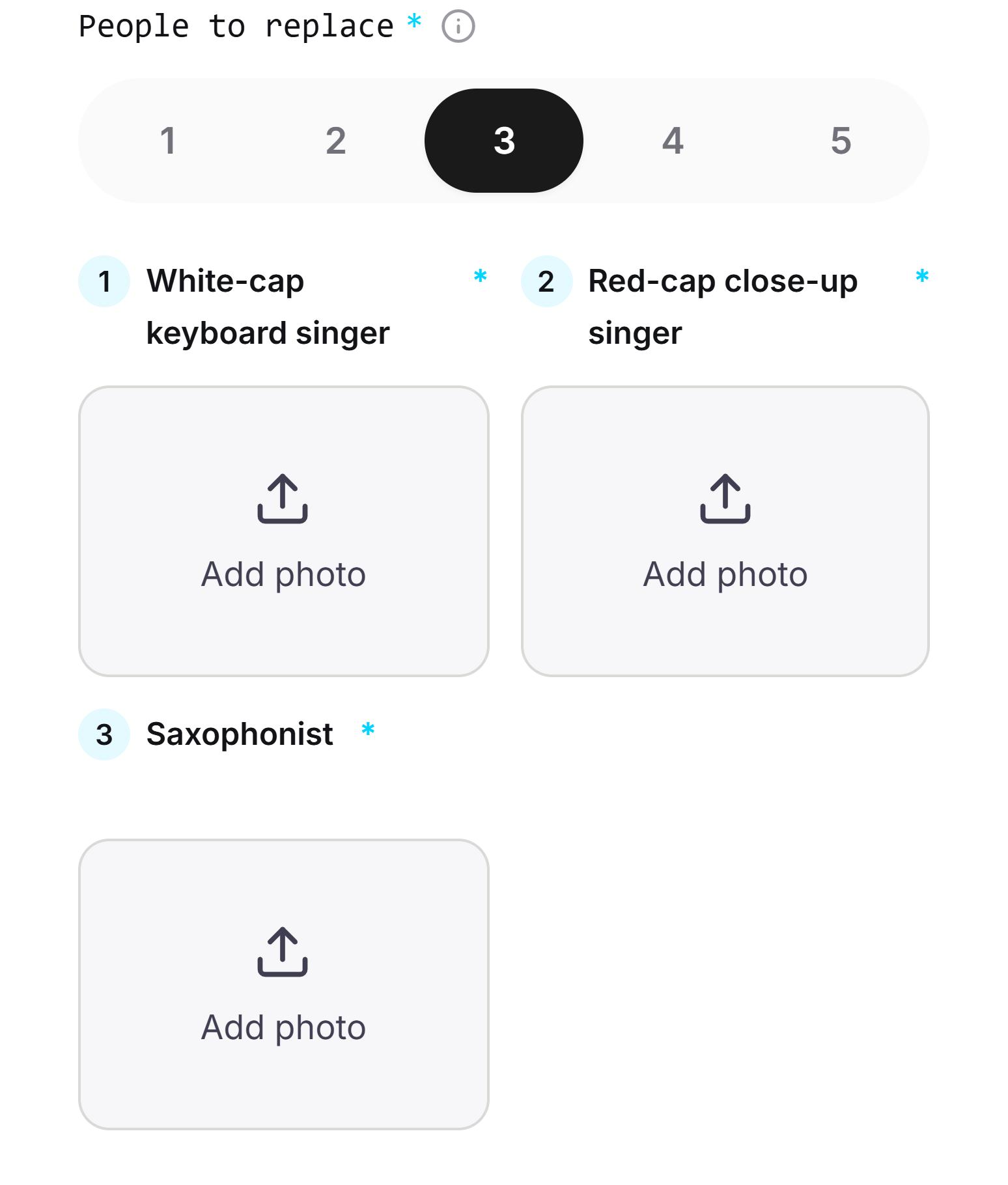
The birthday example has five participants, so it uses five positions: A takes the white-cap keyboard role, B takes the red-cap close-up, and the others go into their labeled roles. Check thumbnails against role labels; the current standard workflow does not need a separate replacement prompt.
Review the selected model, available settings, and cost estimate before submitting. The tool page says sound is enabled and no separate audio upload is needed; the preset guides the singing, laughter, and saxophone handoff. Check output specifications and costs for your current configuration.
3. Watch the whole performance before deciding what to change
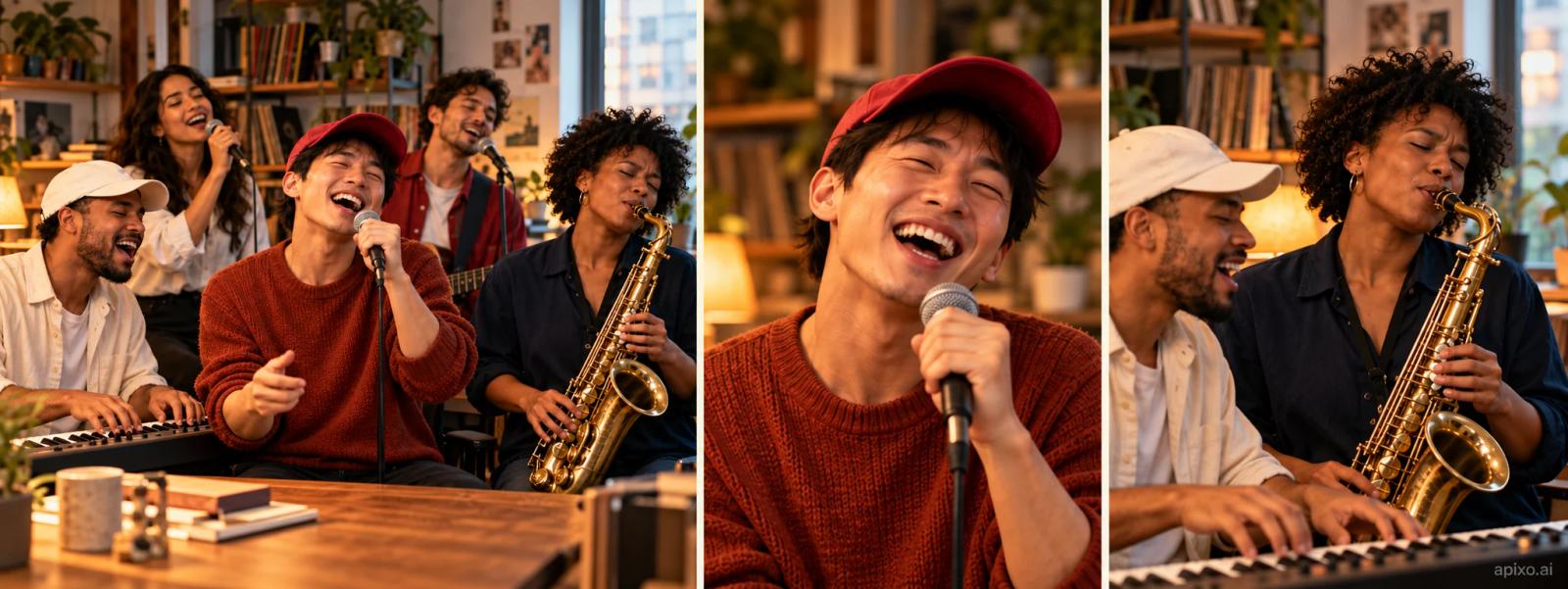
Save the original output and play it from start to finish. Check that each person you selected appears in the intended role and remains recognizable through cuts and later appearances. Listen for whether mouth movements, rhythm, and cuts work together, too.
For the five-person example, check A–E individually, paying particular attention to B's laughing close-up, C's saxophone shot, and shared frames. The AI concept storyboard below illustrates the performance beats to inspect:
If something looks wrong, identify the role and shot before changing the relevant input:
- Someone has the wrong role, or a replacement is missing — What to try first: Check role labels and upload thumbnails; replace an unclear input with a clearer portrait; What to check afterward: Every selected role matches its intended person, rather than only the lead changing
- A face loses its likeness while laughing, or two identities blend — What to try first: Compare the inputs; prioritize replacing photos with obstruction, heavy filters, or extreme angles; What to check afterward: Identity through close-ups, group shots, and later appearances
- The foreground person changes during the saxophone shot — What to try first: Check the saxophonist and keyboard lead inputs separately, then compare a retry; What to check afterward: Both faces in the shared shot and continuity when the band returns
- Mouths, teeth, hands, or instruments distort — What to try first: Confirm the relevant portrait is clear, then compare a regenerated result; What to check afterward: Singing, laughter, and playing in motion, rather than just a still frame
- Lip sync drifts, or audio echoes or clips — What to try first: Listen to the original output first; if edited, check for shifted or duplicated audio tracks; What to check afterward: Several phrases and beats at normal speed, on headphones and a phone speaker
After changing a photo or retrying, review the entire video again, not just the original problem shot. Check the downloaded file, too: cropping should preserve the performers, and the sharing platform’s controls should not obscure the key action.
Casting ideas and post descriptions: give the band its own story
The same performance can tell a different story with a new cast. Decide why these people belong together, then assign their roles. A short post description can establish the situation while the performance supplies the reaction.
A solo joke: join the band with one portrait
One person is enough to start. Choose one performer and upload your photo to the white-cap keyboard singer's position. For a joke about a losing game streak, friends who recognize you earnestly playing and singing can supply the context. Check that role's likeness across cuts and watch for unwanted changes to the other performers.
Optional post description: Lost another game. Still on keys.
A friend's birthday: put the guest in the close-up
Use the five-friend example above: birthday guest B takes the red-cap close-up, while four friends fill the keyboard, saxophone, and backing-vocal positions. Seeing familiar faces appear throughout the performance gives it the feeling of a group celebration. Pay particular attention to B's laughing expression and whether each friend remains recognizable as the shots change.
Optional post description: Couldn't get concert tickets, so we booked ourselves.
Fans after a loss: echo the coaches' contrast
Cast the friends who watched the game together and let the joyful performance answer the disappointing result. The friend who always leads the post-game analysis could take a lead role, with the rest as bandmates. The audience's knowledge of the group carries the joke. Check the flow from singing to laughter to the saxophone handoff so the contrast unfolds with the shots.
Optional post description: Lost the game. Still playing the encore.
A team finishing work: give coworkers an encore
With their permission, cast the coworkers who helped meet the deadline. The usual meeting host could sing the lead, a quiet colleague could take the saxophone, and others could become backing singers. The change from everyday roles to band roles supplies the surprise. Everyone does not need a solo close-up; recognizable faces together can establish the team.
Optional post description: Project delivered. Our encore starts now.
These lines can go in the post description or a message when you share; the video can simply remain a performance. Agree on the casting and sharing audience with participants so they are comfortable with the specific joke.
Before posting to TikTok or Reels: what to check
- Picture and sound: Check the final downloaded file and the preview on the platform where you plan to post. Review every performer, the laughter, and the cuts; make sure cropping and interface controls do not hide the key action. Listen to the audio and rewatch any version you edited yourself.
- People and disclosure: Confirm participants agree to this use, label AI content as the platform requires, and avoid suggesting this is a real performance by those people. See TikTok’s AI-content guidance.
- Material permissions: Check photos, footage, and music separately. For brand or product promotion, consult TikTok’s commercial-music guidance; availability inside an app does not establish advertising or cross-platform permission.
Personal parody does not automatically qualify as fair use; that requires a case-specific assessment, as the U.S. Copyright Office explains. Replacing the music still leaves the footage and likeness permissions to check.
FAQ
How long does generation take, and how do I check the cost?
Waiting time varies with the model, settings, and queue; the clip's duration is not its rendering time. Review the estimate for your current configuration before submitting. If you need a retry, identify the earlier problem and check the new submission's cost first.
Does a video with sound necessarily use the original “Outstanding” recording?
No. Sound-enabled generation and use of the original concert recording are separate questions. Listen to the actual file and check the tool’s information about its soundtrack. Confirm permission separately if you need a particular recording.
Are uploaded photos automatically deleted after generation?
Do not infer that from a completed generation. Before uploading, check the service’s current privacy policy for retention, deletion options, training use, and visibility. Ask the provider about unclear terms before deciding whether to upload.
With your portraits ready, open the Tiny Desk AI template to make your own version, choose 1–5 performers, and check their role assignments.
For developers
For programmatic use, check the specific model’s inputs, parameters, and result-retrieval methods in APIXO Docs. Verify how the website’s role slots and preset workflow correspond to the capabilities available through the API.
Build with APIXO
Explore image, video, and audio models in one place.