
News
What Is Seedream 5.5? Features and Use Cases
Seedream 5.5 is now available on APIXO. See its transparent assets, layer reuse, multilingual campaign layouts and iterative editing, with pricing and a first-test plan.
APIXO Team

APIXO editorial concept illustration, created with AI. It introduces the product-visual scenario in this article; it is not a Seedream 5.5 result.
Seedream 5.5 is ByteDance's image generation and editing model, available on APIXO since November 6, 2026 in the web workspace and through the API. Its official product previews highlight native transparent assets, consistency through repeated edits, and text rendering across languages. For a product campaign, the appeal is practical: carry approved visuals into new layouts, adapt copy for different markets, and keep refining a design as feedback arrives.
Key Takeaways
- Layer reuse: Evaluate whether approved product assets can carry into banners, social posts, and other layouts. On APIXO, layer decomposition returns a base image plus transparent PNG layers, up to 100 outputs in total, with optional text recognition.
- Copy localization: Give English and Chinese copy their own line breaks and spacing while keeping a shared product treatment. Check every word before delivery.
- Iterative editing: Use small changes, such as replacing a background, adjusting a cap, or changing lighting, to test whether approved details survive each revision rather than assuming they will.
- APIXO access: Seedream 5.5 is live on APIXO. Use it on the Seedream 5.5 model page for text-to-image, image editing with up to 10 reference images, transparent PNG output and layer decomposition, or call it through the API.
The perfume campaign below turns these highlights into workflows you can test on APIXO today.
What Is Seedream 5.5?
Seedream is ByteDance's image model family. In its Seedream 5.5 overview, BytePlus Lumina describes 5.5 as a preview following 5.0 Pro. Dreamina's product introduction also highlights realistic portraits and lighting-related workflows.
This article focuses on understanding the model and preparing creative tasks. Subsequent internal documentation adds details on layer separation and 4K dimensions. See our Seedream 5.5 highlights guide for all five capabilities, official images, and video demonstrations.
Three Features Worth Watching
Transparent and Semi-Transparent Assets
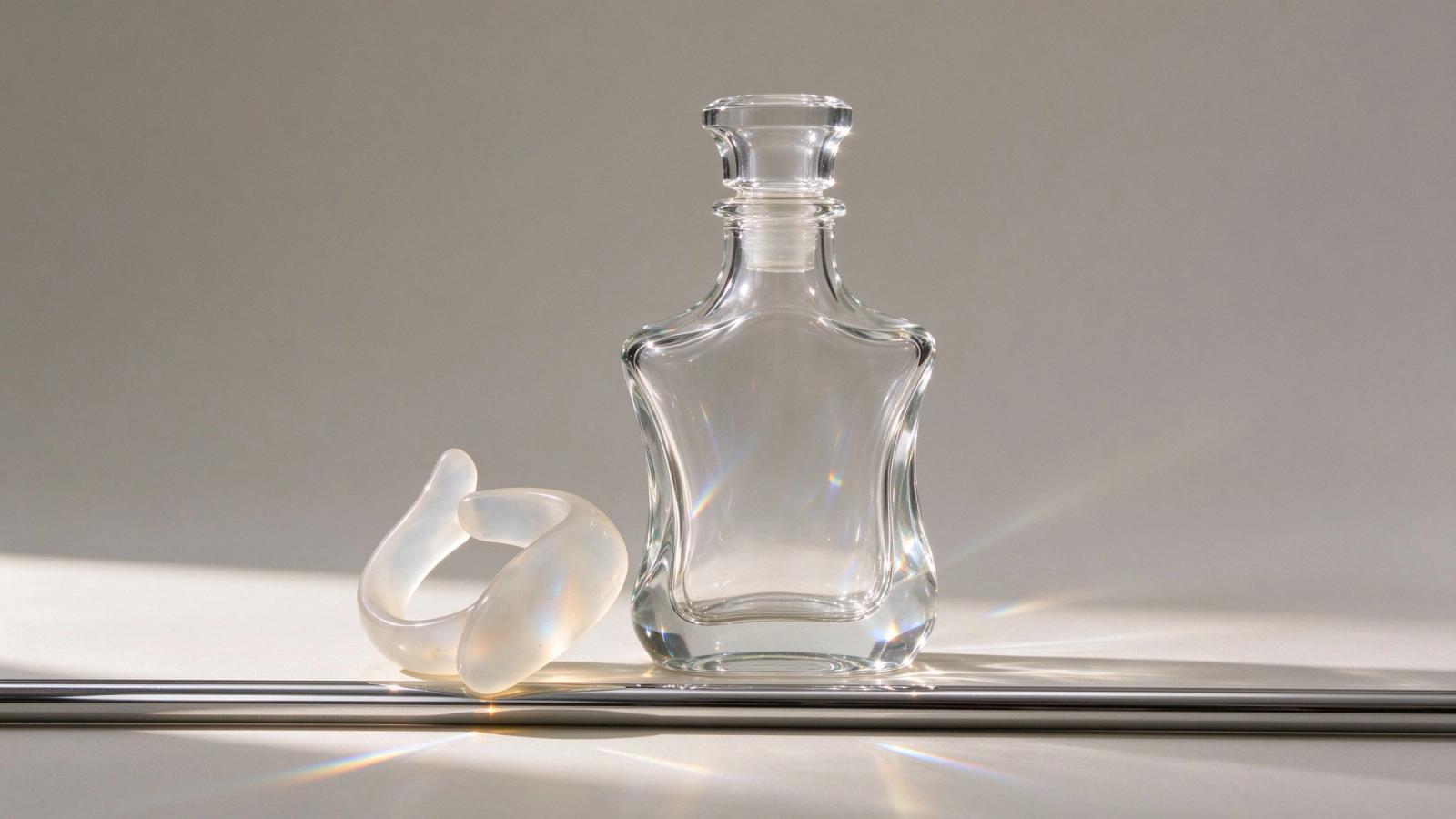
The previews describe native RGBA output: an image with color channels and an alpha channel for transparency. Consider a perfume bottle with a transparent glass body. A reusable asset needs to preserve its edge and see-through areas when placed on another background. That would let a designer carry the approved bottle into a website banner, a square social post, or a seasonal composition while choosing a suitable backdrop for each.
For your own test, place the exported file over both a dark and a pale surface. Look for a solid rectangle, an unwanted halo, or glass that has become opaque. A picture of a transparent object, including the illustration below, does not establish that the downloaded file has an alpha channel.
More Consistent Multi-Round Editing
Lumina emphasizes keeping an image coherent through a sequence of changes. This matters when feedback arrives in stages: the product team approves the bottle, the art director asks for warmer light, and the marketing team later changes the background. Each revision should build on the decisions already made.
For a product team, the useful result is a new variation whose bottle shape, label position, and material treatment still match the approved reference. The campaign workflow below turns that goal into a focused revision sequence.
Text Rendering and Multilingual Layouts
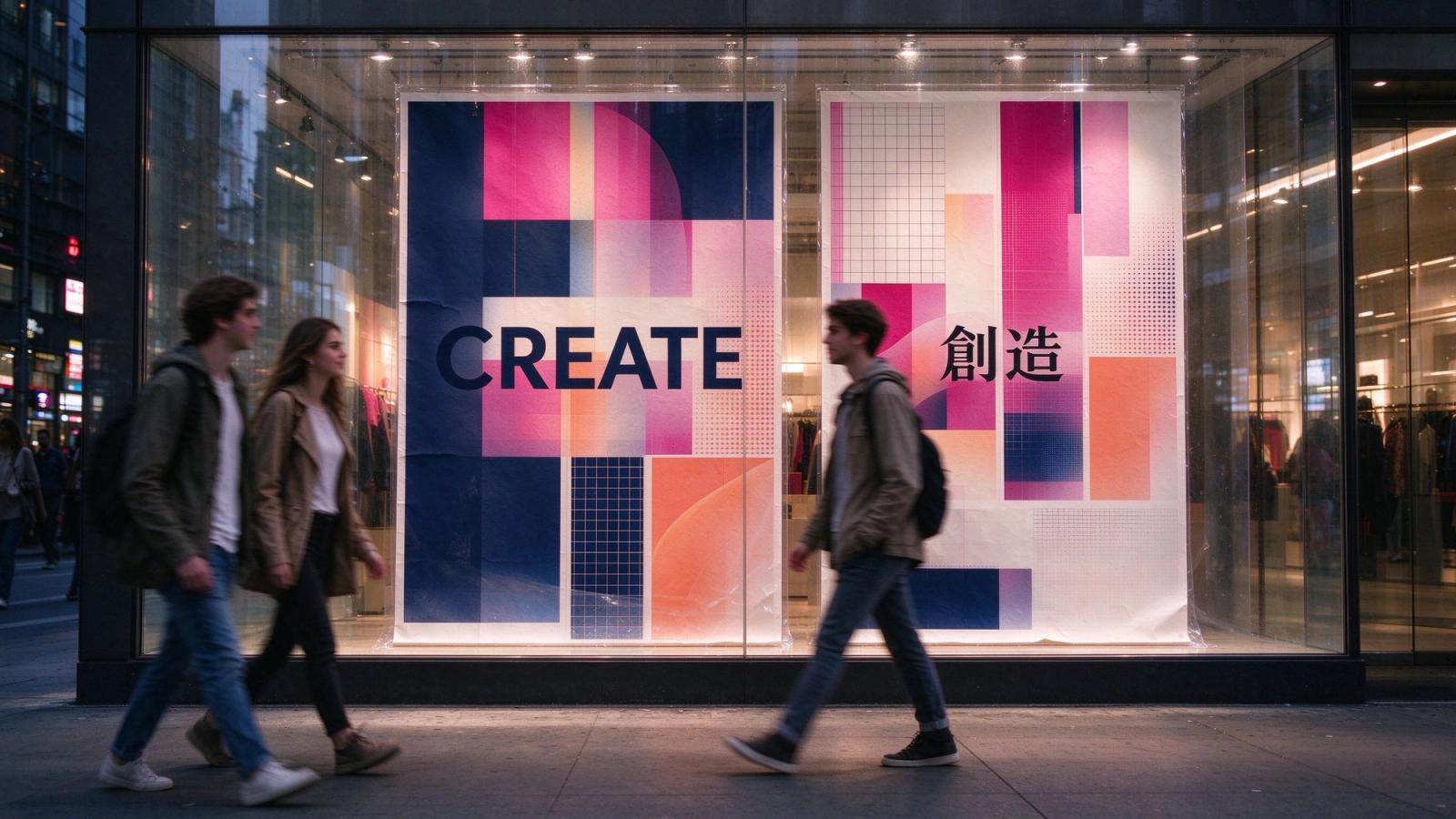
The official previews also emphasize typography and multilingual text. A campaign may need an English headline and a Chinese adaptation with different length, rhythm, and line breaks. Keeping a shared product reference and visual direction can help the two versions belong to the same campaign while leaving each language enough space to read naturally.
A clear reading order should hold from the headline down to the supporting line. Small product details need their own review: a convincing headline alone provides little evidence about the accuracy of fine print.
Three Workflows for One Perfume Campaign
Imagine launching one perfume with a website banner, a square social post, and separate English and Chinese creative. Start with the same approved bottle reference, then plan how its assets, copy, and revisions will carry across those formats. The following is a creative brief you can test with Seedream 5.5 on APIXO, not a completed case study.
Reuse Layers Across Campaign Formats
Lumina's layer-separation guide already describes extracting selected elements with Seedream 5.0 Pro. Its model overview explains the value of moving and rearranging those elements in later design work. On APIXO, Seedream 5.5 layer decomposition returns these elements as separate transparent PNG layers.
For the perfume campaign, keep the bottle, leaf, and backdrop as separate assets where the chosen workflow supports it. In a wide banner, move the bottle right to make room for a headline. In a square post, bring it closer to the center and reposition the leaf around the copy. The benefit is carrying the approved product treatment into several layouts, with fewer decisions to rebuild for each format.
Review extracted edges and the background behind moved objects. Separate PNG elements are useful design assets, but they do not establish that the service restores an original PSD or creates native editable type layers.
Localize the Message and Its Layout
Prepare the final copy for each market. For example, an English direction such as “Fresh Notes, Every Day” and a Chinese adaptation such as “清新香气,日常相伴” give the campaign different text lengths. Allow each version its own line breaks and spacing while retaining the bottle, palette, and lighting direction.
Keep the product name and other fixed details consistent. Review headline, supporting copy, and small print separately at the intended display size. For delivery-critical wording, retain a clean composition with room to finish text in a design tool. The value is a recognizable campaign across languages, with copy that fits each layout naturally.
Carry Approved Decisions Through Revisions
Use a short revision sequence: replace the background, adjust the cap finish, then change the lighting. For each request, name the target and the details to preserve. Compare with the approved reference after every step and save the accepted version before continuing. Lumina's 5.0 Pro workflow guide also separates initial composition from targeted revisions.
If the bottle outline shifts, return to the last accepted version and narrow the next change. If the label becomes difficult to read, isolate that issue before making another scene-wide adjustment. A useful editing workflow preserves previous approvals and reduces repeated review. These are the outcomes to measure in your own multi-round tests.
Your First Evaluation: Inputs, Tasks, and Acceptance Checks
Start with the task closest to your delivery needs, record its inputs and results, and then decide whether to expand to the other workflows:
- Multiple campaign formats: Prepare an approved bottle reference and layout requirements for a banner and a square post. Test asset extraction and rearrangement, then inspect edges, newly exposed background, and bottle proportions. On APIXO, choose Layer Decomposition and set the maximum number of layers.
- English and Chinese creative: Prepare the same product reference and final copy for both languages. Arrange text space and line breaks separately, then review wording, punctuation, and reading order at the intended display size. Finish typography in a design tool when needed.
- Sequential revisions: Prepare an approved draft and an ordered list of changes. Change one main target per round, compare the bottle outline, label, and materials with the reference, and save accepted versions so you can return to them if details drift.
A Reusable Editing Prompt Template
This is a creative request template to try in the Seedream 5.5 workspace, not an API request or a verified generation result. Change the requested edit for each round and use the accepted version as a reference. Inspect the actual output to determine whether it meets the brief.
Task: Create an English campaign banner for the same perfume.
Reference: Use the approved perfume bottle image.
Requested edit: Replace the background with a warm gray stone setting.
Preserve: Bottle outline, cap material, label position, and label wording.
Composition: Place the bottle on the right and leave headline space on the left.
Headline: Fresh Notes, Every Day.
Acceptance check: Compare product details with the reference and check every word.
If the next round changes only the lighting, retain the brief and state the new lighting requirement. For wording that must be exact, leave space to finish typography in a design tool.
What Should You Check Before Moving from Seedream 5.0 Pro?
Keep your current workflow available until you have tested the new version on your own material. Reuse a reference image and a small set of prompts so you can compare the result under similar conditions.
- Product fidelity: Does the bottle retain its shape, cap, and label placement?
- Revisions: Do approved details survive the next requested edit?
- Text: Are every word, character, and line break usable at the final size?
- Export: Does the saved format support the transparency your design needs?
- Delivery cost: How many retries and manual corrections does one usable asset require?
Treat generation, localized editing, and layer decomposition as separate capabilities. ModelArk already documents interactive editing and layer decomposition for 5.0 Pro. The relevant comparison is how 5.5 performs in your workflow, including which features the selected interface exposes.
How Do I Use Seedream 5.5 on APIXO?
Seedream 5.5 has been available on APIXO since November 6, 2026. Open the Seedream 5.5 model page to generate in your browser: text-to-image, image-to-image with up to 10 reference images, and layer decomposition. Set the background to Transparent for PNG output with an alpha channel.
Developers can call it through the API with the model ID seedream-5-5. The API documentation lists the parameters, request examples and billing rules.
If you already work with Seedream 5.0 Pro on APIXO, run the same reference images and copy through 5.5 to compare the results.
The Start creating button opens the APIXO image generator, where Seedream 5.5 is available alongside other image models.
Frequently Asked Questions
Will Seedream 5.5 Generate Transparent Images?
Native transparency is described in the official product previews. Confirm the supported export format in your chosen service and inspect the saved file's alpha channel.
Can Seedream 5.5 Split an Image into 100 Layers?
Subsequent internal documentation specifies up to 100 layers. With text recognition enabled, regular text layers return PNG files and structured recognition data; further copy changes take place in an editing tool. Our layer-separation demonstration and explanation shows a drinks poster being rearranged. On APIXO, set Maximum Layers from 2 to 100 (including the base image) and turn on Text Recognition.
What Does the 85-Round Seedream 5.5 Editing Demo Show?
A later official demonstration replaces clothing on the same person and street scene, with 85 editing rounds marked on screen. It illustrates consistency in that example, rather than guaranteeing the same number of rounds for every input. In the multi-round editing video and guide, compare the face, pose, hair, and background as the clothing changes.
Is Seedream 5.5 Better Than Seedream 5.0 Pro?
That requires testing on the tasks you care about. The previews highlight areas for improvement, while a meaningful comparison needs the same references, prompts, revision sequence, and output requirements.
How Much Does Seedream 5.5 Cost on APIXO?
API output images are billed by pixel count: up to 2,601,123 pixels, the regular price is $0.020 per image ($0.014 during Black Friday); from 2,601,124 to 4,624,220 pixels, it is $0.035 ($0.0245 during Black Friday). Each input image is billed separately, including the first: $0.008 regularly, or $0.0056 during Black Friday. These promotional prices already include the 30% discount. Studio displays prices in Credits. For current API rates and specifications, see API pricing.
What Should I Prepare for My First Test?
Gather an approved product reference, exact copy for each language, a list of details to preserve, and a short sequence of edits. These make a useful test set for your first session.
Related Resources and Next Steps
- Seedream 5.5 model page: Follow integration and availability updates.
- APIXO image model directory: Browse other image models and choose which products to explore for your creative task.
- Seedream 5.5 highlights guide: Explore precise editing, image quality, multilingual text, transparency, layer separation, and 4K dimensions through official images and three videos.
Build with APIXO
Explore image, video, and audio models in one place.