apixo_setup, sign in and approve in the browser, then call apixo_finish_setup. The checks below follow that order.
Browser setup did not open or finish
Symptom.apixo_setup returns PENDING_APPROVAL, but a browser does not open; or apixo_finish_setup reports that approval has not completed.
- Open the returned URL yourself. Use the
verification_urlfromapixo_setupin a browser, sign in to APIXO, and approve the device. - Return to the same client conversation. Call
apixo_finish_setupafter approval. If it still reportsPENDING_APPROVAL, wait for the browser confirmation and try the tool again. - Start over after expiry. If the approval expired, call
apixo_setupagain to begin a new browser approval. - Restart the client if needed. Restart or reload the MCP client after changing its MCP configuration, then repeat the setup flow.
A tool says the API key is missing or a request returns 401
Symptom. A model, generation, batch, or balance tool reports that setup is incomplete, the API key is missing, or the request is unauthorized.- Call
apixo_setup, complete the browser sign-in and approval, then callapixo_finish_setup. - If the device key was revoked in Dashboard → API Keys, repeat browser setup to authorize a new device key.
- If the client still uses a stale local credential after a revocation, remove that local credential only as local cleanup and restart the client before setting up again. This does not revoke or log out the device on the APIXO service; Dashboard key revocation is the formal server-side action.
- If this is CI, a browserless environment, or a local debugging session, use the advanced
APIXO_API_KEYoverride described in Installation.
CLI not found on PATH
Symptom. Step 1 of Installation fails withcodex : 无法将"codex"项识别为 cmdlet… on Windows, or command not found: codex (or claude) on macOS or Linux.
The steps below use Codex on Windows as the example. For Claude Code, find its install folder, add it to PATH, and open a fresh terminal.
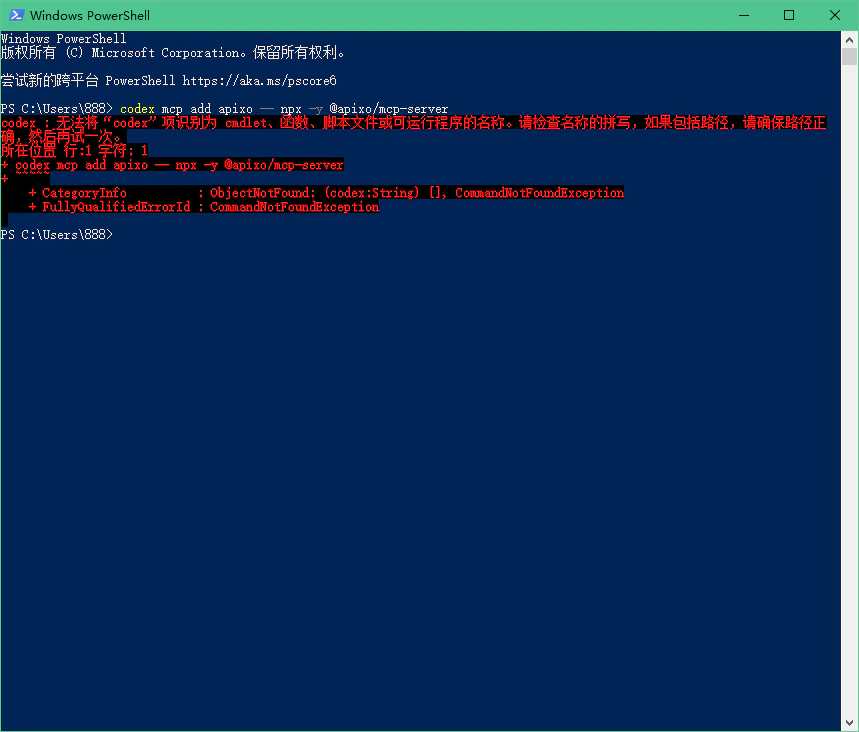
Confirm Codex is installed (Windows)
Run the executable by full path. A per-user Codex installation commonly uses%LOCALAPPDATA%\OpenAI\Codex\bin:
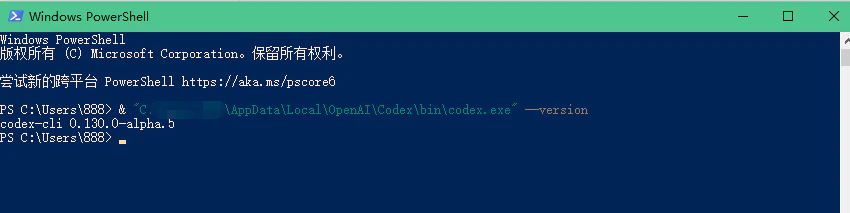
Add the Codex bin folder to your user PATH (Windows)


npx cannot fetch @apixo/mcp-server
Symptom. The server fails to start with npm ERR! 404 Not Found or an npx network timeout.
-
Check Node.js and npm. APIXO MCP requires Node.js
>= 20and npm>= 9: -
Verify the package resolves. Run:
If it fails, check your npm registry with
npm config get registry. It should behttps://registry.npmjs.org/or a mirror that proxies it. -
Pre-warm the package cache. Run:
The next client launch can use the cached package.
No tools listed in the client
Symptom. Theapixo server appears in your client but no tools are available.
- Wait a few seconds, then refresh the client. The first launch may need to download the package.
-
Inspect the MCP server logs in the client settings. Look for messages from
apixo-mcp-serverand correct a Node.js ornpxerror first. -
Check the registration from a terminal when your client provides a CLI. For example:
- Restart the MCP client after the server starts successfully.
Still stuck?
- Re-read Installation and repeat the flow from registration through
apixo_finish_setup. - Confirm you can sign in to the APIXO Dashboard in the browser.
- Contact APIXO support with the client log,
node --version,npm --version, and the output ofnpx -y @apixo/mcp-server --help. Never include an API key, MCP token, or credential file contents.