
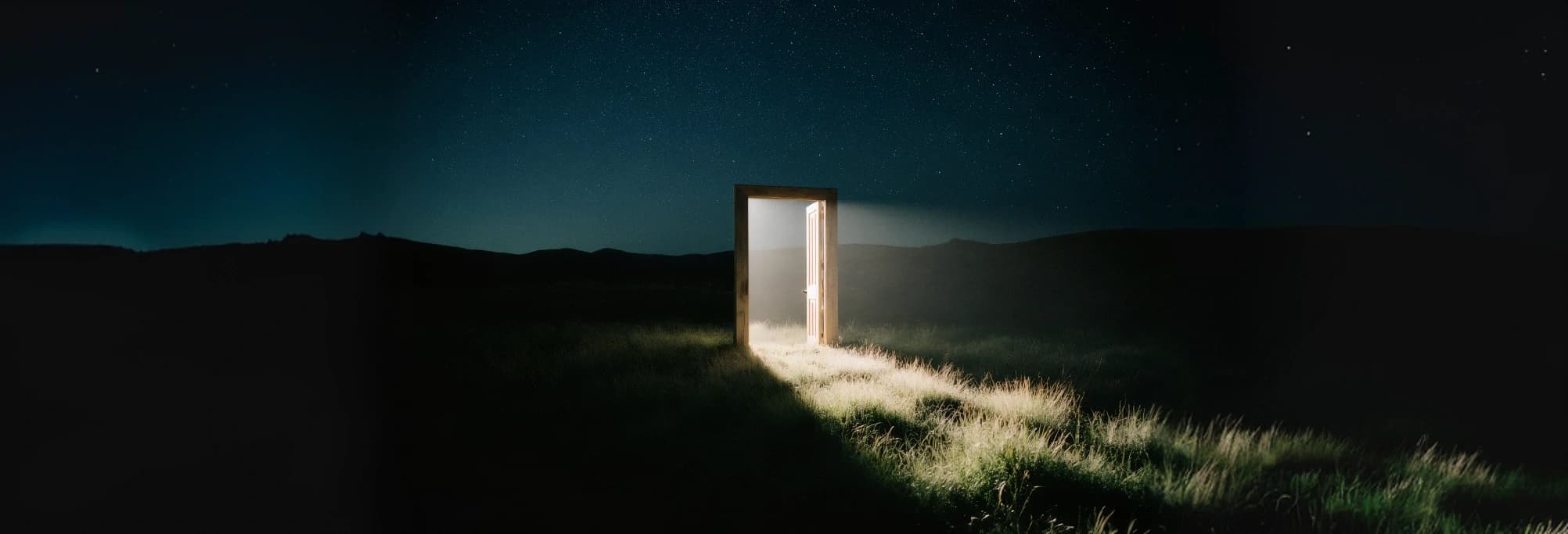
Grok Imagine Image 2.0 is a separate APIXO route. It returns one image per task, accepts up to 5 reference images for editing, and adds an Auto frame that follows the first reference. Grok Imagine Image remains available for workflows that already use it.
我们注意到您可能偏好使用 简体中文. 要切换语言吗?
Il semble que vous préfériez Français. Souhaitez-vous changer de langue ?
Es scheint, Sie bevorzugen Deutsch. Möchten Sie die Sprache wechseln?
Parece que prefieres Español. ¿Te gustaría cambiar de idioma?
Sembra che tu preferisca Italiano. Vuoi cambiare lingua?
優先言語は次のようです 日本語. 言語を切り替えますか?
선호하시는 언어는 다음과 같습니다 한국어. 언어를 변경하시겠습니까?
Похоже, вы предпочитаете Русский. Хотите сменить язык?
Tercih ettiğiniz dil Türkçe. Dili değiştirmek ister misiniz?
Wygląda na to, że wolisz Polski. Czy chcesz zmienić język?
Black Friday: Up to 66% off most AI models.
Explore the deals

Grok Imagine Image 2.0
Create a polished image from a written brief, or edit and combine up to 5 reference images with Grok Imagine Image 2.0. Use it for concept art, product scenes, posters with headline text, and quick revisions that keep the parts of a picture you want to retain.
Create with Grok Imagine Image 2.0
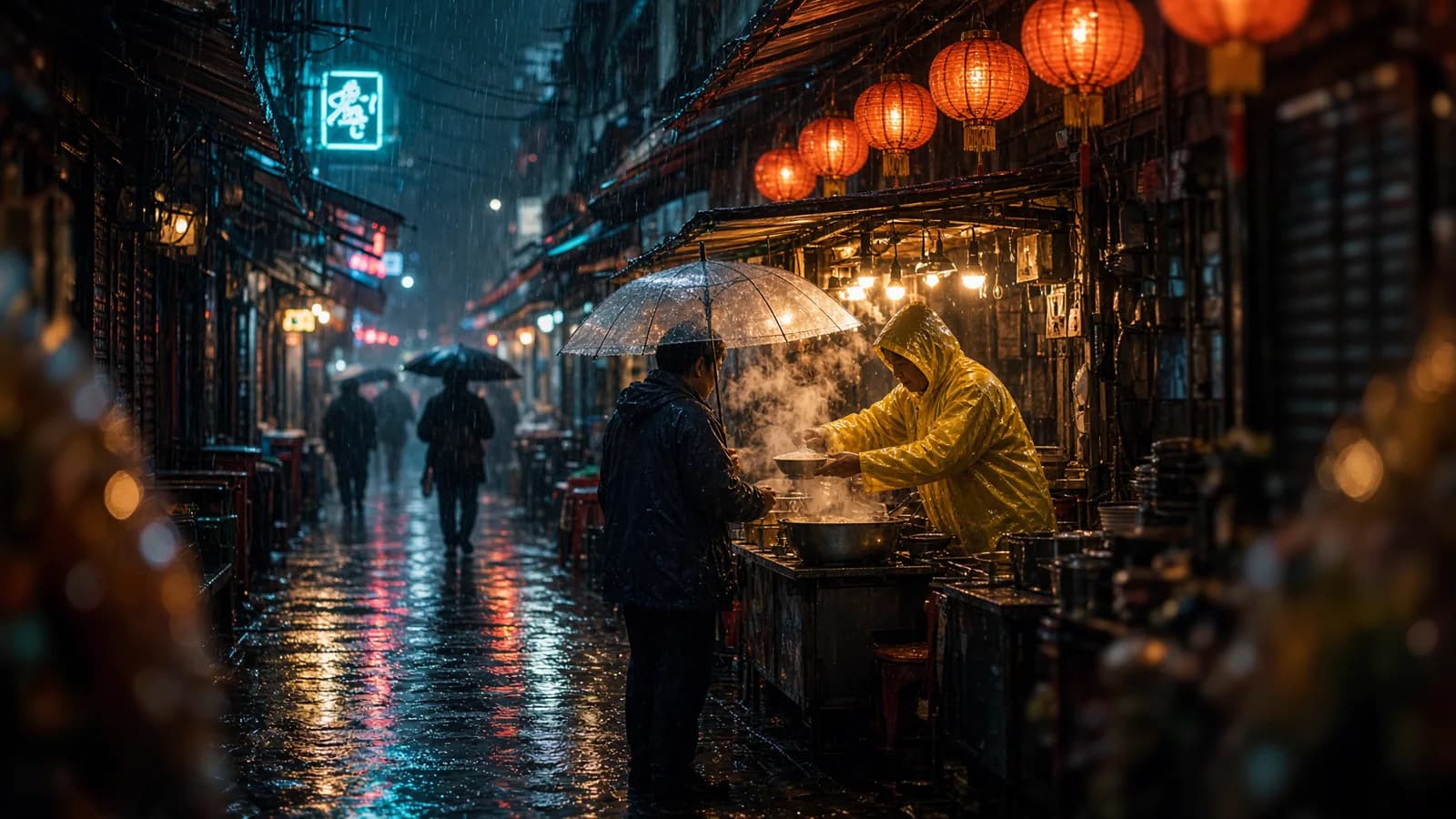
Creative Capabilities
Direct the image, then keep refining it
The controls that matter when an image has to fit a real project.
Photographic and illustrated styles
Ask for a lens-based photograph, a painterly illustration, or a flat graphic treatment in the same brief format. Name the medium first, then describe the light and texture you expect to see.
Text inside the design
Headlines, dates, and short labels can be part of the composition. Quote the exact words, say where they belong, and describe the type style so the lettering reads as designed rather than added later.
Up to 5 references
Bring a product, a location, and a style cue into one edit. Keep the order clear and give each image a role so the result reads as one coherent scene.
Targeted edits
Change the weather, time of day, background, or styling while the subject and camera angle stay put. Describe the change precisely and list what must remain the same.
Frames for every placement
Choose square, portrait, landscape, or widescreen framing up front, or let edits follow the first reference with Auto. Composing for the destination beats cropping afterward.
Long, detailed briefs
Prompts can run up to 8,000 characters, enough for a full art-direction brief covering subject, set, wardrobe, light, palette, and copy placement.
APIXO Workflows
Start from words or from pictures
Text-to-Image Generation
Describe a new image from scratch. Lead with the subject and medium, then add setting, light, palette, and framing. Pick one of five aspect ratios for the destination.
Text-to-Image
Image-to-Image Editing
Upload one to five references and describe the change. Edit a single picture, restyle it, or merge several into a new scene, with Auto framing that follows the first reference.
Image-to-Image
APIXO Configuration
Controls available on this route
Two modes, up to 5 references, and 5 fixed frames plus automatic framing for edits.
Text-to-Image / Image-to-Image
Modes
Up to 5 images
Reference Images
5 options + Auto
Aspect Ratios
Up to 8,000 characters
Prompt Length
1 image per task
Output
Async / Callback
Delivery
Production Uses
From a rough idea to an image you can ship
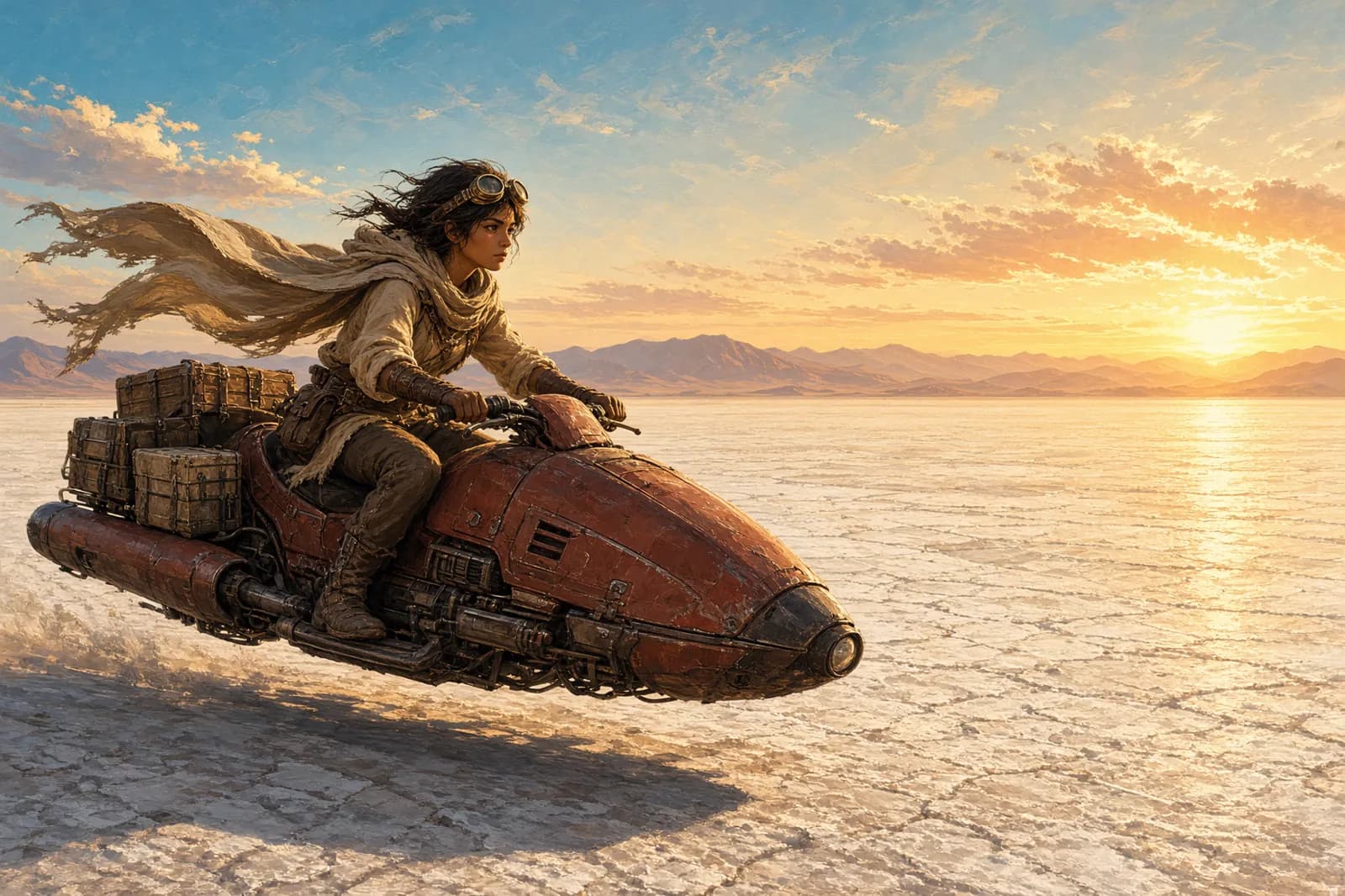
Concept Art
Concept art with a clear silhouette
Sketch characters, vehicles, and worlds for games, comics, and pitch decks. Describe the costume, the vehicle, the light, and where the subject sits in the frame, then compare a few directions before committing to detailed illustration work.
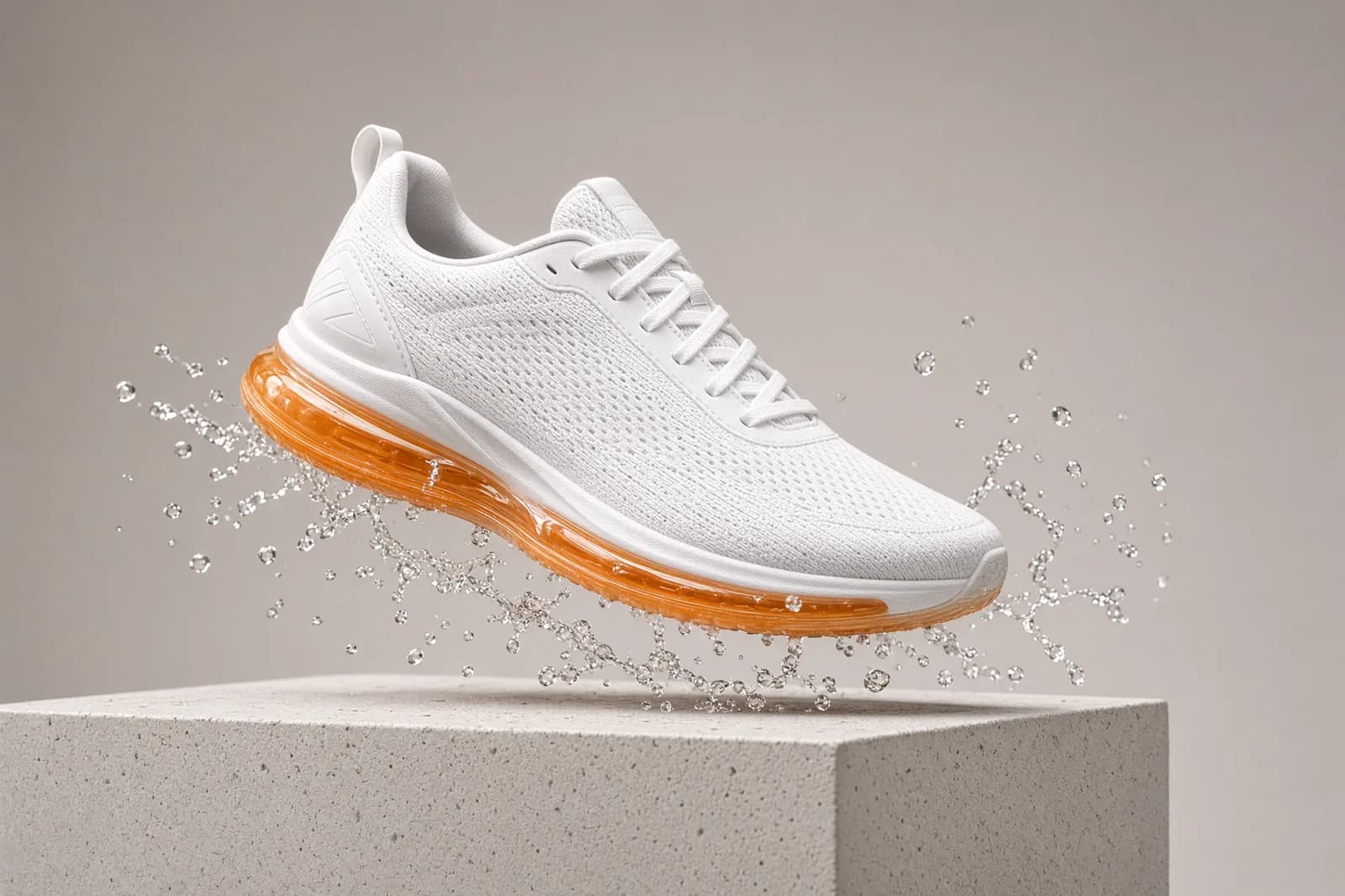
Product Imagery
Product shots with room for copy
Stage a product on a plinth, in motion, or surrounded by water, dust, or light. Ask for empty space on one side so the image can carry a headline or price later, and check stitching, reflections, and proportions before it goes into a campaign.
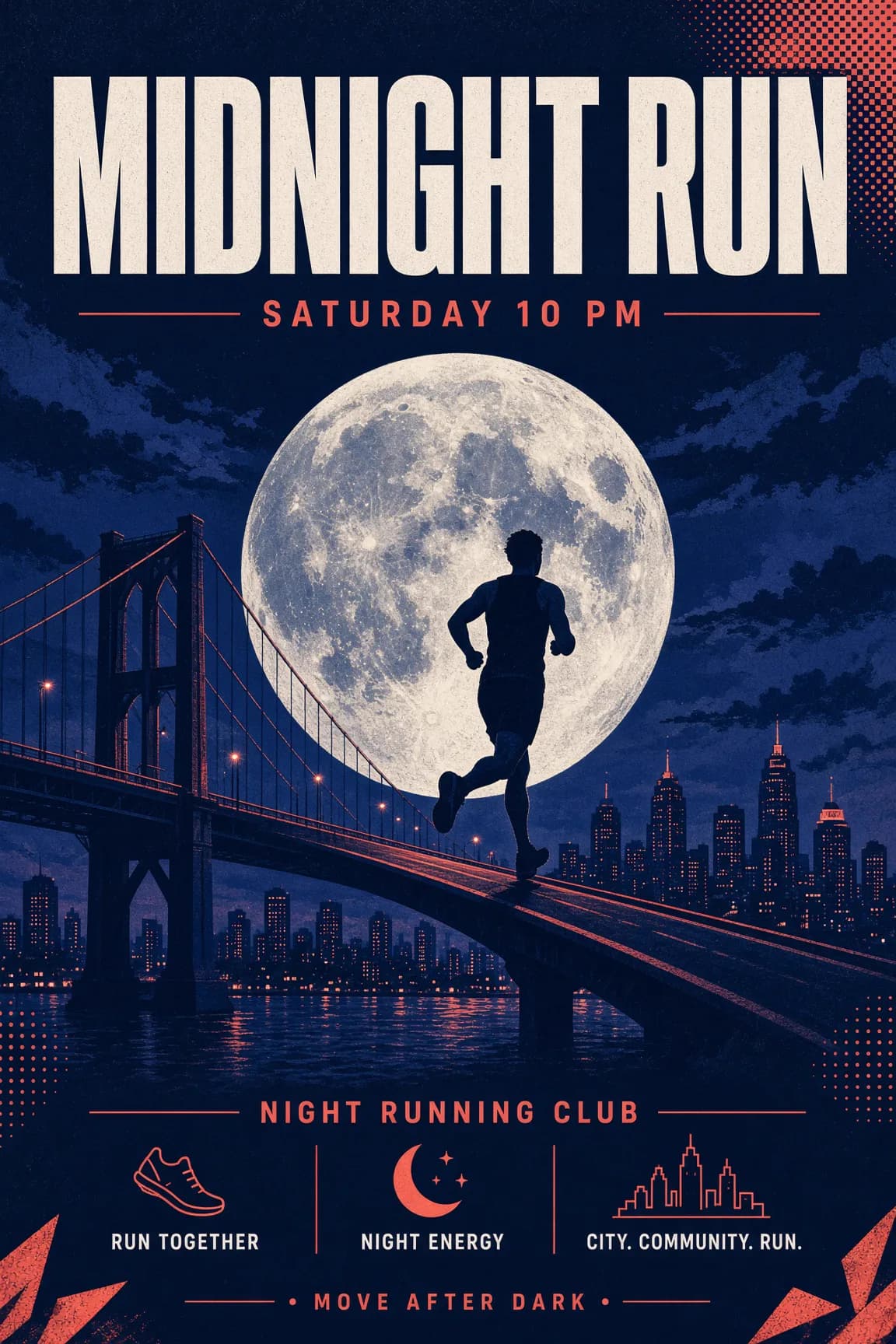
Posters & Social Graphics
Posters with readable headlines
Put the exact wording in quotes and describe its size and position. The model lays out headlines, dates, and short taglines as part of the design, which makes it practical for event posters, announcements, and social tiles. Proofread every word before publishing.
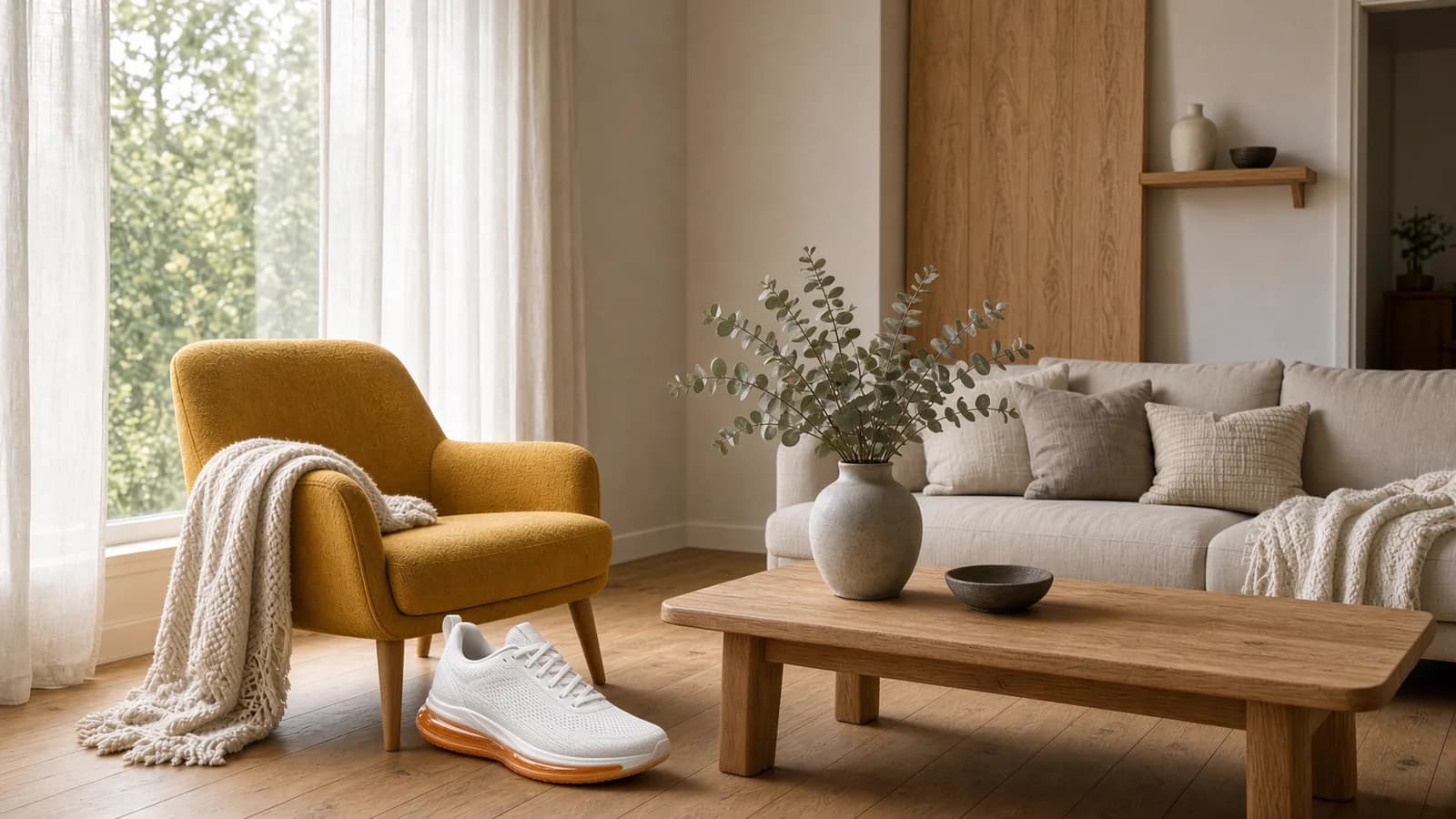
Multi-Reference Editing
One product, a new setting
Combine up to 5 images in one request: a product from one, a room from another, a style cue from a third. Say what each reference contributes and what must stay unchanged, such as the product's shape, color, and material.
API Workflow
Brief, generate, refine
Pick a mode
Use text-to-image for a new picture. Switch to image-to-image and upload up to five references when you want to edit, restyle, or combine existing images.
Write the brief
Describe the subject, setting, light, palette, and framing. For edits, name what should change and what should stay, and refer to references by their order. Quote any text that must appear in the image.
Review and iterate
Inspect the result at full size, download what you want to keep, and send it back as a reference with a new instruction for the next revision. The API tab shows the same request for your application.
Notes & FAQ
Before you build with Grok Imagine Image 2.0
Practical notes
01
Reference images must be publicly accessible URLs. Up to 5 can be sent per request, and their order is preserved.
02
The Auto aspect ratio follows the first reference image when editing and produces a square image for text-to-image.
03
Proofread generated lettering and review faces, hands, and product details before publication.
04
Download and store important outputs promptly.
Frequently Asked Questions
A prompt is required for text-to-image. For image-to-image it is optional, but a short instruction describing the change usually gives a more predictable edit than references alone.
References are used in the order you upload them. Refer to them as the first image, the second image, and so on, and explain what each one contributes, such as the subject, the location, or the style.
Text-to-image supports 1:1, 2:3, 3:2, 16:9, and 9:16, with 1:1 as the default. Image-to-image supports the same ratios plus Auto, which keeps the frame of the first reference.
Each successful task returns 1 image. Submit another task to explore a different direction.
Grok Imagine Image 2.0 costs 40 Credits per generated image in both modes. Reference images add no separate charge, and failed tasks are refunded.
Poll the task status about 10 seconds after submission and then every few seconds, or use a webhook callback. Parse resultJson once the task succeeds. See the API documentation for request and response examples.
Explore Other Models
Discover more AI models for your next creative workflow
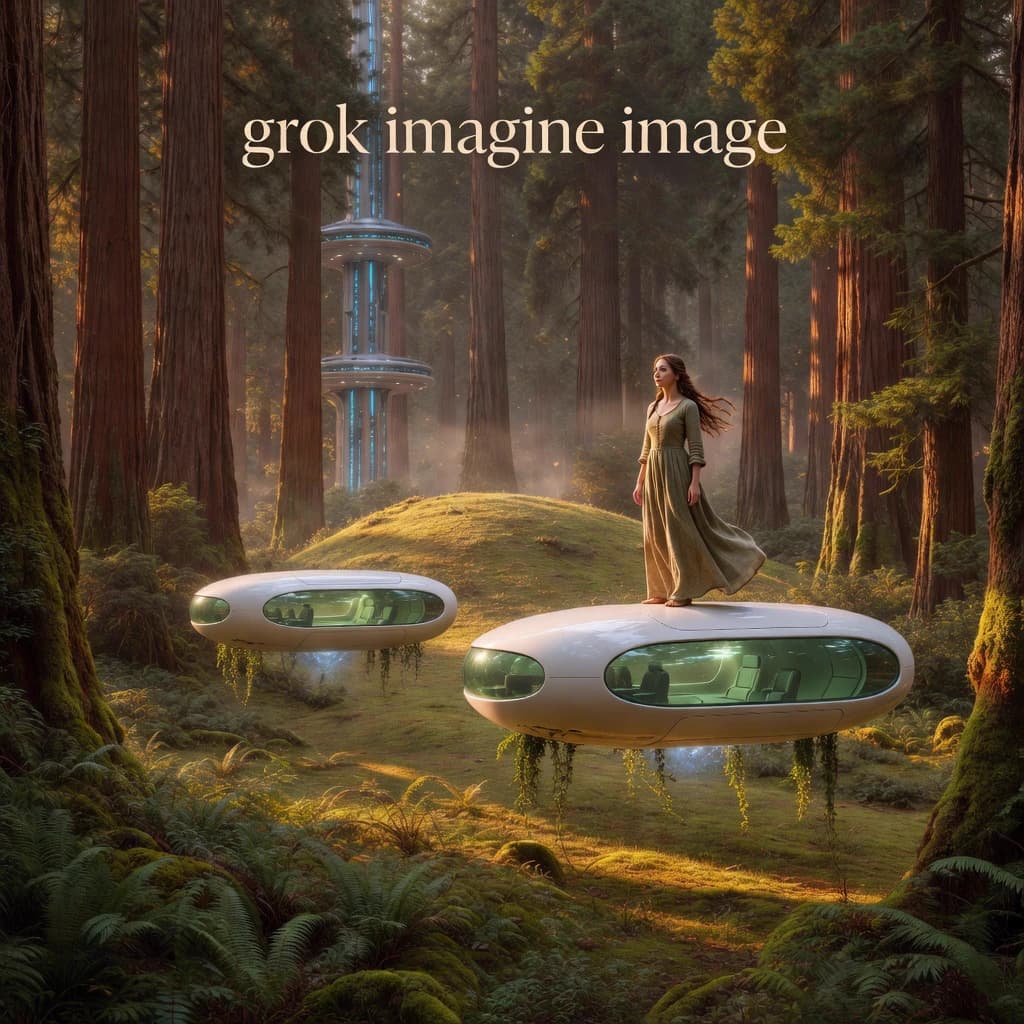
xai

Grok Imagine Image
Use xAI’s Grok Imagine Image API through APIXO for text-to-image and single-reference editing with three aspect ratios and six text-to-image outputs.
ImageNew
40 Credits/pic Image
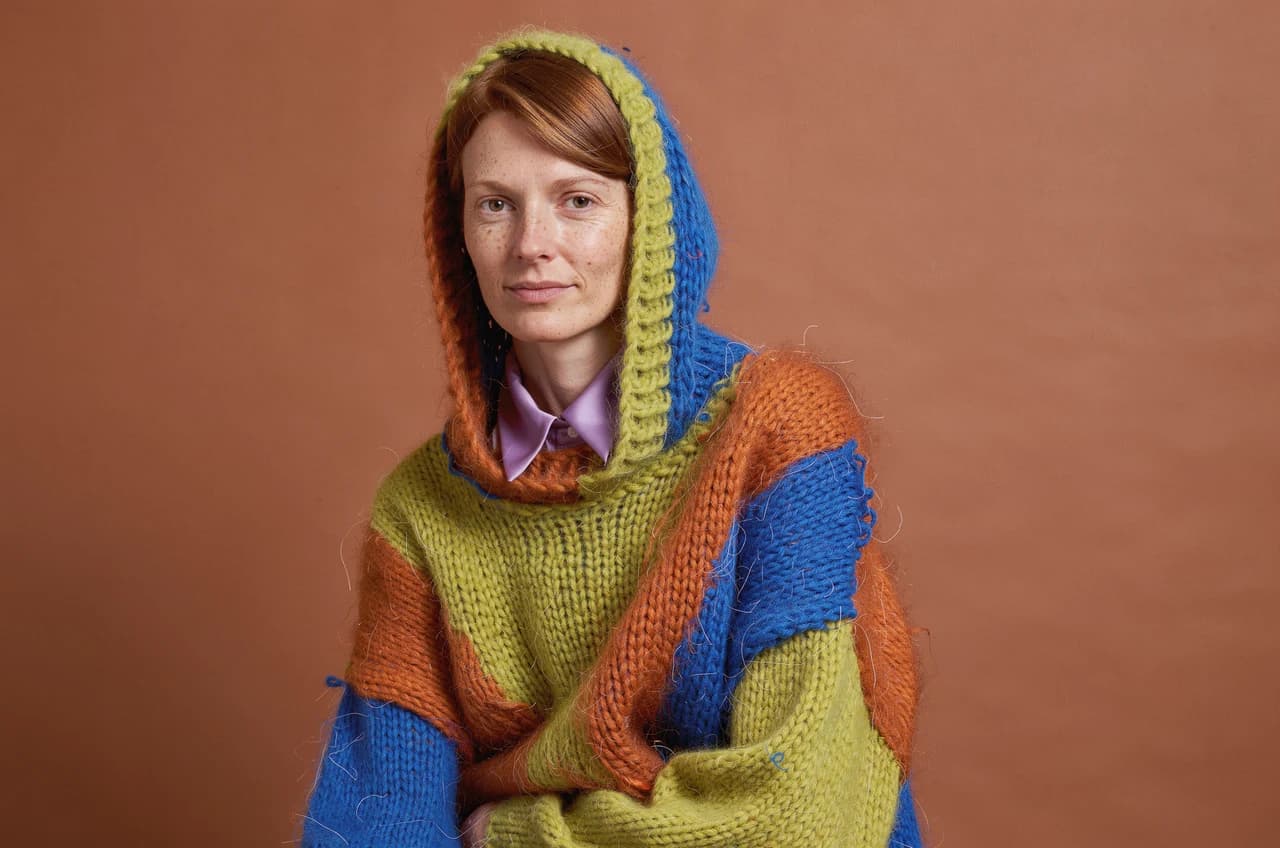
Black Forest Labs


FLUX 3 Image
Create and edit with FLUX 3 Image on APIXO: 1K / 2K / 4K images, up to 10 references, flexible framing, and resolution-based pricing.
ImageNew
50 Credits/pic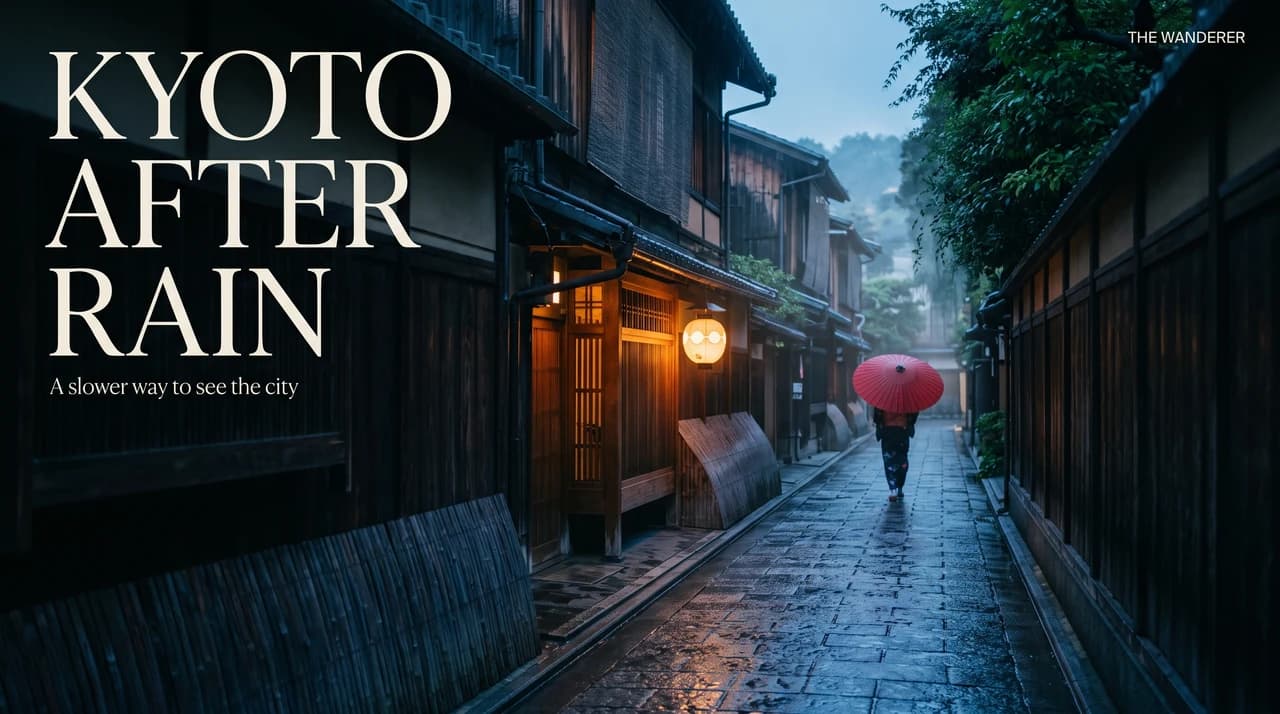
Google

Nano Banana 2.1
Create and edit with Nano Banana 2.1 on APIXO: 1K / 2K / 4K images, up to 10 references, flexible framing, and resolution-based pricing.
ImageNew
40 Credits/pic