> ## Documentation Index
> Fetch the complete documentation index at: https://apixo.ai/docs/llms.txt
> Use this file to discover all available pages before exploring further.
# MCP Troubleshooting
> Fix common APIXO MCP install issues across MCP clients
This page collects the issues most people hit when installing APIXO MCP. Start with the symptom that matches and work down the fixes in order. Most fixes apply to any MCP client (Cursor, Claude Code, Codex, Claude Desktop, Windsurf, …); a few are specific to Codex on Windows and are clearly labelled.
## CLI not found on PATH
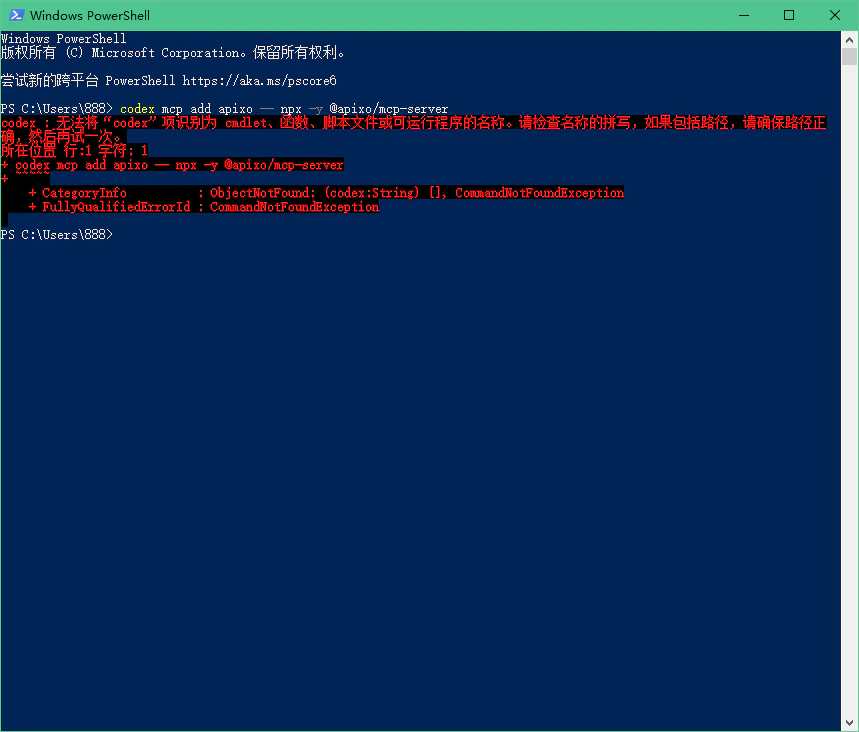
**Symptom.** Step 2 of [Installation](/integrations/mcp/installation#step-2-register-the-mcp-server) fails with `codex : 无法将"codex"项识别为 cmdlet…` on Windows, or `command not found: codex` (or `claude`) on macOS / Linux.
The fixes below use Codex on Windows as the worked example because that combination produces the most no-PATH issues. For Claude Code, the same idea applies: find the install folder, add it to PATH, then open a new terminal.
 ### Fix 1 — Confirm Codex is actually installed (Windows)
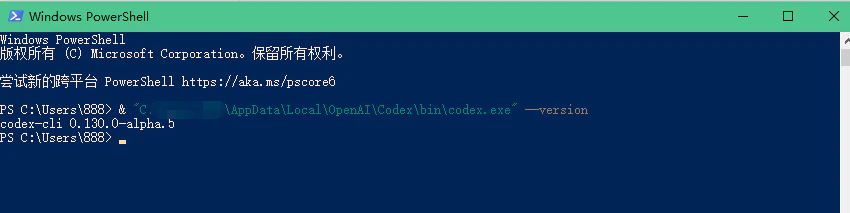
Run the executable by full path. If you installed Codex for your user, it usually lives under `%LOCALAPPDATA%\OpenAI\Codex\bin`:
```powershell theme={null}
& "C:\Users\YOUR_USER\AppData\Local\OpenAI\Codex\bin\codex.exe" --version
```
If this prints a version number, the binary is installed; the only thing missing is the PATH entry.
### Fix 1 — Confirm Codex is actually installed (Windows)
Run the executable by full path. If you installed Codex for your user, it usually lives under `%LOCALAPPDATA%\OpenAI\Codex\bin`:
```powershell theme={null}
& "C:\Users\YOUR_USER\AppData\Local\OpenAI\Codex\bin\codex.exe" --version
```
If this prints a version number, the binary is installed; the only thing missing is the PATH entry.
 ### Fix 2 — Add the Codex bin folder to your user PATH (Windows)
```powershell theme={null}
$codexBin = "C:\Users\YOUR_USER\AppData\Local\OpenAI\Codex\bin"
$userPath = [Environment]::GetEnvironmentVariable('Path', 'User')
if ($userPath -notlike "*$codexBin*") {
[Environment]::SetEnvironmentVariable('Path', "$userPath;$codexBin", 'User')
}
```
What this script does:
* Defines `$codexBin` as the Codex executable folder.
* Reads the **user-level** PATH (not the system one).
* Skips appending if PATH already contains that folder.
* Writes the new PATH back at user scope.
After this, you can run `codex` directly from a new terminal without typing the full path.
### Fix 2 — Add the Codex bin folder to your user PATH (Windows)
```powershell theme={null}
$codexBin = "C:\Users\YOUR_USER\AppData\Local\OpenAI\Codex\bin"
$userPath = [Environment]::GetEnvironmentVariable('Path', 'User')
if ($userPath -notlike "*$codexBin*") {
[Environment]::SetEnvironmentVariable('Path', "$userPath;$codexBin", 'User')
}
```
What this script does:
* Defines `$codexBin` as the Codex executable folder.
* Reads the **user-level** PATH (not the system one).
* Skips appending if PATH already contains that folder.
* Writes the new PATH back at user scope.
After this, you can run `codex` directly from a new terminal without typing the full path.
 ### Fix 3 — Open a fresh terminal and verify
PATH changes do not apply to terminals that were already open. Close the current PowerShell window, open a new one, and confirm:
```powershell theme={null}
codex --version
```
### Fix 3 — Open a fresh terminal and verify
PATH changes do not apply to terminals that were already open. Close the current PowerShell window, open a new one, and confirm:
```powershell theme={null}
codex --version
```
 ### Fix 4 — Re-run the install command
```bash theme={null}
codex mcp list
```
If this prints `No MCP servers configured yet`, go back to [Step 2](/integrations/mcp/installation#step-2-register-the-mcp-server) and run `codex mcp add apixo -- npx -y @apixo/mcp-server` again.
## API key not picked up
**Symptom.** Tool calls return an error like `APIXO_API_KEY is not set` or every request fails with a 401.
* **Restart the client.** MCP clients read environment variables at launch. If you set `APIXO_API_KEY` after starting Cursor / Claude Code / Codex / etc., fully quit and reopen the app.
* **Confirm the variable is set.** In a new terminal:
```bash theme={null}
echo $APIXO_API_KEY
```
On Windows PowerShell:
```powershell theme={null}
echo $env:APIXO_API_KEY
```
If this prints nothing, redo [Step 1](/integrations/mcp/installation#step-1-set-your-api-key).
* **Or set the key inside the client config.** Adding `env.APIXO_API_KEY` directly in the server descriptor avoids depending on shell environment variables. For Cursor, edit `~/.cursor/mcp.json`. For Claude Code, re-run `claude mcp add --env APIXO_API_KEY=... apixo -- npx -y @apixo/mcp-server`. For other clients, edit their `mcpServers` config block (see the [Other MCP clients tab in Step 2](/integrations/mcp/installation#step-2-register-the-mcp-server)).
* **Check the key is active.** Visit [Dashboard -> API Keys](https://apixo.ai/dashboard/api-keys) and confirm the key has not been revoked or rotated.
## npx cannot fetch @apixo/mcp-server
**Symptom.** The MCP server fails to start with errors like `npm ERR! 404 Not Found` or a network timeout from `npx`.
* **Check Node and npm versions.** APIXO MCP requires Node `>= 20` and npm `>= 9`:
```bash theme={null}
node --version
npm --version
```
If either is too old, install a newer version from [nodejs.org](https://nodejs.org) or via `nvm`.
* **Verify the package resolves.** Run:
```bash theme={null}
npm view @apixo/mcp-server version
```
This should print the latest version (for example `0.1.0`). If it errors, your npm registry is likely overridden — check `npm config get registry`. It should be `https://registry.npmjs.org/` or a mirror that proxies it (for example `https://registry.npmmirror.com/`).
* **Pre-warm the cache.** Sometimes the first `npx` call inside an MCP client times out because the download is slow. Run it once manually:
```bash theme={null}
npx -y @apixo/mcp-server --help
```
Once the package is cached locally, the client will start it instantly.
## No tools listed in the client
**Symptom.** The `apixo` server appears in your client but no tools (`apixo_list_models`, `apixo_generate_task`, …) are shown.
* **Wait a few seconds and refresh.** The first launch downloads the package from npm; the tool list only appears once the server is fully running.
* **Inspect the server logs.** Most MCP clients expose per-server logs in their settings panel — open the `apixo` server's log and look for messages starting with `[apixo-mcp-server]`. In Claude Code you can also run the `/mcp` slash command in a chat to see live status, and `claude mcp get apixo` to dump the current config. A missing `APIXO_API_KEY` produces a warning but does **not** prevent the server from registering tools — so if tools are still missing, the cause is usually a Node version issue or the `npx` step failing silently.
* **Run the server in a terminal.** This is the fastest way to confirm the binary works:
```bash theme={null}
APIXO_API_KEY=your_real_key npx -y @apixo/mcp-server
```
The server speaks MCP over stdio, so it will appear to hang — that's normal. If it crashes immediately with a stack trace, fix that error first.
## Still stuck?
* Re-read [Installation](/integrations/mcp/installation) to make sure no step was skipped.
* Check the underlying APIs work without MCP using [Quickstart](/quickstart).
* Open an issue at [APIXO support](https://apixo.ai/dashboard) with the full client log and the output of `node --version`, `npm --version`, and `npx -y @apixo/mcp-server --help`.
### Fix 4 — Re-run the install command
```bash theme={null}
codex mcp list
```
If this prints `No MCP servers configured yet`, go back to [Step 2](/integrations/mcp/installation#step-2-register-the-mcp-server) and run `codex mcp add apixo -- npx -y @apixo/mcp-server` again.
## API key not picked up
**Symptom.** Tool calls return an error like `APIXO_API_KEY is not set` or every request fails with a 401.
* **Restart the client.** MCP clients read environment variables at launch. If you set `APIXO_API_KEY` after starting Cursor / Claude Code / Codex / etc., fully quit and reopen the app.
* **Confirm the variable is set.** In a new terminal:
```bash theme={null}
echo $APIXO_API_KEY
```
On Windows PowerShell:
```powershell theme={null}
echo $env:APIXO_API_KEY
```
If this prints nothing, redo [Step 1](/integrations/mcp/installation#step-1-set-your-api-key).
* **Or set the key inside the client config.** Adding `env.APIXO_API_KEY` directly in the server descriptor avoids depending on shell environment variables. For Cursor, edit `~/.cursor/mcp.json`. For Claude Code, re-run `claude mcp add --env APIXO_API_KEY=... apixo -- npx -y @apixo/mcp-server`. For other clients, edit their `mcpServers` config block (see the [Other MCP clients tab in Step 2](/integrations/mcp/installation#step-2-register-the-mcp-server)).
* **Check the key is active.** Visit [Dashboard -> API Keys](https://apixo.ai/dashboard/api-keys) and confirm the key has not been revoked or rotated.
## npx cannot fetch @apixo/mcp-server
**Symptom.** The MCP server fails to start with errors like `npm ERR! 404 Not Found` or a network timeout from `npx`.
* **Check Node and npm versions.** APIXO MCP requires Node `>= 20` and npm `>= 9`:
```bash theme={null}
node --version
npm --version
```
If either is too old, install a newer version from [nodejs.org](https://nodejs.org) or via `nvm`.
* **Verify the package resolves.** Run:
```bash theme={null}
npm view @apixo/mcp-server version
```
This should print the latest version (for example `0.1.0`). If it errors, your npm registry is likely overridden — check `npm config get registry`. It should be `https://registry.npmjs.org/` or a mirror that proxies it (for example `https://registry.npmmirror.com/`).
* **Pre-warm the cache.** Sometimes the first `npx` call inside an MCP client times out because the download is slow. Run it once manually:
```bash theme={null}
npx -y @apixo/mcp-server --help
```
Once the package is cached locally, the client will start it instantly.
## No tools listed in the client
**Symptom.** The `apixo` server appears in your client but no tools (`apixo_list_models`, `apixo_generate_task`, …) are shown.
* **Wait a few seconds and refresh.** The first launch downloads the package from npm; the tool list only appears once the server is fully running.
* **Inspect the server logs.** Most MCP clients expose per-server logs in their settings panel — open the `apixo` server's log and look for messages starting with `[apixo-mcp-server]`. In Claude Code you can also run the `/mcp` slash command in a chat to see live status, and `claude mcp get apixo` to dump the current config. A missing `APIXO_API_KEY` produces a warning but does **not** prevent the server from registering tools — so if tools are still missing, the cause is usually a Node version issue or the `npx` step failing silently.
* **Run the server in a terminal.** This is the fastest way to confirm the binary works:
```bash theme={null}
APIXO_API_KEY=your_real_key npx -y @apixo/mcp-server
```
The server speaks MCP over stdio, so it will appear to hang — that's normal. If it crashes immediately with a stack trace, fix that error first.
## Still stuck?
* Re-read [Installation](/integrations/mcp/installation) to make sure no step was skipped.
* Check the underlying APIs work without MCP using [Quickstart](/quickstart).
* Open an issue at [APIXO support](https://apixo.ai/dashboard) with the full client log and the output of `node --version`, `npm --version`, and `npx -y @apixo/mcp-server --help`.